<?xml version="1.0" encoding="utf-8"?><feed xmlns="http://www.w3.org/2005/Atom" xml:lang="en"><generator uri="https://gohugo.io/" version="0.112.7">Hugo</generator><title type="html">batchworks.de</title><link href="https://www.batchworks.de/" rel="alternate" type="text/html" title="html"/><link href="https://www.batchworks.de/feed.xml" rel="self" type="application/atom+xml" title="Atom"/><updated>2026-01-02T15:57:51+00:00</updated><id>https://www.batchworks.de/</id><entry><title type="html">How tsidxWritingLevel affects storage size and performance</title><link href="https://www.batchworks.de/tsidx-storage-performance/?utm_source=atom_feed" rel="alternate" type="text/html" hreflang="en"/><id>https://www.batchworks.de/tsidx-storage-performance/</id><author><name>Andreas Roth</name></author><published>2022-03-15T00:00:00+00:00</published><updated>2022-03-15T00:00:00+00:00</updated><content type="html"><![CDATA[<p>Today we want to have a look at an index parameter and how it is affecting storage size and performance. In indexes.conf.spec you find the parameter tsidxWritingLevel.
This parameters will configure how splunk creates index files over your rawdata within a bucket. The parameter was introduced in v7.2 and updated in v7.3 and v8.1. This also sets the minimum splunk version for a bucket index, meaning you will not be able to read buckets created on v8.1 with level 4 on a v8.0 system.</p>
<p>Overview of splunk versions and default tsidxWritingLevel:</p>
<table>
<thead>
<tr>
<th>Splunk Version</th>
<th>available tsidxWritingLevel</th>
<th>default tsidxWritingLevel</th>
</tr>
</thead>
<tbody>
<tr>
<td>v8.2.0</td>
<td>1,2,3,4</td>
<td>2</td>
</tr>
<tr>
<td>v8.1.0</td>
<td>1,2,3,4</td>
<td>1</td>
</tr>
<tr>
<td>v8.0.0</td>
<td>1,2,3</td>
<td>1</td>
</tr>
<tr>
<td>v7.3.0</td>
<td>1,2,3</td>
<td>1</td>
</tr>
<tr>
<td>v7.2.0</td>
<td>1,2</td>
<td>1</td>
</tr>
<tr>
<td>v7.1.0</td>
<td>no setting, 1 assumed</td>
<td>1</td>
</tr>
</tbody>
</table>
<p>So if you want to benefit from the latest storage and performance improvements from Splunk Enterprise you have to increase this setting. As I haven&rsquo;t found any valid numbers besides <a class="gblog-markdown__link" href="https://docs.splunk.com/Documentation/Splunk/8.1.0/ReleaseNotes/MeetSplunk">&ldquo;up to 40% reduced storage&rdquo;*</a> what an increase of the parameter will mean in real world, i decided to test it out on my own.</p>
<p>When changing this setting, only new buckets will be created with the higher level. Old data which was produced with an older setting will not be converted.</p>
<div class="gblog-post__anchorwrap">
    <h2 id="test-scenario">
        Test scenario
        <a data-clipboard-text="https://www.batchworks.de/tsidx-storage-performance/#test-scenario" class="gblog-post__anchor gblog-post__anchor--right clip" aria-label="Anchor Test scenario" href="#test-scenario">
            <svg class="icon gblog_link"><use xlink:href="#gblog_link"></use></svg>
        </a>
    </h2>
</div><p>I created a test where I startup a single Instance on AWS, feed it with some logs, capture the time taken and the size of the tsidx files and repeat for every tsidxWritingLevel 3 times to validate the results.</p>
<p>test steps:</p>
<ul>
<li>run splunk on AWS instance: m5.xlarge (4vCPU, 16GB RAM), 30GB Storage, default SSD</li>
<li>set tsidxWritingLevel</li>
<li>ingest 950k Events (863MB of raw data) of RouterOS logfiles taken from a prod system</li>
<li>measure time needed for ingest (5 second interval) and the size of buckets created</li>
<li>repeat this test 3 times</li>
</ul>
<div class="gblog-post__anchorwrap">
    <h2 id="test-results">
        Test results
        <a data-clipboard-text="https://www.batchworks.de/tsidx-storage-performance/#test-results" class="gblog-post__anchor gblog-post__anchor--right clip" aria-label="Anchor Test results" href="#test-results">
            <svg class="icon gblog_link"><use xlink:href="#gblog_link"></use></svg>
        </a>
    </h2>
</div><ul>
<li>Splunk Enterprise v8.1.5</li>
</ul>
<table>
<thead>
<tr>
<th>run number</th>
<th>tsidxWritingLevel</th>
<th>time taken ingest</th>
<th>Bucket sizeOnDisk (MB)</th>
<th>load avg</th>
<th>1min load  avg</th>
</tr>
</thead>
<tbody>
<tr>
<td>1</td>
<td>1</td>
<td>95s</td>
<td>519.89</td>
<td>3.95, 1.68, 1.56</td>
<td>4.05</td>
</tr>
<tr>
<td>2</td>
<td>1</td>
<td>100s</td>
<td>519.25</td>
<td>4.23, 2.57, 1.9</td>
<td>4.05</td>
</tr>
<tr>
<td>3</td>
<td>1</td>
<td>95s</td>
<td>525.32</td>
<td>3.97, 2.98, 2.14</td>
<td>4.05</td>
</tr>
<tr>
<td>1</td>
<td>2</td>
<td>100s</td>
<td>475.30</td>
<td>4.19, 3.29, 2.36</td>
<td>4.47</td>
</tr>
<tr>
<td>2</td>
<td>2</td>
<td>100s</td>
<td>475.89</td>
<td>4.61, 3.68, 2.63</td>
<td>4.47</td>
</tr>
<tr>
<td>3</td>
<td>2</td>
<td>95s</td>
<td>472.64</td>
<td>4.62, 3.86, 2.83</td>
<td>4.47</td>
</tr>
<tr>
<td>1</td>
<td>3</td>
<td>105s</td>
<td>461.16</td>
<td>4.17, 3.83, 2.96</td>
<td>4.29</td>
</tr>
<tr>
<td>2</td>
<td>3</td>
<td>100s</td>
<td>452.96</td>
<td>3.9, 3.71, 3.03</td>
<td>4.29</td>
</tr>
<tr>
<td>3</td>
<td>3</td>
<td>95s</td>
<td>450.67</td>
<td>4.79, 3.97, 3.21</td>
<td>4.29</td>
</tr>
<tr>
<td>1</td>
<td>4</td>
<td>105s</td>
<td>403.32</td>
<td>4.35, 3.92, 3.29</td>
<td>4.07</td>
</tr>
<tr>
<td>2</td>
<td>4</td>
<td>100s</td>
<td>413.07</td>
<td>3.85, 3.82, 3.34</td>
<td>4.07</td>
</tr>
<tr>
<td>3</td>
<td>4</td>
<td>100s</td>
<td>407.33</td>
<td>4.01, 3.83, 3.4</td>
<td>4.07</td>
</tr>
</tbody>
</table>
<p>average tsidx storage needed:</p>
<ul>
<li>tsidxWritingLevel 1: (519.89 + 519.25 + 525.32) / 3 =  521.49 MB = 100%</li>
<li>tsidxWritingLevel 2: (475.30 + 475.89 + 472.64) / 3 =  474.61 MB = 91.4% (-8.6% reduction)</li>
<li>tsidxWritingLevel 3: (461.16 + 452.96 + 450.67) / 3 =  454.93 MB = 87.2% (-12.8% reduction)</li>
<li>tsidxWritingLevel 4: (403.32 + 413.07 + 407.33) / 3 =  407.91 MB = <strong>78.2% (-22.8% reduction) - winner!</strong></li>
</ul>
<p>More or less as expected, the hightest tsidxWritingLevel=4 had most optimizations regarding storage. For this test case ~20% less disk space is needed for the index files.
Notice that these really only apply for the given dataset, your results may vary.</p>
<p>As we see the ingest time seems slightly but not noticeable higher. The load avg displays the 1min, 5min, 15min for documentation purposes. It is expectable that 5 and 15 min load is rising during the test.. in general the avg 1 min load is quite comparable.</p>
<div class="gblog-post__anchorwrap">
    <h3 id="what-about-metric-indexes">
        What about metric indexes?
        <a data-clipboard-text="https://www.batchworks.de/tsidx-storage-performance/#what-about-metric-indexes" class="gblog-post__anchor gblog-post__anchor--right clip" aria-label="Anchor What about metric indexes?" href="#what-about-metric-indexes">
            <svg class="icon gblog_link"><use xlink:href="#gblog_link"></use></svg>
        </a>
    </h3>
</div><p>For metrics we created a sample csv of 15mio. events containing 15 metrics with different values and 3 static dimensions. The resulting rawdata is 810MB.</p>
<ul>
<li>Splunk Enterprise v8.1.5</li>
</ul>
<table>
<thead>
<tr>
<th>run number</th>
<th>tsidxWritingLevel</th>
<th>time taken ingest</th>
<th>Bucket sizeOnDisk (MB)</th>
<th>load avg</th>
</tr>
</thead>
<tbody>
<tr>
<td>1</td>
<td>1</td>
<td>95s</td>
<td>205.51</td>
<td>2.57, 1.34, 0.66</td>
</tr>
<tr>
<td>2</td>
<td>1</td>
<td>95s</td>
<td>204.38</td>
<td>2.96, 1.89, 0.95</td>
</tr>
<tr>
<td>1</td>
<td>2</td>
<td>95s</td>
<td>203.97</td>
<td>3.61, 2.4, 1.26</td>
</tr>
<tr>
<td>2</td>
<td>2</td>
<td>95s</td>
<td>205.30</td>
<td>3.13, 2.55, 1.47</td>
</tr>
<tr>
<td>1</td>
<td>3</td>
<td>95s</td>
<td>204.72</td>
<td>2.82, 2.57, 1.62</td>
</tr>
<tr>
<td>2</td>
<td>3</td>
<td>95s</td>
<td>204.36</td>
<td>2.93, 2.69, 1.8</td>
</tr>
<tr>
<td>1</td>
<td>4</td>
<td>95s</td>
<td>204.18</td>
<td>2.75, 2.61, 1.89</td>
</tr>
<tr>
<td>2</td>
<td>4</td>
<td>95s</td>
<td>204.53</td>
<td>2.82, 2.58, 1.97</td>
</tr>
</tbody>
</table>
<p>As we see there is almost no difference in the resulting bucketsize metrics. All results vary less than 1%. All runs have the same ingest time.</p>
<p><strong>We learned that tsidxWritingLevel of metric indexes have no impact on storage size so far.</strong></p>
<div class="gblog-post__anchorwrap">
    <h2 id="how-to-i-test-my-data">
        how to i test my data?
        <a data-clipboard-text="https://www.batchworks.de/tsidx-storage-performance/#how-to-i-test-my-data" class="gblog-post__anchor gblog-post__anchor--right clip" aria-label="Anchor how to i test my data?" href="#how-to-i-test-my-data">
            <svg class="icon gblog_link"><use xlink:href="#gblog_link"></use></svg>
        </a>
    </h2>
</div><p><a class="gblog-markdown__link" href="https://gitlab.batchworks.de/andreas/splunk_index_test">Here you find a link to the git repo</a> where the tests are documented. You can adjust the config.yml file to create your own tests with your own data.</p>
<ul>
<li><a class="gblog-markdown__link" href="https://gitlab.batchworks.de/andreas/splunk_index_test/-/blob/master/config.yml.blogarticle-events">link: config.yml used for events</a></li>
<li><a class="gblog-markdown__link" href="/files/tsidx-storage-performance-event.log">link: logfile produced by run_test.py for event</a></li>
<li><a class="gblog-markdown__link" href="https://gitlab.batchworks.de/andreas/splunk_index_test/-/blob/master/config.yml.blogarticle-metrics">link: config.yml used for metrics</a></li>
<li><a class="gblog-markdown__link" href="/files/tsidx-storage-performance-metrics.log">link: logfile produced by run_test.py for metrics</a></li>
</ul>
<div class="gblog-post__anchorwrap">
    <h2 id="notes">
        Notes
        <a data-clipboard-text="https://www.batchworks.de/tsidx-storage-performance/#notes" class="gblog-post__anchor gblog-post__anchor--right clip" aria-label="Anchor Notes" href="#notes">
            <svg class="icon gblog_link"><use xlink:href="#gblog_link"></use></svg>
        </a>
    </h2>
</div><p>There is a bug affecting version v8.1.1, v8.1.2, v8.1.3 (fixed in v8.1.4) and v8.2.0 (fixed in 8.2.1) documented as <a class="gblog-markdown__link" href="https://docs.splunk.com/Documentation/Splunk/8.1.4/ReleaseNotes/Fixedissues">SPL-197930</a>. There indexers have huge memory spikes and may crash when tsidxwritinglevel = 4 is set: see <a class="gblog-markdown__link" href="https://docs.splunk.com/Documentation/Splunk/8.1.4/ReleaseNotes/Fixedissues">link</a>.</p>]]></content><category scheme="https://www.batchworks.de/authors/andreas-roth" term="andreas-roth" label="andreas-roth"/><category scheme="https://www.batchworks.de/tags/big-data" term="big-data" label="Big Data"/><category scheme="https://www.batchworks.de/tags/splunk" term="splunk" label="Splunk"/></entry><entry><title type="html">Howto recover "| delete"ed events</title><link href="https://www.batchworks.de/recover-deleted-data/?utm_source=atom_feed" rel="alternate" type="text/html" hreflang="en"/><id>https://www.batchworks.de/recover-deleted-data/</id><author><name>Andreas Roth</name></author><published>2021-10-11T00:00:00+00:00</published><updated>2021-10-11T00:00:00+00:00</updated><content type="html"><![CDATA[<p>After a while we want to restart the blog series. Today we want to show how to recover data in splunk which had been deleted using the <strong>&quot;| delete&quot;</strong> command.</p>
<p>Even if &ldquo;| delete&rdquo; is not a very common command, it&rsquo;s used from time to time to clean up unwanted events. So what happens if you delete data by mistake? How to recover those events when the docs say it&rsquo;s not possible?</p>
<p>When we look at the <a class="gblog-markdown__link" href="https://docs.splunk.com/Documentation/Splunk/8.2.2/SearchReference/Delete">documentation</a> it&rsquo;s stated that <em>&ldquo;Removing data is irreversible. If you want to get your data back after the data is deleted, you must re-index the applicable data sources.&rdquo;</em> and <em>&ldquo;Using the delete command marks all of the events returned by the search as deleted.&rdquo;</em>
Re-index of data is quite often impossible when data is coming from transient data sources like MQTT or REST interfaces.</p>
<p>Well, what if we find these markers and remove them? Normally this should bring us in the situation where data is searchable again, right?!</p>
<p>All event data in Splunk is stored in indexes. Every index consists of buckets, which are folders with a predefined naming convention. Let&rsquo;s have a look at those buckets and compare a bucket with deleted and non-deleted data.</p>
<div class="gblog-post__anchorwrap">
    <h3 id="examine-the-bucket-structure-before-deletion">
        examine the bucket structure before deletion
        <a data-clipboard-text="https://www.batchworks.de/recover-deleted-data/#examine-the-bucket-structure-before-deletion" class="gblog-post__anchor gblog-post__anchor--right clip" aria-label="Anchor examine the bucket structure before deletion" href="#examine-the-bucket-structure-before-deletion">
            <svg class="icon gblog_link"><use xlink:href="#gblog_link"></use></svg>
        </a>
    </h3>
</div><p>Let&rsquo;s search for some data. Please note that the internal field _bkt is the bucket where an event is stored.</p>
<pre tabindex="0"><code>splunk search &#34;index=test sourcetype=testjson earliest=0 | stats count values(_bkt) as bucket values(index) as index | table index count bucket&#34;
index count                   bucket
----- ----- -------------------------------------------
test    200 test~5~8318D59B-46EF-45B4-ACFA-AB89AAF73434```
</code></pre><p>Here we find 200 events of sourcetype testjson in the index &ldquo;test&rdquo; in the bucket <code>test~5~8318D59B-46EF-45B4-ACFA-AB89AAF73434</code>. Let&rsquo;s jump into the filesystem structure and find this bucket/folder.</p>
<pre tabindex="0"><code>db_1623401960_1623401955_5
├── 1623401960-1623401955-14536582616925630097.tsidx
├── Hosts.data
├── SourceTypes.data
├── Sources.data
├── bloomfilter
├── bucket_info.csv
├── optimize.result
└── rawdata
    ├── 0
    └── slicesv2.dat
</code></pre><pre tabindex="0"><code>total 56
-rw-------  1 andreas  staff  4640 11 Jun 11:03 1623401960-1623401955-14536582616925630097.tsidx
-rw-------  1 andreas  staff   103 11 Jun 11:03 Hosts.data
-rw-------  1 andreas  staff   103 11 Jun 11:03 SourceTypes.data
-rw-------  1 andreas  staff    94 11 Jun 11:03 Sources.data
-rw-------  1 andreas  staff    49 11 Jun 11:03 bloomfilter
-rw-------  1 andreas  staff    67 11 Jun 10:59 bucket_info.csv
-rw-------  1 andreas  staff     0 11 Jun 11:03 optimize.result
drwx------  4 andreas  staff   128 11 Jun 11:03 rawdata
</code></pre><p>This is how a bucket looks like: The rawdata subdirectory contains the original events in a compressed format. The *.tsidx files are the index over those rawdata events. *.data files are holding meta information about the rawdata source, sourcetype and hosts fields.</p>
<div class="gblog-post__anchorwrap">
    <h3 id="checking-bucket-structure-after-deletion">
        checking bucket structure after deletion
        <a data-clipboard-text="https://www.batchworks.de/recover-deleted-data/#checking-bucket-structure-after-deletion" class="gblog-post__anchor gblog-post__anchor--right clip" aria-label="Anchor checking bucket structure after deletion" href="#checking-bucket-structure-after-deletion">
            <svg class="icon gblog_link"><use xlink:href="#gblog_link"></use></svg>
        </a>
    </h3>
</div><p>We run all commands from the cli, as this might be easier to read in the article. Now let&rsquo;s delete some data using the &ldquo;| delete&rdquo; command.</p>
<pre tabindex="0"><code>splunk search &#34;index=test sourcetype=testjson earliest=0 | delete&#34;
INFO: 200 events successfully deleted
      splunk_server         index  deleted errors
-------------------------- ------- ------- ------
andreass-MacBook-Pro.local __ALL__     200      0
</code></pre><p>and search for the data again:</p>
<pre tabindex="0"><code>splunk search &#34;index=test sourcetype=testjson earliest=0 | stats count&#34;
count
-----
    0
</code></pre><p>It seems as if the data is now deleted, or rather &ldquo;marked as delete&rdquo; successfully.</p>
<p>Now let&rsquo;s run tree and ls again:</p>
<pre tabindex="0"><code>db_1623401960_1623401955_5
├── 1623401960-1623401955-14536582616925630097.tsidx
├── Hosts.data
├── SourceTypes.data
├── Sources.data
├── bloomfilter
├── bucket_info.csv
├── optimize.result
└── rawdata
    ├── 0
    ├── deletes
    │   └── 8c1659e22188a580759cbf34a6e26308.csv.gz
    └── slicesv2.dat
</code></pre><pre tabindex="0"><code>total 56
-rw-------  1 andreas  staff  4640 27 Sep 18:07 1623401960-1623401955-14536582616925630097.tsidx
-rw-------  1 andreas  staff   103 11 Jun 11:03 Hosts.data
-rw-------  1 andreas  staff   103 11 Jun 11:03 SourceTypes.data
-rw-------  1 andreas  staff    94 11 Jun 11:03 Sources.data
-rw-------  1 andreas  staff    49 11 Jun 11:03 bloomfilter
-rw-------  1 andreas  staff    67 11 Jun 10:59 bucket_info.csv
-rw-------  1 andreas  staff     0 11 Jun 11:03 optimize.result
drwx------  5 andreas  staff   160 27 Sep 18:07 rawdata
</code></pre><div class="gblog-post__anchorwrap">
    <h3 id="recovering-the-data">
        recovering the data
        <a data-clipboard-text="https://www.batchworks.de/recover-deleted-data/#recovering-the-data" class="gblog-post__anchor gblog-post__anchor--right clip" aria-label="Anchor recovering the data" href="#recovering-the-data">
            <svg class="icon gblog_link"><use xlink:href="#gblog_link"></use></svg>
        </a>
    </h3>
</div><p>Well, let&rsquo;s have a closer look at the buckets 1623401960-1623401955-14536582616925630097.tsidx file. From the timestamp we see that this file has been modified while we deleted the data. Let&rsquo;s try to rebuild this .tsidx file. So we stop Splunk and run rebuild using the &ldquo;splunk fsck repair&rdquo; command.</p>
<pre tabindex="0"><code>splunk stop
rm -f /Users/andreas/splunk/var/lib/splunk/test/db/db_1623401960_1623401955_5/1623401960-1623401955-14536582616925630097.tsidx

splunk fsck repair --one-bucket --bucket-path=/Users/andreas/splunk/var/lib/splunk/test/db/db_1623401960_1623401955_5

splunk start
</code></pre><p>and search again:</p>
<pre tabindex="0"><code>splunk search &#34;index=test sourcetype=testjson earliest=0 | stats count&#34;
count
-----
    0
</code></pre><p>No luck.. data still not searchable. Looks like we have overseen something.</p>
<p>Let&rsquo;s have a closer look at the bucket.. see the &ldquo;deletes&rdquo; subdirectory from rawdata? This directory and it&rsquo;s content was also created when we deleted the data. Now, let&rsquo;s stop Splunk, remove the &ldquo;deletes&rdquo; subdirectory and repair the bucket again.</p>
<pre tabindex="0"><code>splunk stop
rm -rf ~/splunk/var/lib/splunk/test/db/db_1623401960_1623401955_5/rawdata/deletes

splunk fsck repair --one-bucket --bucket-path=/Users/andreas/splunk/var/lib/splunk/test/db/db_1623401960_1623401955_5

splunk start
</code></pre><p>Voila, the data is available again.</p>
<pre tabindex="0"><code>splunk search &#34;index=test sourcetype=testjson earliest=0 | stats count&#34;

count
-----
  200
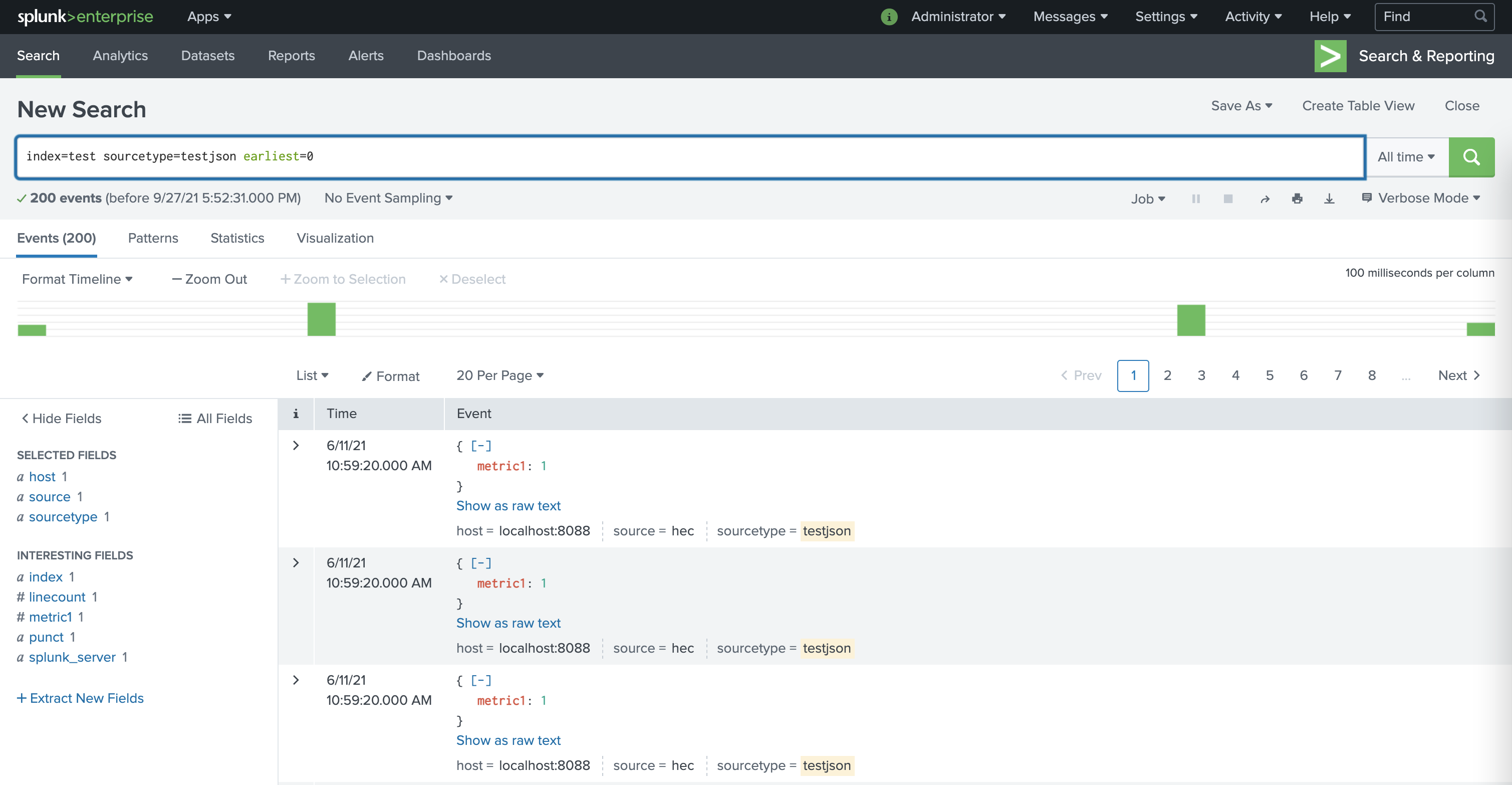
</code></pre><p><a class="gblog-markdown__link--raw" href="/images/20210927-recover-deleted-data-1.png"><img src="/images/20210927-recover-deleted-data-1-600px.png" alt="alt"  /></a></p>
<div class="gblog-post__anchorwrap">
    <h3 id="what-happend">
        what happend?
        <a data-clipboard-text="https://www.batchworks.de/recover-deleted-data/#what-happend" class="gblog-post__anchor gblog-post__anchor--right clip" aria-label="Anchor what happend?" href="#what-happend">
            <svg class="icon gblog_link"><use xlink:href="#gblog_link"></use></svg>
        </a>
    </h3>
</div><p>When running the &ldquo;| delete&rdquo; command, Splunk is actively changing the .tsidx index files to ensure searching of the deleted data is not possible anymore.</p>
<p>Besides that, the subdirectory &ldquo;deletes&rdquo; with markers to the deleted events in rawdata is created. Those markers come into play when
the bucket is recreated from rawdata. Those recreation will take place if you thaw a frozen bucket from an archive or make
replicated buckets searchable using index clustering. For that reason the first recovery attempt failed, as the &ldquo;deletes&rdquo; directory just
marked the events in the index &ldquo;deleted&rdquo; again.</p>
<p>This mechanism makes Splunk Enterprise consuming <strong>more storage</strong> when you are <strong>deleting data</strong>.</p>
<p>If you would just restore the .tsidx file from your backup the events are immediately searchable again - even without a splunk restart. <strong>BUT if you are not cleaning up the &ldquo;deletes&rdquo; directory, events will be marked as deleted at the next index rebuild</strong>. So be aware when recovering buckets from backup: always recovery the entire bucket and ensure the &ldquo;deletes&rdquo; subdirectory is also deleted!</p>
<p>Happy backup &amp; restore!</p>]]></content><category scheme="https://www.batchworks.de/authors/andreas-roth" term="andreas-roth" label="andreas-roth"/><category scheme="https://www.batchworks.de/tags/big-data" term="big-data" label="Big Data"/><category scheme="https://www.batchworks.de/tags/splunk" term="splunk" label="Splunk"/></entry><entry><title type="html">a short introduction to Hugo</title><link href="https://www.batchworks.de/a-short-introduction-to-hugo/?utm_source=atom_feed" rel="alternate" type="text/html" hreflang="en"/><id>https://www.batchworks.de/a-short-introduction-to-hugo/</id><author><name>Birk Bohne</name></author><published>2021-10-07T00:00:00+00:00</published><updated>2021-10-07T00:00:00+00:00</updated><content type="html"><![CDATA[<p>Recently <a class="gblog-markdown__link" href="authors/andreas-roth/">Andreas</a> has migrated our website from Wordpress to Hugo and after that i have written this small introduction for a <a class="gblog-markdown__link" href="http://tlug.de/">TLUG</a> workshop. The article describes the basic installation and configuration steps plus the creation of the first content.</p>


  <div class="gblog-toc gblog-toc__level--6"><nav id="TableOfContents">
  <ul>
    <li>
      <ul>
        <li><a href="#what-and-why-is-hugo">What and why is hugo?</a></li>
        <li><a href="#installation">Installation</a></li>
        <li><a href="#configuration">Configuration</a></li>
        <li><a href="#content">Content</a>
          <ul>
            <li><a href="#the-first-page">the first page</a></li>
            <li><a href="#local-test-with-hugo">local test with hugo</a></li>
            <li><a href="#update-the-first-page">update the first page</a></li>
            <li><a href="#content-structure-with-folders">content structure with folders</a></li>
            <li><a href="#add-charts">add charts</a></li>
            <li><a href="#use-structured-data-sources">use structured data sources</a></li>
          </ul>
        </li>
        <li><a href="#render-the-site">Render the site</a></li>
        <li><a href="#further-steps">Further steps</a></li>
      </ul>
    </li>
  </ul>
</nav><hr></div>


<div class="gblog-post__anchorwrap">
    <h2 id="what-and-why-is-hugo">
        What and why is hugo?
        <a data-clipboard-text="https://www.batchworks.de/a-short-introduction-to-hugo/#what-and-why-is-hugo" class="gblog-post__anchor gblog-post__anchor--right clip" aria-label="Anchor What and why is hugo?" href="#what-and-why-is-hugo">
            <svg class="icon gblog_link"><use xlink:href="#gblog_link"></use></svg>
        </a>
    </h2>
</div><ul>
<li>static website generator that
<ul>
<li>supports separation of content and code with themes</li>
<li>renders your content into static html pages with css and optional javascript integration</li>
<li>can be fully automated with the tool (Ansible, Jenkins, Helm etc.) of your choice</li>
<li>is written in Go and released as static binary</li>
</ul>
</li>
<li>to simplify webserver infrastructures by avoiding
<ul>
<li>databases like MySQL</li>
<li>server side program languages like PHP</li>
<li>caching components like Redis</li>
</ul>
</li>
</ul>
<div class="gblog-post__anchorwrap">
    <h2 id="installation">
        Installation
        <a data-clipboard-text="https://www.batchworks.de/a-short-introduction-to-hugo/#installation" class="gblog-post__anchor gblog-post__anchor--right clip" aria-label="Anchor Installation" href="#installation">
            <svg class="icon gblog_link"><use xlink:href="#gblog_link"></use></svg>
        </a>
    </h2>
</div><ul>
<li>the <a class="gblog-markdown__link" href="https://gohugo.io/getting-started/installing/">official documentation</a> describes the installation
<ul>
<li>from <a class="gblog-markdown__link" href="https://gohugo.io/getting-started/installing/#source">source</a></li>
<li>using a <a class="gblog-markdown__link" href="https://github.com/gohugoio/hugo/releases">Github release</a> for several operating systems and cpu infrastructures</li>
<li>for Windows and other operating systems with the related package managers</li>
<li>with <a class="gblog-markdown__link" href="https://gohugo.io/getting-started/installing/#homebrew-macos">homebrew</a> for MacOS</li>
</ul>
</li>
</ul>
<div class="highlight"><pre tabindex="0" style="background-color:#f0f3f3;-moz-tab-size:4;-o-tab-size:4;tab-size:4;"><code class="language-bash" data-lang="bash"><span style="display:flex;"><span>brew install hugo
</span></span></code></pre></div><div class="gblog-post__anchorwrap">
    <h2 id="configuration">
        Configuration
        <a data-clipboard-text="https://www.batchworks.de/a-short-introduction-to-hugo/#configuration" class="gblog-post__anchor gblog-post__anchor--right clip" aria-label="Anchor Configuration" href="#configuration">
            <svg class="icon gblog_link"><use xlink:href="#gblog_link"></use></svg>
        </a>
    </h2>
</div><ul>
<li>create the website folder structure</li>
<li>choose a <a class="gblog-markdown__link" href="https://themes.gohugo.io/">theme</a> and create the folder for it</li>
<li>download and extract the theme into the folder</li>
</ul>
<div class="highlight"><pre tabindex="0" style="background-color:#f0f3f3;-moz-tab-size:4;-o-tab-size:4;tab-size:4;"><code class="language-bash" data-lang="bash"><span style="display:flex;"><span>hugo new site --source ./ test.batchworks.de
</span></span><span style="display:flex;"><span>mkdir -p test.batchworks.de/themes/hugo-geekdoc/
</span></span><span style="display:flex;"><span>curl -sL https://github.com/thegeeklab/hugo-geekdoc/releases/download/v0.19.1/hugo-geekdoc.tar.gz | tar -xz -C test.batchworks.de/themes/hugo-geekdoc/
</span></span></code></pre></div><ul>
<li>extend the hugo configuration (config.toml) with the desired options</li>
<li>this also includes some theme related options
<ul>
<li>Theme options are not namespaced. This makes it sometimes hard to switch between them</li>
</ul>
</li>
</ul>
<div class="highlight"><pre tabindex="0" style="background-color:#f0f3f3;-moz-tab-size:4;-o-tab-size:4;tab-size:4;"><code class="language-toml" data-lang="toml"><span style="display:flex;"><span>baseurl = <span style="color:#c30">&#34;http://test.batchworks.de/&#34;</span>
</span></span><span style="display:flex;"><span>languageCode = <span style="color:#c30">&#34;en-us&#34;</span>
</span></span><span style="display:flex;"><span>title = <span style="color:#c30">&#34;test.batchworks.de&#34;</span>
</span></span><span style="display:flex;"><span>theme = <span style="color:#c30">&#34;hugo-geekdoc&#34;</span>
</span></span><span style="display:flex;"><span>
</span></span><span style="display:flex;"><span>[permalinks]
</span></span><span style="display:flex;"><span>  posts = <span style="color:#c30">&#34;/:title/&#34;</span>
</span></span><span style="display:flex;"><span>  page = <span style="color:#c30">&#34;/:slug/&#34;</span>
</span></span><span style="display:flex;"><span>
</span></span><span style="display:flex;"><span><span style="color:#09f;font-style:italic">## geekdoc theme settings</span>
</span></span><span style="display:flex;"><span>
</span></span><span style="display:flex;"><span><span style="color:#09f;font-style:italic"># Required to get well formatted code blocks</span>
</span></span><span style="display:flex;"><span>pygmentsUseClasses = <span style="color:#069;font-weight:bold">true</span>
</span></span><span style="display:flex;"><span>pygmentsCodeFences = <span style="color:#069;font-weight:bold">true</span>
</span></span><span style="display:flex;"><span>disablePathToLower = <span style="color:#069;font-weight:bold">true</span>
</span></span><span style="display:flex;"><span>enableGitInfo = <span style="color:#069;font-weight:bold">false</span>
</span></span><span style="display:flex;"><span>
</span></span><span style="display:flex;"><span>[markup]
</span></span><span style="display:flex;"><span>  [markup.goldmark.renderer]
</span></span><span style="display:flex;"><span>      unsafe = <span style="color:#069;font-weight:bold">true</span>
</span></span><span style="display:flex;"><span>  [markup.tableOfContents]
</span></span><span style="display:flex;"><span>    startLevel = <span style="color:#f60">1</span>
</span></span><span style="display:flex;"><span>    endLevel = <span style="color:#f60">9</span>
</span></span><span style="display:flex;"><span>
</span></span><span style="display:flex;"><span>[taxonomies]
</span></span><span style="display:flex;"><span>  author = <span style="color:#c30">&#34;authors&#34;</span>
</span></span><span style="display:flex;"><span>  tag = <span style="color:#c30">&#34;tags&#34;</span>
</span></span><span style="display:flex;"><span>
</span></span><span style="display:flex;"><span><span style="color:#09f;font-style:italic">## geekdoc theme settings end</span>
</span></span><span style="display:flex;"><span>
</span></span><span style="display:flex;"><span><span style="color:#09f;font-style:italic"># Theme variables</span>
</span></span><span style="display:flex;"><span><span style="color:#09f;font-style:italic">#</span>
</span></span><span style="display:flex;"><span>[params]
</span></span><span style="display:flex;"><span>  <span style="color:#09f;font-style:italic"># Site author</span>
</span></span><span style="display:flex;"><span>  author = <span style="color:#c30">&#34;Birk Bohne&#34;</span>
</span></span><span style="display:flex;"><span>
</span></span><span style="display:flex;"><span>  geekdocBreadcrumb = <span style="color:#069;font-weight:bold">false</span>
</span></span><span style="display:flex;"><span>
</span></span><span style="display:flex;"><span>  <span style="color:#09f;font-style:italic"># Format dates with Go&#39;s time formatting</span>
</span></span><span style="display:flex;"><span>  date_format = <span style="color:#c30">&#34;Mon Jan 02, 2006&#34;</span>
</span></span></code></pre></div><div class="gblog-post__anchorwrap">
    <h2 id="content">
        Content
        <a data-clipboard-text="https://www.batchworks.de/a-short-introduction-to-hugo/#content" class="gblog-post__anchor gblog-post__anchor--right clip" aria-label="Anchor Content" href="#content">
            <svg class="icon gblog_link"><use xlink:href="#gblog_link"></use></svg>
        </a>
    </h2>
</div><div class="gblog-post__anchorwrap">
    <h3 id="the-first-page">
        the first page
        <a data-clipboard-text="https://www.batchworks.de/a-short-introduction-to-hugo/#the-first-page" class="gblog-post__anchor gblog-post__anchor--right clip" aria-label="Anchor the first page" href="#the-first-page">
            <svg class="icon gblog_link"><use xlink:href="#gblog_link"></use></svg>
        </a>
    </h3>
</div><ul>
<li>Hugo pages or posts are written in <a class="gblog-markdown__link" href="https://www.markdownguide.org/basic-syntax">Markdown</a> with some theme specific header config</li>
<li>create the first page in the test.batchworks.de/content/_index.md file and add the content</li>
</ul>
<div class="highlight"><pre tabindex="0" style="background-color:#f0f3f3;-moz-tab-size:4;-o-tab-size:4;tab-size:4;"><code class="language-yaml" data-lang="yaml"><span style="display:flex;"><span><span style="color:#0cf;font-weight:bold">---</span><span style="color:#bbb">
</span></span></span><span style="display:flex;"><span><span style="color:#bbb"></span><span style="color:#309;font-weight:bold">title</span>:<span style="color:#bbb"> </span>Welcome to the test site<span style="color:#bbb">
</span></span></span><span style="display:flex;"><span><span style="color:#bbb"></span><span style="color:#309;font-weight:bold">geekdocDescription</span>:<span style="color:#bbb"> </span>This is the start page.<span style="color:#bbb">
</span></span></span><span style="display:flex;"><span><span style="color:#bbb"></span><span style="color:#309;font-weight:bold">weight</span>:<span style="color:#bbb"> </span><span style="color:#f60">10</span><span style="color:#bbb">
</span></span></span><span style="display:flex;"><span><span style="color:#bbb"></span><span style="color:#0cf;font-weight:bold">---</span><span style="color:#bbb">
</span></span></span><span style="display:flex;"><span><span style="color:#bbb">
</span></span></span><span style="display:flex;"><span><span style="color:#bbb"></span><span style="color:#09f;font-style:italic"># The start page</span><span style="color:#bbb">
</span></span></span><span style="display:flex;"><span><span style="color:#bbb">
</span></span></span><span style="display:flex;"><span><span style="color:#bbb"></span>Welcome to the start page<span style="color:#bbb">
</span></span></span></code></pre></div><div class="gblog-post__anchorwrap">
    <h3 id="local-test-with-hugo">
        local test with hugo
        <a data-clipboard-text="https://www.batchworks.de/a-short-introduction-to-hugo/#local-test-with-hugo" class="gblog-post__anchor gblog-post__anchor--right clip" aria-label="Anchor local test with hugo" href="#local-test-with-hugo">
            <svg class="icon gblog_link"><use xlink:href="#gblog_link"></use></svg>
        </a>
    </h3>
</div><ul>
<li>start hugo in server mode to locally render the content</li>
</ul>
<div class="highlight"><pre tabindex="0" style="background-color:#f0f3f3;-moz-tab-size:4;-o-tab-size:4;tab-size:4;"><code class="language-bash" data-lang="bash"><span style="display:flex;"><span>hugo server --source test.batchworks.de/ --baseUrl http://localhost
</span></span><span style="display:flex;"><span>
</span></span><span style="display:flex;"><span>Start building sites …
</span></span><span style="display:flex;"><span>hugo v0.88.1+extended darwin/amd64 <span style="color:#033">BuildDate</span><span style="color:#555">=</span>unknown
</span></span><span style="display:flex;"><span>
</span></span><span style="display:flex;"><span>                  | EN
</span></span><span style="display:flex;"><span>-------------------+------
</span></span><span style="display:flex;"><span>  Pages            |   <span style="color:#f60">7</span>
</span></span><span style="display:flex;"><span>  Paginator pages  |   <span style="color:#f60">0</span>
</span></span><span style="display:flex;"><span>  Non-page files   |   <span style="color:#f60">0</span>
</span></span><span style="display:flex;"><span>  Static files     | <span style="color:#f60">105</span>
</span></span><span style="display:flex;"><span>  Processed images |   <span style="color:#f60">0</span>
</span></span><span style="display:flex;"><span>  Aliases          |   <span style="color:#f60">2</span>
</span></span><span style="display:flex;"><span>  Sitemaps         |   <span style="color:#f60">1</span>
</span></span><span style="display:flex;"><span>  Cleaned          |   <span style="color:#f60">0</span>
</span></span><span style="display:flex;"><span>
</span></span><span style="display:flex;"><span>Built in <span style="color:#f60">31</span> ms
</span></span></code></pre></div><ul>
<li>check the result within a browser by opening <a class="gblog-markdown__link" href="http://localhost:1313/">http://localhost:1313/</a></li>
</ul>
<div class="gblog-post__anchorwrap">
    <h3 id="update-the-first-page">
        update the first page
        <a data-clipboard-text="https://www.batchworks.de/a-short-introduction-to-hugo/#update-the-first-page" class="gblog-post__anchor gblog-post__anchor--right clip" aria-label="Anchor update the first page" href="#update-the-first-page">
            <svg class="icon gblog_link"><use xlink:href="#gblog_link"></use></svg>
        </a>
    </h3>
</div><ul>
<li>paste the content of the README.md below the theme config section in the test.batchworks.de/content/_index.md file</li>
<li>check your browser</li>
</ul>
<div class="gblog-post__anchorwrap">
    <h3 id="content-structure-with-folders">
        content structure with folders
        <a data-clipboard-text="https://www.batchworks.de/a-short-introduction-to-hugo/#content-structure-with-folders" class="gblog-post__anchor gblog-post__anchor--right clip" aria-label="Anchor content structure with folders" href="#content-structure-with-folders">
            <svg class="icon gblog_link"><use xlink:href="#gblog_link"></use></svg>
        </a>
    </h3>
</div><ul>
<li>create a test.batchworks.de/content/sub/ folder and an _index.md file in it</li>
<li>add the content</li>
</ul>
<div class="highlight"><pre tabindex="0" style="background-color:#f0f3f3;-moz-tab-size:4;-o-tab-size:4;tab-size:4;"><code class="language-yaml" data-lang="yaml"><span style="display:flex;"><span><span style="color:#0cf;font-weight:bold">---</span><span style="color:#bbb">
</span></span></span><span style="display:flex;"><span><span style="color:#bbb"></span><span style="color:#309;font-weight:bold">title</span>:<span style="color:#bbb"> </span>Sub content<span style="color:#bbb">
</span></span></span><span style="display:flex;"><span><span style="color:#bbb"></span><span style="color:#309;font-weight:bold">geekdocDescription</span>:<span style="color:#bbb"> </span>focus on other topics<span style="color:#bbb">
</span></span></span><span style="display:flex;"><span><span style="color:#bbb"></span><span style="color:#309;font-weight:bold">weight</span>:<span style="color:#bbb"> </span><span style="color:#f60">10</span><span style="color:#bbb">
</span></span></span><span style="display:flex;"><span><span style="color:#bbb"></span><span style="color:#0cf;font-weight:bold">---</span><span style="color:#bbb">
</span></span></span><span style="display:flex;"><span><span style="color:#bbb">
</span></span></span><span style="display:flex;"><span><span style="color:#bbb"></span>the sub page<span style="color:#bbb">
</span></span></span></code></pre></div><ul>
<li>check your browser again</li>
</ul>
<div class="gblog-post__anchorwrap">
    <h3 id="add-charts">
        add charts
        <a data-clipboard-text="https://www.batchworks.de/a-short-introduction-to-hugo/#add-charts" class="gblog-post__anchor gblog-post__anchor--right clip" aria-label="Anchor add charts" href="#add-charts">
            <svg class="icon gblog_link"><use xlink:href="#gblog_link"></use></svg>
        </a>
    </h3>
</div><ul>
<li>the Geekdoc theme supports <a class="gblog-markdown__link" href="https://mermaid-js.github.io/mermaid/#/README">Mermaid</a> for the rendering of different chart types</li>
<li>create a test.batchworks.de/content/sub/mermaid.md file</li>
<li>add the content</li>
</ul>
<div class="highlight"><pre tabindex="0" style="background-color:#f0f3f3;-moz-tab-size:4;-o-tab-size:4;tab-size:4;"><code class="language-yaml" data-lang="yaml"><span style="display:flex;"><span><span style="color:#0cf;font-weight:bold">---</span><span style="color:#bbb">
</span></span></span><span style="display:flex;"><span><span style="color:#bbb"></span><span style="color:#309;font-weight:bold">title</span>:<span style="color:#bbb"> </span>Mermaid charts<span style="color:#bbb">
</span></span></span><span style="display:flex;"><span><span style="color:#bbb"></span><span style="color:#309;font-weight:bold">geekdocDescription</span>:<span style="color:#bbb"> </span>render charts with mermaid markup code<span style="color:#bbb">
</span></span></span><span style="display:flex;"><span><span style="color:#bbb"></span><span style="color:#309;font-weight:bold">weight</span>:<span style="color:#bbb"> </span><span style="color:#f60">10</span><span style="color:#bbb">
</span></span></span><span style="display:flex;"><span><span style="color:#bbb"></span><span style="color:#0cf;font-weight:bold">---</span><span style="color:#bbb">
</span></span></span><span style="display:flex;"><span><span style="color:#bbb">
</span></span></span><span style="display:flex;"><span><span style="color:#bbb"></span>{{&lt; mermaid class=&#34;text-center&#34;&gt;}}<span style="color:#bbb">
</span></span></span><span style="display:flex;"><span><span style="color:#bbb"></span>flowchart TD<span style="color:#bbb">
</span></span></span><span style="display:flex;"><span><span style="color:#bbb">    </span>A[Start] --&gt; B{Is it?};<span style="color:#bbb">
</span></span></span><span style="display:flex;"><span><span style="color:#bbb">    </span>B --&gt;|Yes| C[OK];<span style="color:#bbb">
</span></span></span><span style="display:flex;"><span><span style="color:#bbb">    </span>C --&gt; D[Rethink];<span style="color:#bbb">
</span></span></span><span style="display:flex;"><span><span style="color:#bbb">    </span>D --&gt; B;<span style="color:#bbb">
</span></span></span><span style="display:flex;"><span><span style="color:#bbb">    </span>B ----&gt;|No| E[End];<span style="color:#bbb">
</span></span></span><span style="display:flex;"><span><span style="color:#bbb"></span>{{&lt; /mermaid &gt;}}<span style="color:#bbb">
</span></span></span></code></pre></div><ul>
<li>check your browser again</li>
</ul>
<div class="gblog-post__anchorwrap">
    <h3 id="use-structured-data-sources">
        use structured data sources
        <a data-clipboard-text="https://www.batchworks.de/a-short-introduction-to-hugo/#use-structured-data-sources" class="gblog-post__anchor gblog-post__anchor--right clip" aria-label="Anchor use structured data sources" href="#use-structured-data-sources">
            <svg class="icon gblog_link"><use xlink:href="#gblog_link"></use></svg>
        </a>
    </h3>
</div><ul>
<li>Hugo can read <a class="gblog-markdown__link" href="https://gohugo.io/templates/data-templates/">data structures</a> for instance from JSON or YAML</li>
<li>this can be used to populate tables or other html structures</li>
<li>First we have to create the html template
<ul>
<li>create a test.batchworks.de/layouts/shortcodes/data_table.html file</li>
<li>add the content</li>
</ul>
</li>
</ul>
<div class="highlight"><pre tabindex="0" style="background-color:#f0f3f3;-moz-tab-size:4;-o-tab-size:4;tab-size:4;"><code class="language-html" data-lang="html"><span style="display:flex;"><span>{{ $arg0 := .Get 0 }}
</span></span><span style="display:flex;"><span>{{ $data := index .Site.Data.content $arg0 }}
</span></span><span style="display:flex;"><span>{{ $.Scratch.Set &#34;count&#34; 0 }}
</span></span><span style="display:flex;"><span>
</span></span><span style="display:flex;"><span>&lt;<span style="color:#309;font-weight:bold">table</span>&gt;
</span></span><span style="display:flex;"><span>    &lt;<span style="color:#309;font-weight:bold">thead</span>&gt;
</span></span><span style="display:flex;"><span>      &lt;<span style="color:#309;font-weight:bold">tr</span>&gt;
</span></span><span style="display:flex;"><span>        &lt;<span style="color:#309;font-weight:bold">th</span>&gt;Name&lt;/<span style="color:#309;font-weight:bold">th</span>&gt;
</span></span><span style="display:flex;"><span>        &lt;<span style="color:#309;font-weight:bold">th</span>&gt;Function&lt;/<span style="color:#309;font-weight:bold">th</span>&gt;
</span></span><span style="display:flex;"><span>      &lt;/<span style="color:#309;font-weight:bold">tr</span>&gt;
</span></span><span style="display:flex;"><span>    &lt;/<span style="color:#309;font-weight:bold">thead</span>&gt;
</span></span><span style="display:flex;"><span>
</span></span><span style="display:flex;"><span>    &lt;<span style="color:#309;font-weight:bold">tbody</span>&gt;
</span></span><span style="display:flex;"><span>    {{ range $datacontent := $data }}
</span></span><span style="display:flex;"><span>        &lt;<span style="color:#309;font-weight:bold">tr</span>&gt;
</span></span><span style="display:flex;"><span>            &lt;<span style="color:#309;font-weight:bold">td</span>&gt;{{ $datacontent.name }}&lt;/<span style="color:#309;font-weight:bold">td</span>&gt;
</span></span><span style="display:flex;"><span>            &lt;<span style="color:#309;font-weight:bold">td</span>&gt;{{ $datacontent.function }}&lt;/<span style="color:#309;font-weight:bold">td</span>&gt;
</span></span><span style="display:flex;"><span>        &lt;/<span style="color:#309;font-weight:bold">tr</span>&gt;
</span></span><span style="display:flex;"><span>    {{ end }}
</span></span><span style="display:flex;"><span>    &lt;/<span style="color:#309;font-weight:bold">tbody</span>&gt;
</span></span><span style="display:flex;"><span>&lt;/<span style="color:#309;font-weight:bold">table</span>&gt;
</span></span></code></pre></div><ul>
<li>Next we have to create the data source
<ul>
<li>create a test.batchworks.de/data/content/data.yaml file</li>
<li>add the content</li>
</ul>
</li>
</ul>
<div class="highlight"><pre tabindex="0" style="background-color:#f0f3f3;-moz-tab-size:4;-o-tab-size:4;tab-size:4;"><code class="language-yaml" data-lang="yaml"><span style="display:flex;"><span>- <span style="color:#309;font-weight:bold">name</span>:<span style="color:#bbb"> </span><span style="color:#c30">&#34;json&#34;</span><span style="color:#bbb">
</span></span></span><span style="display:flex;"><span><span style="color:#bbb">  </span><span style="color:#309;font-weight:bold">function</span>:<span style="color:#bbb"> </span><span style="color:#c30">&#34;read JSON&#34;</span><span style="color:#bbb">
</span></span></span><span style="display:flex;"><span><span style="color:#bbb"></span>- <span style="color:#309;font-weight:bold">name</span>:<span style="color:#bbb"> </span><span style="color:#c30">&#34;csv&#34;</span><span style="color:#bbb">
</span></span></span><span style="display:flex;"><span><span style="color:#bbb">  </span><span style="color:#309;font-weight:bold">function</span>:<span style="color:#bbb"> </span><span style="color:#c30">&#34;read CSV&#34;</span><span style="color:#bbb">
</span></span></span></code></pre></div><ul>
<li>Now we create the page that should render the table
<ul>
<li>create a test.batchworks.de/content/sub/table.md file</li>
<li>add the content</li>
</ul>
</li>
</ul>
<div class="highlight"><pre tabindex="0" style="background-color:#f0f3f3;-moz-tab-size:4;-o-tab-size:4;tab-size:4;"><code class="language-yaml" data-lang="yaml"><span style="display:flex;"><span><span style="color:#0cf;font-weight:bold">---</span><span style="color:#bbb">
</span></span></span><span style="display:flex;"><span><span style="color:#bbb"></span><span style="color:#309;font-weight:bold">title</span>:<span style="color:#bbb"> </span>Data tables<span style="color:#bbb">
</span></span></span><span style="display:flex;"><span><span style="color:#bbb"></span><span style="color:#309;font-weight:bold">geekdocDescription</span>:<span style="color:#bbb"> </span>render tables<span style="color:#bbb">
</span></span></span><span style="display:flex;"><span><span style="color:#bbb"></span><span style="color:#309;font-weight:bold">weight</span>:<span style="color:#bbb"> </span><span style="color:#f60">20</span><span style="color:#bbb">
</span></span></span><span style="display:flex;"><span><span style="color:#bbb"></span><span style="color:#0cf;font-weight:bold">---</span><span style="color:#bbb">
</span></span></span><span style="display:flex;"><span><span style="color:#bbb">
</span></span></span><span style="display:flex;"><span><span style="color:#bbb"></span><span style="color:#09f;font-style:italic">## Data sources</span><span style="color:#bbb">
</span></span></span><span style="display:flex;"><span><span style="color:#bbb">
</span></span></span><span style="display:flex;"><span><span style="color:#bbb"></span>{{&lt; data_table &#34;data&#34; &gt;}}<span style="color:#bbb">
</span></span></span></code></pre></div><ul>
<li>check your browser again</li>
</ul>
<div class="gblog-post__anchorwrap">
    <h2 id="render-the-site">
        Render the site
        <a data-clipboard-text="https://www.batchworks.de/a-short-introduction-to-hugo/#render-the-site" class="gblog-post__anchor gblog-post__anchor--right clip" aria-label="Anchor Render the site" href="#render-the-site">
            <svg class="icon gblog_link"><use xlink:href="#gblog_link"></use></svg>
        </a>
    </h2>
</div><ul>
<li>use Hugo to render the static pages</li>
<li>they can than be served by the webserver of your choice without further dependencies
<ul>
<li>create a target and a tmp dir</li>
<li>call hugo to render the pages</li>
</ul>
</li>
</ul>
<div class="highlight"><pre tabindex="0" style="background-color:#f0f3f3;-moz-tab-size:4;-o-tab-size:4;tab-size:4;"><code class="language-bash" data-lang="bash"><span style="display:flex;"><span>mkdir -p tmp/ www/
</span></span><span style="display:flex;"><span>hugo --source <span style="color:#a00">${</span><span style="color:#033">PWD</span><span style="color:#a00">}</span>/test.batchworks.de/ --cacheDir <span style="color:#a00">${</span><span style="color:#033">PWD</span><span style="color:#a00">}</span>/tmp --destination <span style="color:#a00">${</span><span style="color:#033">PWD</span><span style="color:#a00">}</span>/www --baseURL http://test.batchworks.de
</span></span></code></pre></div><div class="gblog-post__anchorwrap">
    <h2 id="further-steps">
        Further steps
        <a data-clipboard-text="https://www.batchworks.de/a-short-introduction-to-hugo/#further-steps" class="gblog-post__anchor gblog-post__anchor--right clip" aria-label="Anchor Further steps" href="#further-steps">
            <svg class="icon gblog_link"><use xlink:href="#gblog_link"></use></svg>
        </a>
    </h2>
</div><ul>
<li>maintain the Hugo config and content in a source code management system</li>
<li>maintain the rendered pages in an SCM too</li>
<li>upload the www folder to your web server</li>
<li>use automation tools like Ansible, Jenkins etc. to automate the workflow</li>
</ul>
]]></content><category scheme="https://www.batchworks.de/authors/birk-bohne" term="birk-bohne" label="birk-bohne"/><category scheme="https://www.batchworks.de/tags/hugo" term="hugo" label="hugo"/><category scheme="https://www.batchworks.de/tags/golang" term="golang" label="golang"/><category scheme="https://www.batchworks.de/tags/site-generator" term="site-generator" label="site generator"/></entry><entry><title type="html">collectd2 App for Splunk Enterprise released</title><link href="https://www.batchworks.de/collectd2-released/?utm_source=atom_feed" rel="alternate" type="text/html" hreflang="en"/><id>https://www.batchworks.de/collectd2-released/</id><author><name>Andreas Roth</name></author><published>2018-05-10T00:00:00+00:00</published><updated>2018-05-10T00:00:00+00:00</updated><content type="html"><![CDATA[<p>Today we released an enhanced version of the collectd app for Splunk. As the app is using metric index and enhanced mstats command, you will need to use Splunk Enterprise version 7.1.</p>
<p>Further information could be found on Splunkbase (<a class="gblog-markdown__link" href="https://splunkbase.splunk.com/app/4005/">https://splunkbase.splunk.com/app/4005/</a>) and the github repo located at: <a class="gblog-markdown__link" href="https://github.com/schose/collectd2">https://github.com/schose/collectd2</a>.</p>]]></content><category scheme="https://www.batchworks.de/authors/andreas-roth" term="andreas-roth" label="andreas-roth"/><category scheme="https://www.batchworks.de/tags/big-data" term="big-data" label="Big Data"/><category scheme="https://www.batchworks.de/tags/splunk" term="splunk" label="Splunk"/></entry><entry><title type="html">published Splunk Technology Add-On for Mikrotik RouterOS</title><link href="https://www.batchworks.de/published-technology-add-on-for-mikrotik-routeros/?utm_source=atom_feed" rel="alternate" type="text/html" hreflang="en"/><id>https://www.batchworks.de/published-technology-add-on-for-mikrotik-routeros/</id><author><name>Andreas Roth</name></author><published>2018-01-10T00:00:00+00:00</published><updated>2018-01-10T00:00:00+00:00</updated><content type="html"><![CDATA[<p>As some of you know we love these small Mikrotik boxes running RouterOS. They are offering a rich feature set and functionality at a very reasonable price.
We also love Splunk.. so it makes perfect sense to import RouterOS data into Splunk. To have greater value of your data we’ve created a Splunk Technology Add-On for RouterOS.</p>
<p>Development takes place in the git repo hosted at <a class="gblog-markdown__link" href="https://git.batchworks.de/andreas/TA-routeros">https://git.batchworks.de/andreas/TA-routeros</a> . You can download it from there or from <a class="gblog-markdown__link" href="https://splunkbase.splunk.com/app/3845/">https://splunkbase.splunk.com/app/3845/</a>.</p>
<p>Data is extracted for the Splunk CIM data models network traffic, name resolution (DNS), DHCP and authentication.</p>]]></content><category scheme="https://www.batchworks.de/authors/andreas-roth" term="andreas-roth" label="andreas-roth"/><category scheme="https://www.batchworks.de/tags/big-data" term="big-data" label="Big Data"/><category scheme="https://www.batchworks.de/tags/splunk" term="splunk" label="Splunk"/></entry><entry><title type="html">Why using XML Event Logs sucks using Splunk</title><link href="https://www.batchworks.de/why-using-xml-event-logs-sucks-using-splunk/?utm_source=atom_feed" rel="alternate" type="text/html" hreflang="en"/><id>https://www.batchworks.de/why-using-xml-event-logs-sucks-using-splunk/</id><author><name>Andreas Roth</name></author><published>2017-10-06T00:00:00+00:00</published><updated>2017-10-06T00:00:00+00:00</updated><content type="html"><![CDATA[<p>Yesterday I had a discussion with a colleague if we should switch the indexing of Windows Eventlogs to XML. He mentioned that he was told that it’s faster, needs less data volume and language agnostic.</p>
<p>As I couldn’t imagine that something with the abbreviation “XML” in it could be something like “small” and “fast” I decided to do a test.</p>
<p>Interesting enough there is a blog article found at <a class="gblog-markdown__link" href="http://blogs.splunk.com/2014/11/04/splunk-6-2-feature-overview-xml-event-logs/">http://blogs.splunk.com/2014/11/04/splunk-6-2-feature-overview-xml-event-logs/</a> also stating that you would have an data reduction.Interesting enough there is a blog article found at <a class="gblog-markdown__link" href="http://blogs.splunk.com/2014/11/04/splunk-6-2-feature-overview-xml-event-logs/">http://blogs.splunk.com/2014/11/04/splunk-6-2-feature-overview-xml-event-logs/</a> also stating that you would have data reduction.</p>
<p>You start to collect XML Events with adding renderXml = 1 to the input stanza. When doing so the suppress_text = 1 is automatically set. Of course you could also omit the Eventlog message for your non-XML input and achieve the same volume reduction. Here I will keep the Eventlog message for the XML and non-XML scenario to ensure not comparing apples and oranges.</p>
<p><strong>Index performance</strong></p>
<p>The same dataset was indexed by the same forwarder on the same hardware..
let’s determine the time needed for indexing:</p>
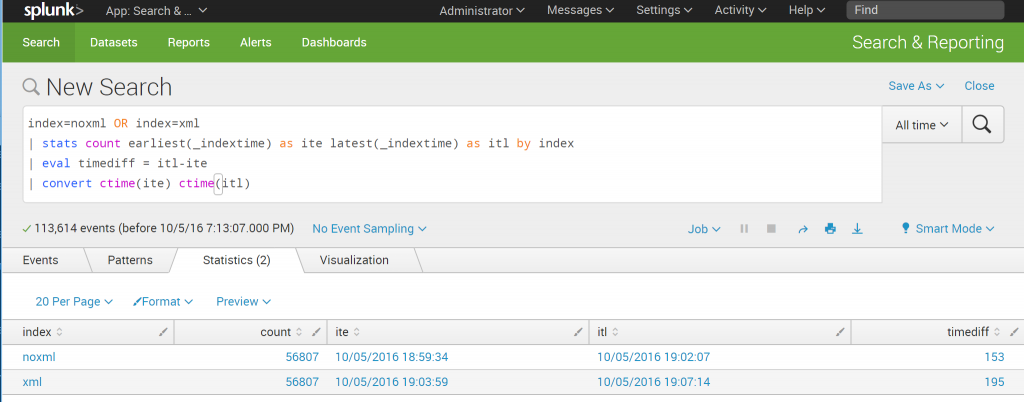
<p>index=noxml OR index=xml
| stats count earliest(_indextime) as ite latest(_indextime) as itl by index
| eval timediff = itl-ite
| convert ctime(ite) ctime(itl)</p>
<p><img src="/images/1-1024x402.png" alt="demo"  /></p>
<p>Indexing the XML took 195 seconds vs. 153 seconds, <strong>27,5% longer</strong>.</p>
<p>Size</p>
<p>Determine the indexsize:</p>
<p><code>| dbinsprect index=noxml OR index=XML | table index SizeOnDiskMB</code></p>
<p>XML needed <strong>17,7% more storage</strong>.</p>
<p><strong>Search performance</strong></p>
<p>Running a noncomplex search, I can’t remember if I was more surprised that the XML search was more than 10X slower or that it showed a different result count.
I repeated the search 3 times to ensure the results are accurate.</p>
<p><code>index=noxml | stats count by EventCode – (fast mode enabled)</code></p>
<p>This search has completed and has returned 223 results by scanning 56,807 events in 2.923 seconds.
This search has completed and has returned 223 results by scanning 56,807 events in 2.91 seconds.
This search has completed and has returned 223 results by scanning 56,807 events in 2.888 seconds.</p>
<p><code>index=xml | stats count by EventCode – fast mode</code></p>
<p>This search has completed and has returned 106 results by scanning 56,807 events in 33.822 seconds.
This search has completed and has returned 106 results by scanning 56,807 events in 33.593 seconds.
This search has completed and has returned 106 results by scanning 56,807 events in 33.309 seconds.</p>
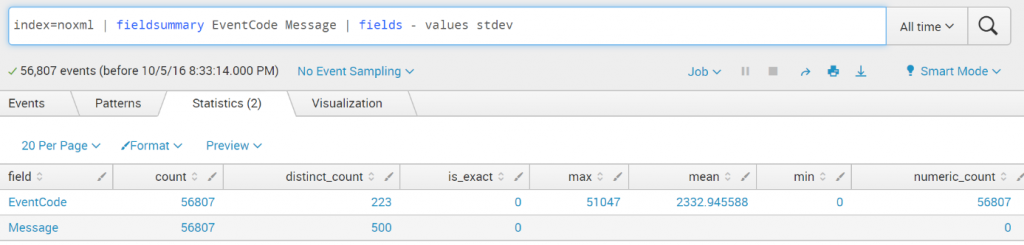
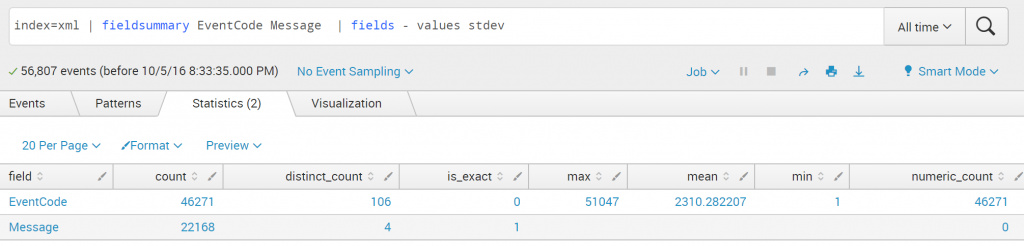
<p>All time ran into command.search.kv</p>
<p><img src="/images/3-1024x123.png" alt="3-1024x123"  /></p>
<p>I found a lot of events where the EventID is not extracted correctly from the XML..</p>
<p><img src="/images/4-1024x245.png" alt="4-1024x245"  />
<img src="/images/5-1024x246.png" alt="5-1024x246"  /></p>
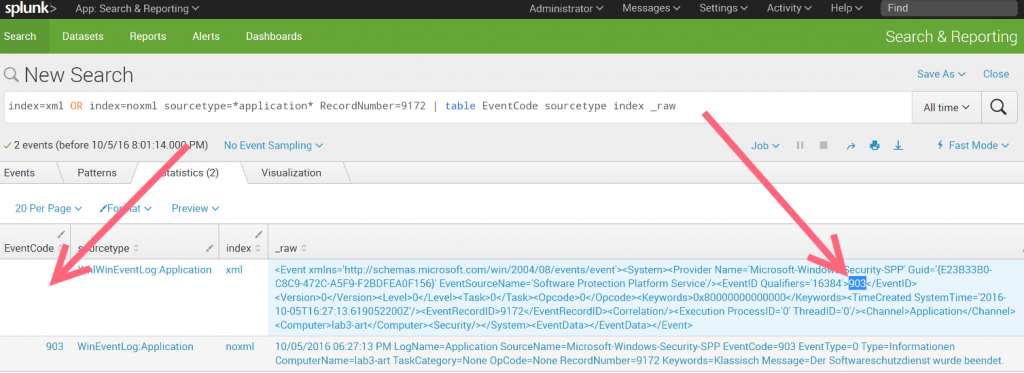
<p><code>index=xml OR index=noxml sourcetype=*application* RecordNumber=9172 | table EventCode sourcetype index _raw</code></p>
<p><img src="/images/6a-1024x373.png" alt="6a-1024x373"  /></p>
<p>All tests was done on “latest an greatest” Splunk TA Windows v4.8.3 runing on Splunk Enterprise v6.5</p>
<p><strong>Summary</strong></p>
<p>Do never ever use XML rendering because of performance or expected data volume reduction. For now the only valid reason seems to be to overcome language issues..</p>]]></content><category scheme="https://www.batchworks.de/authors/andreas-roth" term="andreas-roth" label="andreas-roth"/><category scheme="https://www.batchworks.de/tags/big-data" term="big-data" label="Big Data"/><category scheme="https://www.batchworks.de/tags/splunk" term="splunk" label="Splunk"/></entry><entry><title type="html">How use Splunk DB Connect with H2 databases</title><link href="https://www.batchworks.de/how-use-splunk-db-connect-with-h2-databases/?utm_source=atom_feed" rel="alternate" type="text/html" hreflang="en"/><id>https://www.batchworks.de/how-use-splunk-db-connect-with-h2-databases/</id><author><name>Andreas Roth</name></author><published>2017-01-09T00:00:00+00:00</published><updated>2017-01-09T00:00:00+00:00</updated><content type="html"><![CDATA[<p>Today I got a question from a colleague if it’s possible to connect a H2 database engine to Splunk. It would be great to index events from that database – as it contains security events coming from an anti-virus system.</p>
<p>To index events based on a RDBMS there is Splunk’s well-known DB Connect app (<a class="gblog-markdown__link" href="https://splunkbase.splunk.com/app/2686/%29">https://splunkbase.splunk.com/app/2686/)</a>. Unfortunately the DB Connect support matrix doesn’t mention anything with H2 database – so I decided to test it out.</p>
<p><strong>H2 Database</strong></p>
<p>I’ve never run into H2 before, it really seems to be a niche product. The installation is downloading and extracting the .zip file – awesome! It’s the size of 1.5 MB and has a great feature set like In-Memory Mode, Built-in Clustering / Replication…</p>
<p><a class="gblog-markdown__link" href="http://www.h2database.com/html/features.html#comparison">http://www.h2database.com/html/features.html#comparison</a></p>
<p>By default H2 has 2 connection modes:</p>
<ol>
<li>Embedded/local mode: only local connections using JDBC</li>
<li>Server mode: remote connections using ODBC or JDBC</li>
<li>mixed</li>
</ol>
<p><strong>DB Connect setup</strong></p>
<p>As always you need to install Java 8 for DB Connect. Even if openjdk is working fine I always recommend to use Oracle Java for support reasons. Extract DB Connect to your $SPLUNK_HOME$/etc/apps path and run the setup wizard if you have a full Splunk installation.. otherwise you can edit app.conf and inputs.conf to enable it and set the JRE path correctly.</p>
<p>app.conf</p>
<pre tabindex="0"><code>[install]
is_configured = 1

inputs.conf
[rpcstart://default]
javahome = /usr/local/jre1.8.0_111
useSSL = 0
</code></pre><p>Full installation procedure is documented in splunk docs at <a class="gblog-markdown__link" href="http://docs.splunk.com/Documentation/DBX/2.4.0/DeployDBX/Checklist">http://docs.splunk.com/Documentation/DBX/2.4.0/DeployDBX/Checklist</a> .</p>
<p>Next you need to download H2 database (<a class="gblog-markdown__link" href="http://www.h2database.com/h2-2016-10-31.zip%29">http://www.h2database.com/h2-2016-10-31.zip)</a>, extract and copy the bin/h2-1.4.193.jar to $SPLUNK_HOME$/etc/apps/splunk_app_db_connect/bin/lib directory.</p>
<p>Next configure a custom db type by creating the config file $SPLUNK_HOME$/etc/apps/splunk_app_db_connect/local/db_connection_types.conf. This is not implemented in the DB Connect WebGUI.</p>
<p>db_connection_types.conf:</p>
<pre tabindex="0"><code>[h2tcp]
displayName = H2-tcp
serviceClass = com.splunk.dbx2.DefaultDBX2JDBC
jdbcUrlFormat = jdbc:h2:tcp://: /
jdbcDriverClass = org.h2.Driver

[h2local]
displayName = H2-local
serviceClass = com.splunk.dbx2.DefaultDBX2JDBC
jdbcUrlFormat = jdbc:h2:/
jdbcDriverClass = org.h2.Driver
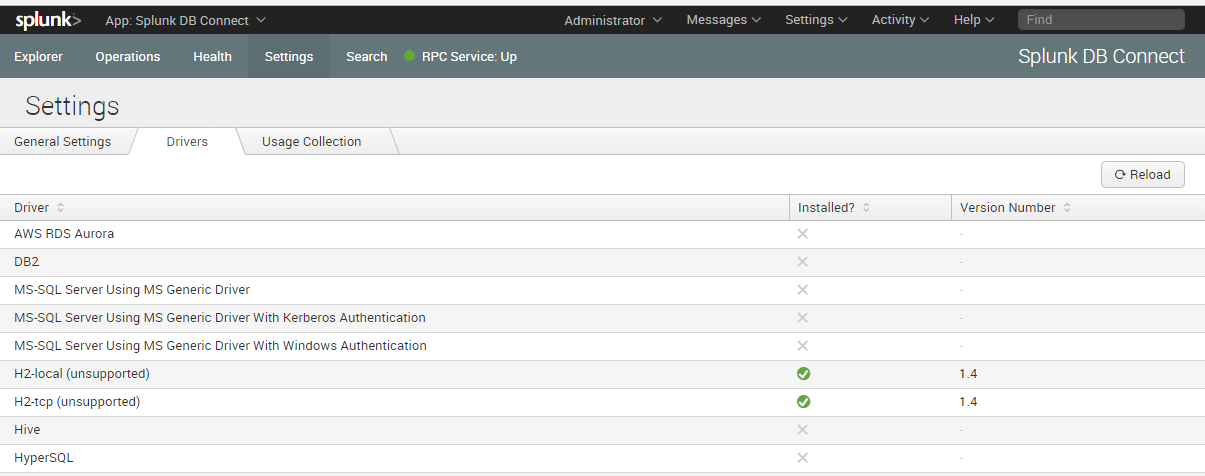
</code></pre><p>The [h2tcp] stanza defines the connection for server mode, while [h2local] defines embedded/local mode. After doing so and restarting Splunk you’ll see two new driver entries in DB Connect – stating “unsupported”</p>
<p><img src="/images/hc_272.png" alt="hc_272"  /></p>
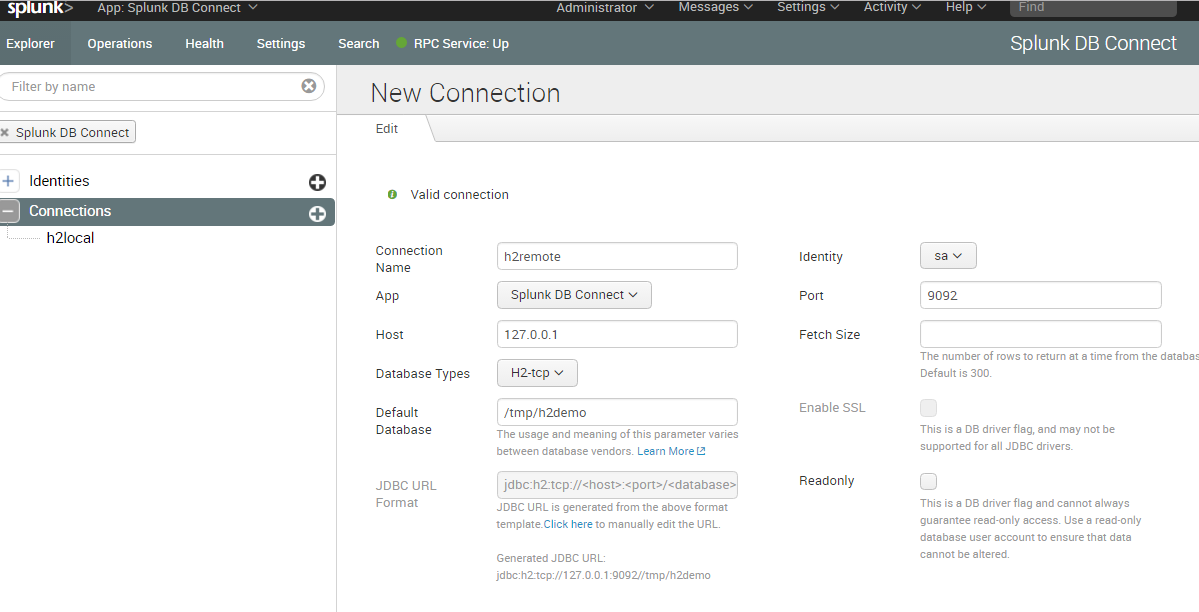
<p>Create credentials first, followed by a connection. Make sure to use TCP/9092 when connecting to a remote H2 instance. The remote instance has to be started using the –tcpAllowOthers parameter.</p>
<p><img src="/images/hc_274.png" alt="hc_274"  /></p>
<p>A new connection will be saved in db_connections.conf. This is an example:</p>
<pre tabindex="0"><code>[h2remote]
connection_type = h2tcp
database = /tmp/h2demo
host = 127.0.0.1
identity = sa
jdbcUrlFormat = jdbc:h2:tcp://: /
jdbcUseSSL = 0
port = 9092
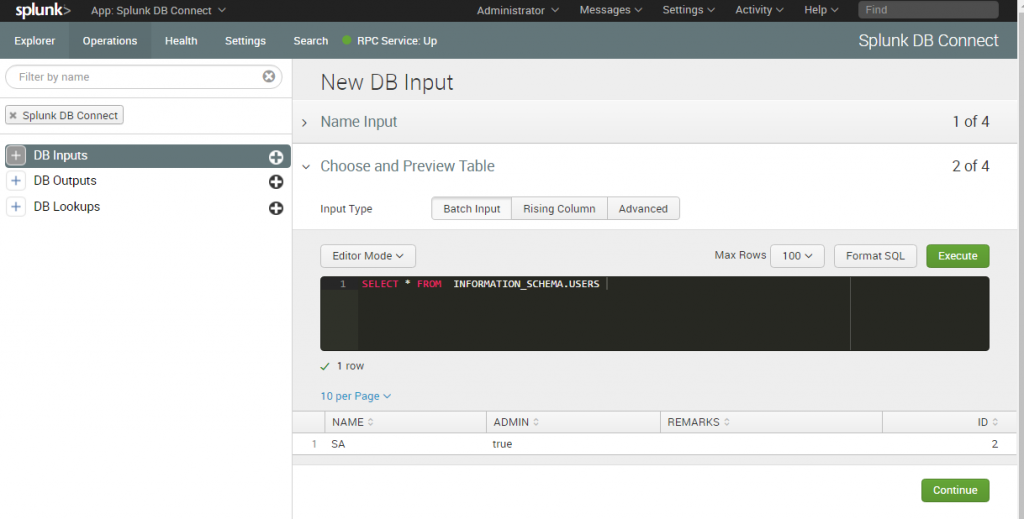
</code></pre><p>When defining an input to pull events out of the db this is done like always in inputs.conf. Here is an example:</p>
<p>inputs.conf</p>
<pre tabindex="0"><code>[mi_input://h2remote-users]
connection = h2remote
enable_query_wrapping = 1
index = test_high
interval = 60
max_rows = 10000
mode = tail
output_timestamp_format = yyyy-MM-dd HH:mm:ss
query = SELECT * FROM INFORMATION_SCHEMA.USERS
sourcetype = dbx:h2
tail_rising_column_name = ID
ui_query_mode = advanced
tail_rising_column_checkpoint_value = 2
</code></pre><p><img src="/images/hc_275-1024x519.png" alt="hc_275"  /></p>
<p><strong>H2 restrictions</strong></p>
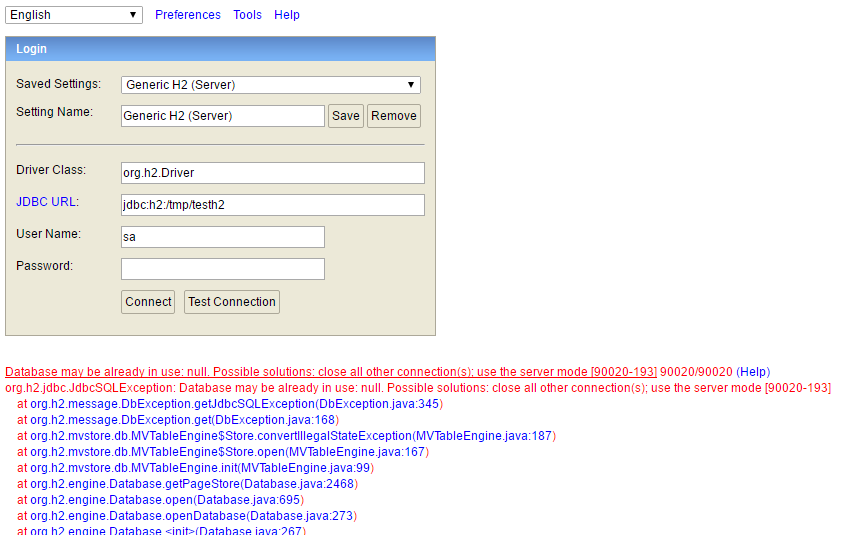
<p>Other than you might expect it’s not possible to use two applications writing or reading in local/embedded mode. You’ll receive the message “org.h2.jdbc.JdbcSQLException: Database may be already in use: null. Possible solutions: close all other connection(s); use the server mode [90020-193]”. This is by design and can be solved as mentioned before by starting H2 with the –tcp for local-only connections or –tcpAllowOthers for all other connections.</p>
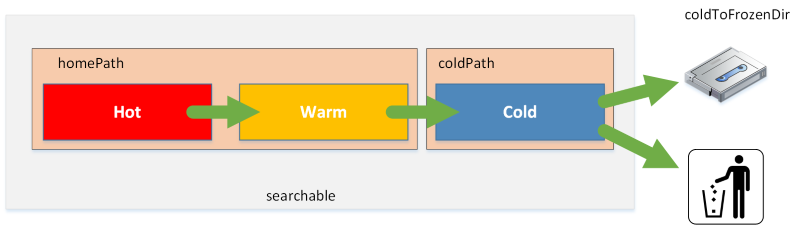
<p><img src="/images/h2-restriction.png" alt="h2-restriction"  /></p>]]></content><category scheme="https://www.batchworks.de/authors/andreas-roth" term="andreas-roth" label="andreas-roth"/><category scheme="https://www.batchworks.de/tags/big-data" term="big-data" label="Big Data"/><category scheme="https://www.batchworks.de/tags/splunk" term="splunk" label="Splunk"/></entry><entry><title type="html">manually roll Splunk buckets from hot to warm</title><link href="https://www.batchworks.de/manually-roll-buckets-from-hot-to-warm/?utm_source=atom_feed" rel="alternate" type="text/html" hreflang="en"/><id>https://www.batchworks.de/manually-roll-buckets-from-hot-to-warm/</id><author><name>Andreas Roth</name></author><published>2016-05-19T00:00:00+00:00</published><updated>2016-05-19T00:00:00+00:00</updated><content type="html"><![CDATA[<p>As you might know indexes are where your data in splunk is stored. An index contains of time-based buckets (directories). Over time a bucket – the indexed data – is rolling from hot (when data is still written to the bucket) to warm (data is read-only) to cold.  When you want to backup Splunk you need the data in a consistent state – in a warm bucket.</p>
<p><img src="/images/rollbucket-blogscreen-01.png" alt="rollbucket-blogscreen-01"  /></p>
<p>There are different situations when a bucket is rolled from hot to warm:</p>
<ol>
<li>restart of the splunk service</li>
<li>parameter maxDataSize in indexes.conf is hit (750MB default, 10GB with auto_high_volume)</li>
</ol>
<p>here’s an overview of indexes.conf parameters:</p>
<p>As you see there is no time but only a size value when Splunk rolls a bucket from hot to warm.
There are situations where you manually want to roll a bucket from hot to warm.
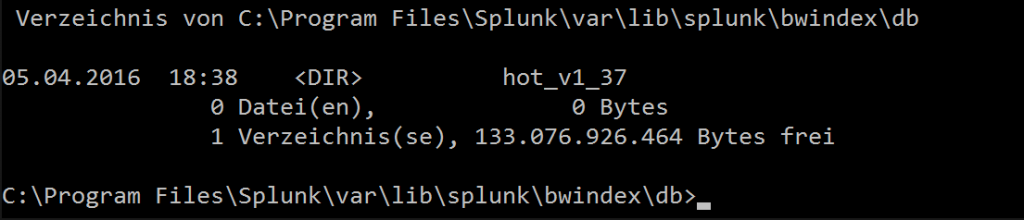
Here is a hot bucket in an index named “bwindex” with the ID 37.</p>
<p><img src="/images/rollbucket-bucket-hot-1024x220.png" alt="rollbucket-bucket-hot-1024x220.png"  /></p>
<p>You can force Splunk to roll the bucket with using this command:
splunk _internal call /data/indexes/INDEXNAME/roll-hot-buckets -auth admin:password
Where INDEXNAME the name of the index to roll.</p>
<p><img src="/images/rollbucket-bucket-hot1a.png" alt="rollbucket-bucket-hot1a.png"  /></p>
<p>You can also trigger the rolling on a remote indexer using curl:
curl –k https://localhost:8089/services/data/indexes/bwindex/roll-hot-buckets -x POST -u admin:password
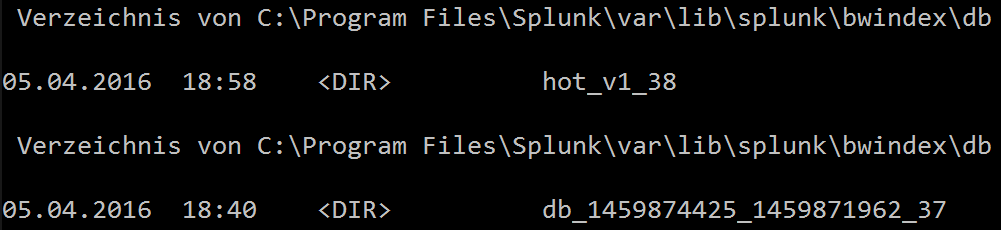
After that we check again on the hot buckets and see that there is a new hot bucket with ID 38. The old bucket has been renamed to db_timestamp_timestamp_ID.</p>
<p><img src="/images/rollbucket-bucket-roll1.png" alt="rollbucket-bucket-roll1.png"  /></p>
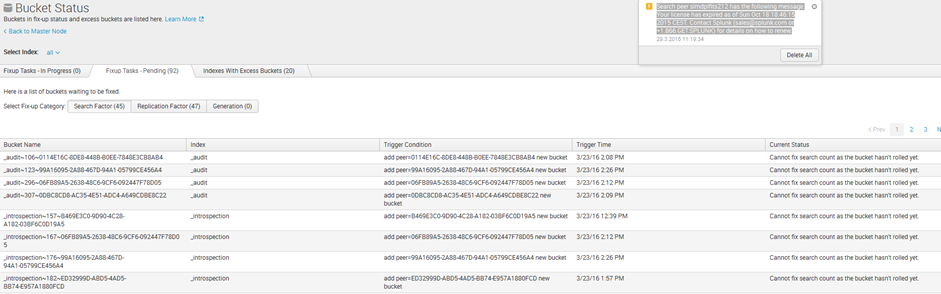
<p>There might be situations in the real world where you want to roll the hot buckets manually. There was an index replication cluster where the search factor and replication factor wasn’t met. The error message was “Cannot fix search count as the bucket hasn’t rolled yet”. As this could take up to 90 days to complete (if the data volume is small enough) we want to force the indexer to roll the bucket.</p>
<p>There is a screenshot:</p>
<p><img src="/images/rollbucket-fehlermeldung_1.png" alt="rollbucket-fehlermeldung_1.png"  /></p>
<p><strong>Splunk v6.4</strong></p>
<p>There is a feature easy to overlook in Splunk6.4 which is named “Force roll specific hot buckets“. You can find the documentation here.
There is a new REST endpoint /services/cluster/master/control/control/roll-hot-buckets – which makes your life easier. In older versions you need to determine the concrete indexer by matching the GUID from the bucket information (e.g.: _audit~2~1A3889D7-954B-4CE6-B071-01B438DE9865) and send the REST request to the cluster peer directly.</p>
<p>old method – pre v6.4(for every indexer and bucket):</p>
<ol>
<li>determine the indexer with rest query
<code>| rest /services/cluster/master/peers splunk_server=local | table id label status last_heartbeat</code></li>
<li>roll the bucket:
<code>curl –k https://clusterpeer:8089/services/data/indexes/INDEXNAME/roll-hot-buckets -x POST -u admin:password</code></li>
</ol>
<p>Now you can force the cluster master to advice the cluster peer to roll the bucket.</p>
<p>new method (for every bucket):
<code>curl -k -u username:password https://localhost:8089/services/cluster/master/control/control/roll-hot-buckets -X POST -d &quot;bucket_id=_audit~2~1A3889D7-954B-4CE6-B071-01B438DE9865&quot;</code></p>
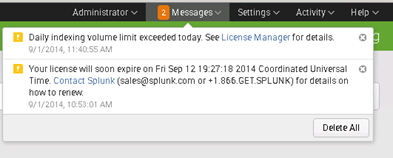
<p>Hope this helps..</p>]]></content><category scheme="https://www.batchworks.de/authors/andreas-roth" term="andreas-roth" label="andreas-roth"/><category scheme="https://www.batchworks.de/tags/big-data" term="big-data" label="Big Data"/><category scheme="https://www.batchworks.de/tags/splunk" term="splunk" label="Splunk"/></entry><entry><title type="html">Nagios Plugin to check Splunk license usage</title><link href="https://www.batchworks.de/monitoring-splunk-license-usage-using-nagios/?utm_source=atom_feed" rel="alternate" type="text/html" hreflang="en"/><id>https://www.batchworks.de/monitoring-splunk-license-usage-using-nagios/</id><author><name>Andreas Roth</name></author><published>2015-02-20T00:00:00+00:00</published><updated>2015-02-20T00:00:00+00:00</updated><content type="html"><![CDATA[<p>In today’s article about Splunk monitoring we want to monitor the Splunk license usage. You want to keep an eye on the license usage, as 5 warnings of the daily indexing volume using the enterprise license or 3 warnings using the free license will cause a license violation.</p>
<p>A license violation will deactivate Splunk searches but not the indexing process. So you will not be able to query your data – but at least never loose it.</p>
<p>Typically a license warning is displayed in the web console of Splunk.</p>
<p><img src="/images/violations.png" alt="violations"  /></p>
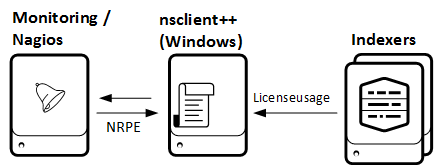
<p>This warning is fine – but you want to get a notification using your normal monitoring and escalation process it’s simply not enough. For that reason I created a Powershell script which queries Splunk for the amount of indexed data and creates warningor critical events in your monitoring solution (e.g. Nagios)</p>
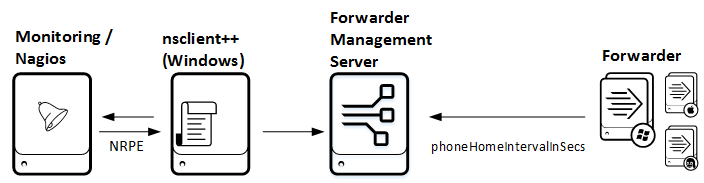
<p>As in the other monitoring articles for checking client versions and connections to Forwarder Management I’m using Splunk Powershell resource kit. Again – you will just need a Windows machine for executing the Powershell script – your Indexers could be running on non-Windows machines.</p>
<p><img src="/images/overview4.png" alt="overview4"  /></p>
<p><strong>Setup monitoring using nsclient++ on Windows</strong></p>
<p>Find the Download for the Script here.</p>
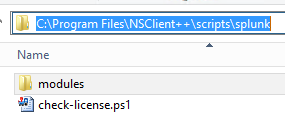
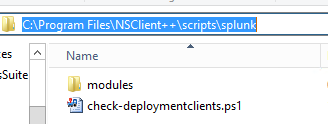
<ol>
<li>
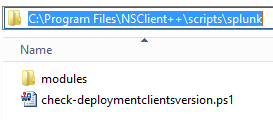
<p>Download and extract the files to <code>C:\Program Files\NSClient++\scripts\splunk</code>
<img src="/images/hc_093.png" alt="hc_093"  /></p>
</li>
<li>
<p>Adjust your “C:\Program Files\NSClient++\nsclient.ini” and add the external script</p>
</li>
</ol>
<pre tabindex="0"><code>[/settings/external scripts/scripts]
check_splunklicense = cmd /c echo scripts\\splunk\\check-license.ps1 -servername $ARG1$ -port $ARG2$ -username $ARG3$ -password $ARG4$ -warn $ARG5$ -critical $ARG6$; exit($lastexitcode) | powershell.exe -command –
</code></pre><ol>
<li>On the Nagios server: create a new command using NRPE</li>
</ol>
<pre tabindex="0"><code>define command{
command_name nt_nrpe_splunklicense
command_line /usr/lib/nagios/plugins/check_nrpe -t 30 -H $ARG1$ -p 5666 -c check_splunklicense -a $ARG2$ $ARG3$ $ARG4$ $ARG5$ $ARG6$ $ARG7$
}
</code></pre><ol>
<li>On the Nagios server: add a service to your host definition</li>
</ol>
<pre tabindex="0"><code>define service{
use generic-service
host_name splunkindexer.bwlab.loc
service_description splunk license check splunk-2
check_command nt_nrpe_splunklicense!1.1.1.1!1.1.1.2!8089!admin!yourpassword!380!500
}
</code></pre><p>As you see at the command and service definition the first argument is the host where the Powershell script will be executed (1.1.1.1). The second and following arguments gives the Splunk indexer hostname (1.1.1.2) and credentials for login. The 380 and 500 pieces are the thresholds in MB for warning and critical triggers in Nagios.</p>
<p><strong>Parameters</strong></p>
<p>Here is a detailed list of the script parameters:</p>
<pre tabindex="0"><code>-servername

the servername or ip address to be checked – default localhost

-port

port of splunkd – default 8089

-protocol

protocol to use to communicate with splunkd – default: https

-timeout

connectiontimeout to splunkd in milliseconds – default 5000

-username

username to use to login to splunkd

-password

password to use with splunkd

-pool

licensepool to check – default “auto_generated_pool_download-trial” ..
freeversion is “auto_generated_pool_free”

 -warn

warningvalue in Megabytes

-critical

critical value in Megabytes

-showpool

display all pools found on the indexer and usage. Values could be 0 (default: don’t display) or 1 (display)
</code></pre><p>If you are unsure which license pool to use check the -showpool parameter. It will display all license pools on the indexer and the used bytes.</p>
<p><img src="/images/hc_0021.png" alt="hc_0021"  /></p>
<p>if everything is setup correctly you will be honored with great check for your licensing and will never miss a warning again.</p>
<p><img src="/images/hc_0033.png" alt="hc_0033"  /></p>]]></content><category scheme="https://www.batchworks.de/authors/andreas-roth" term="andreas-roth" label="andreas-roth"/><category scheme="https://www.batchworks.de/tags/big-data" term="big-data" label="Big Data"/><category scheme="https://www.batchworks.de/tags/splunk" term="splunk" label="Splunk"/><category scheme="https://www.batchworks.de/tags/monitoring" term="monitoring" label="Monitoring"/></entry><entry><title type="html">automatic Rolling Pool Upgrade from XenServer 6.1 to XenServer 6.2</title><link href="https://www.batchworks.de/doing-an-automatic-rolling-pool-upgrade-from-xenserver-6-1-to-xenserver-6-2/?utm_source=atom_feed" rel="alternate" type="text/html" hreflang="en"/><id>https://www.batchworks.de/doing-an-automatic-rolling-pool-upgrade-from-xenserver-6-1-to-xenserver-6-2/</id><author><name>Andreas Roth</name></author><published>2015-02-17T00:00:00+00:00</published><updated>2015-02-17T00:00:00+00:00</updated><content type="html"><![CDATA[<p>Alright, XenServer 6.2 has been released a few days ago. There seem to be no well-known update issues – so time to get the job done…</p>
<p><strong>Things to consider BEFORE upgrading</strong></p>
<p>This is the first release which massively removed features from the product. If you are using:</p>
<ul>
<li>Workload Balancing (WLB) or associated features (power down hosts…)</li>
<li>SCOM Integration</li>
<li>Backups using Virtual Machine Protection and Recovery (VMPR)</li>
<li>Web Self Service</li>
</ul>
<p>. This update is not for you! Check out <a class="gblog-markdown__link" href="http://support.citrix.com/article/CTX137826">http://support.citrix.com/article/CTX137826</a>  for further information.
Second, you need a Windows Host for the Rolling Pool Upgrade. Install and update XenCenter before proceeding …</p>
<div class="gblog-post__anchorwrap">
    <h4 id="prepare-the-installation-media">
        Prepare the installation media
        <a data-clipboard-text="https://www.batchworks.de/doing-an-automatic-rolling-pool-upgrade-from-xenserver-6-1-to-xenserver-6-2/#prepare-the-installation-media" class="gblog-post__anchor gblog-post__anchor--right clip" aria-label="Anchor Prepare the installation media" href="#prepare-the-installation-media">
            <svg class="icon gblog_link"><use xlink:href="#gblog_link"></use></svg>
        </a>
    </h4>
</div><p>The easiest way to provide the installation media to XenServer 6.1 is NFS. Here you do not have to care for IIS MIME Type issues or FTP ascii/binary stuff. Just click &amp; serve:
Add the NFS Server Role, create a folder and copy the content of the downloaded XenServer-6.2.0-install-cd.iso from Xenserver.org there and create a NFS share. The first step is to add the NFS server role</p>
<p><img src="/images/hc_25781-300x112.png" alt="hc_25781-300x112"  /></p>
<p>Create the NFS Share. Default permissions are fine, since they will give read access to every host.</p>
<p><img src="/images/hc_2579-300x285.png" alt="hc_2579-300x285"  />
<img src="/images/hc_2580-241x300.png" alt="hc_2580-241x300"  /></p>
<p>To be on the safe side you should check if the NFS share can be accessed. Run XenServer Console or login via SSH to XenServer poolmaster and mount the NFS share like in my example:</p>
<pre tabindex="0"><code>mkdir /mnt/nfstest
mount -t nfs NFSServer:/NFSSHARENAME /mnt/nfstest
ls -l /mnt/nfstest
umount /mnt/nfstest
</code></pre><p><img src="/images/hc_2581-300x142.png" alt="hc_2581-300x142"  /></p>
<p><strong>Rolling Pool Upgrade Wizard slideshow..</strong></p>
<p>Now it’s time to start XenCenter and run the wizard:</p>
<p><img src="/images/hc_2582-150x130.png" alt="hc_2582-150x130"  /></p>
<ol>
<li>run the wizard</li>
</ol>
<p><img src="/images/hc_2583-300x199.png" alt="hc_2583-300x199"  /></p>
<ol start="2">
<li>Select your pool. Nothing can be done wrong here</li>
</ol>
<p>#<img src="/images/.png" alt=""  />
<img src="/images/hc_2584-300x202.png" alt="hc_2584-300x202 "  /></p>
<ol start="3">
<li>Select “automatic” as we have prepared the NFS share</li>
</ol>
<p><img src="/images/hc_2585-300x201.png" alt="hc_2585-300x201"  /></p>
<ol start="4">
<li>Check the prechecks there. As you see Workload Balancing (WLB) and WSS are two features which will be removed after the Upgrade.</li>
</ol>
<p><img src="/images/hc_2586-300x201.png" alt="hc_2586-300x201"  /></p>
<ol start="5">
<li>Set XenServer installation media NFS Share</li>
</ol>
<p><img src="/images/hc_2587-300x200.png" alt="hc_2587-300x200"  /></p>
<ol start="6">
<li><strong>Get a coffee</strong> – you may check the XenServers console to see if it’s proceeding..</li>
</ol>
<p><img src="/images/hc_2589-300x178.png" alt="hc_2589-300x178"  />
<img src="/images/hc_2588-300x177.png" alt="hc_2588-300x177"  /></p>
<ol start="7">
<li>if you check the server’s console – cross your fingers and watch progress bars…</li>
</ol>
<p><img src="/images/hc_2590-300x201.png" alt="hc_2590-300x201"  /></p>
<ol start="8">
<li>After some time XenCenter will show you update have been successfull.</li>
</ol>
<p><img src="/images/hc_2591-300x225.png" alt="hc_2591-300x225"  /></p>
<p>After relogon to XenCenter you want to verify the Buildnumber</p>]]></content><category scheme="https://www.batchworks.de/authors/andreas-roth" term="andreas-roth" label="andreas-roth"/><category scheme="https://www.batchworks.de/tags/xenserver" term="xenserver" label="XenServer"/></entry><entry><title type="html">Fix RDP Error 3334 in mRemoteNG and others</title><link href="https://www.batchworks.de/fix-rdp-error-3334-in-mremoteng-and-others/?utm_source=atom_feed" rel="alternate" type="text/html" hreflang="en"/><id>https://www.batchworks.de/fix-rdp-error-3334-in-mremoteng-and-others/</id><author><name>Andreas Roth</name></author><published>2015-02-17T00:00:00+00:00</published><updated>2015-02-17T00:00:00+00:00</updated><content type="html"><![CDATA[<p>I’m using MRemoteNG to manage and create my RDP connections. In the last months, every now and then, I was unable to connect RDP sessions. When using mstsc.exe instead the RDP connection was established correctly.</p>
<p><img src="/images/hc_025.png" alt="hc_025"  /></p>
<p>After some research I found the reported mRemoteNG Bug - <a class="gblog-markdown__link" href="https://mremoteng.atlassian.net/browse/MR-582">https://mremoteng.atlassian.net/browse/MR-582</a>. In the Comments somebody suggested to add the /LARGEADDRESSAWARE flag to the mremoteng.exe binary. Tried it, fixed it!</p>
<p><img src="/images/hc_026.png" alt="hc_026"  /></p>
<p>If you haven’t Visual Studio installed, here is a link to a modified mremote.exe Version 1.72.</p>
<p>It seems that every comparable Software like ASG/Visionapp Remote Desktop, Microsoft Remote Desktop Conection Manger (RDCMan) had the same issue in older versions.</p>]]></content><category scheme="https://www.batchworks.de/authors/andreas-roth" term="andreas-roth" label="andreas-roth"/><category scheme="https://www.batchworks.de/tags/terminal-services" term="terminal-services" label="Terminal Services"/></entry><entry><title type="html">Fix GeoIP and Google Maps Apps in Splunk 6.1</title><link href="https://www.batchworks.de/fix-geoip-and-google-maps-apps-in-splunk-6-1/?utm_source=atom_feed" rel="alternate" type="text/html" hreflang="en"/><id>https://www.batchworks.de/fix-geoip-and-google-maps-apps-in-splunk-6-1/</id><author><name>Andreas Roth</name></author><published>2015-02-16T00:00:00+00:00</published><updated>2015-02-16T00:00:00+00:00</updated><content type="html"><![CDATA[<p>Today, after upgrading to Splunk 6.1 I realized, that some GeoIP data in dashboards was missing. By using the lookup search command to get the country from an IP address like :</p>
<p><code>| stats count | eval ip=”193.28.153.192″ | lookup geoip clientip as ip</code></p>
<p>I got an error message, which showed that the lookup was somehow not working.</p>
<p><img src="/images/hc_4375-small-300x77.png" alt="hc_4375-small-300x77"  /></p>
<p>As the &ldquo;geoip&rdquo; lookup is implemented as a python script I checked the process using procmon..</p>
<p><img src="/images/procmon-300x51.png" alt="procmon-300x51"  /></p>
<p>As we see python.exe – which represents the lookup script located at c:\Program Files\Splunk\etc\apps\MAXMIND\bin\geoip.py – tries to read the Maxmind Database File GeoCityLite.dat and fails because the file is not where expected. In fact the database file is located at app folder c:\Program Files\Splunk\etc\apps\maps\bin\GeoLiteCity.dat, not Program folder c:\Program Files\Splunk\bin\GeoLiteCity.dat.</p>
<p>To fix the issue open the lookup script, uncomment line 5 and comment out line 6:</p>
<pre tabindex="0"><code>DB_PATH = os.path.join(os.environ[&#34;SPLUNK_HOME&#34;], ‘etc’, ‘apps’, ‘MAXMIND’,&#39;bin’,&#39;GeoLiteCity.dat’)
#DB_PATH=(‘GeoLiteCity.dat’)
</code></pre><p>The same issue also applies to the Splunk Google Maps app. The command</p>
<p><code>| stats count | eval ip=”193.28.153.192″| lookup geo ip</code></p>
<p>returns error code 1 instead of a pin on the map.</p>
<p><img src="/images/hc_4378_small-300x162.png" alt="hc_4378_small-300x162"  /></p>
<p>you have to adjust the config file c:\Program Files\Splunk\etc\apps\maps\default\geoip.conf to</p>
<pre tabindex="0"><code>database_file = c:\Program Files\Splunk\etc\apps\maps\bin\GeoLiteCity.dat
</code></pre><p>The whole issue looks like a compatibility issue from Splunk 6.0 to 6.1. It seems that lookup scripts are executed in a different working directory.</p>]]></content><category scheme="https://www.batchworks.de/authors/andreas-roth" term="andreas-roth" label="andreas-roth"/><category scheme="https://www.batchworks.de/tags/big-data" term="big-data" label="Big Data"/><category scheme="https://www.batchworks.de/tags/splunk" term="splunk" label="Splunk"/></entry><entry><title type="html">How to access the local Edgesight Firebird database</title><link href="https://www.batchworks.de/how-to-access-the-local-edgesight-firebird-database/?utm_source=atom_feed" rel="alternate" type="text/html" hreflang="en"/><id>https://www.batchworks.de/how-to-access-the-local-edgesight-firebird-database/</id><author><name>Andreas Roth</name></author><published>2015-02-16T00:00:00+00:00</published><updated>2015-02-16T00:00:00+00:00</updated><content type="html"><![CDATA[<p>There are certain troubleshooting scenarios where you want to get access to the data from the local Edgesight database. Technically the Edgesight agent collects all the data from the running local host in a local Firebird database and uploads the data in a configurable timeframe into the central MSSQL database.</p>
<p>So if you have e.g. data missing in the MSSQL database you might want to know if the data is not collected from the agent (you might want to update it) or if the consolidation from the Firebird database to the MSSQL databas is an issue.</p>
<p>Unfortunately the process to connect to the local database is not well documented, so I’m doing this here.</p>
<p>The steps necessary are to setup a second instance of Firebird, attach the local database and browse the database using a GUI tool.</p>
<p>First you need to download the proper version of Firebird database server from <a class="gblog-markdown__link" href="http://www.firebirdsql.org">http://www.firebirdsql.org</a>. Make sure you download the newest version of the same major release Citrix is using for the agent. To get the major release check the file version of “C:\Program Files (x86)\Citrix\System Monitoring\Agent\Core\Firebird\bin\fbserver.exe”.</p>
<p><img src="/images/edgesight-exe-version-217x300.png" alt="edgesight-exe-version-217x300"  /></p>
<p>Now install the Firebird server with a next-&gt;next-&gt;next-&gt;finish. You should use the “Classic server binary” version.</p>
<p><img src="/images/edgesight-firebird-setup-300x228.png" alt="edgesight-firebird-setup-300x228.png"  /> <img src="/images/edgesight-firebird-classicserver-300x227.png" alt="edgesight-firebird-classicserver-300x227"  /></p>
<p>Open services.msc and search for the “firebird – DefaultInstance” service to make sure Firebird is up and running. Btw.: you will find the Citrix Edgesight Firebird Service next to it, named “Firebird Server – CSMInstance”.</p>
<p>As you want to work with the database using a GUI, I suggest you install Flamerobin from <a class="gblog-markdown__link" href="http://flamerobin.org/">http://flamerobin.org/</a>. Just install the application – “next-&gt;next-&gt;next-&gt;finish.”</p>
<p><img src="/images/edgesight-flamerobin-300x39.png" alt="edgesight-flamerobin-300x39.png"  /></p>
<p>Now it’s time to stop your Edgesight and Citrix Firebird services on the Edgesight device.</p>
<p><img src="/images/edgesight-stopservices-300x89.png" alt="edgesight-stopservices-300x89.png"  /></p>
<p>Fire up Flamerobin and connect to the local newly installed Firebird instance. Choose Server-&gt;Register New Server</p>
<p>The running server is localhost and the TCP Port 3050.</p>
<p><img src="/images/edgesight-flamerobin-register-new-server-219x300.png" alt="edgesight-flamerobin-register-new-server-219x300"  /></p>
<p>Now you need to attach the Citrix Firebird database to this server. Choose “Register existing database…” and select the “RSDATR.FDB” database file.</p>
<p><img src="/images/edgesight-register-existing-database-300x244.png" alt="edgesight-register-existing-database-300x244"  />
<img src="/images/edgesight-register-existing-database1-300x169.png" alt="edgesight-register-existing-database1-300x169"  /></p>
<p>Make sure to use the user sysdba and password masterkey (this is the default password of the new Firebird instance) to login.</p>
<p>That’s it, you’re done and can now browse and query all the tables, views and triggers of the local database.</p>
<p><img src="/images/edgesight-database-tree-221x300.png" alt="edgesight-database-tree-221x300"  />
<img src="/images/edgesight-views-223x300.png" alt="edgesight-views-223x300"  /></p>
<p><img src="/images/edgesight-query-1024x207.png" alt="edgesight-query-1024x207"  /></p>]]></content><category scheme="https://www.batchworks.de/authors/andreas-roth" term="andreas-roth" label="andreas-roth"/><category scheme="https://www.batchworks.de/tags/citrix" term="citrix" label="Citrix"/></entry><entry><title type="html">ErrorAction for Get-VMHostNetworkAdapter broken</title><link href="https://www.batchworks.de/erroraction-for-get-vmhostnetworkadapter-broken/?utm_source=atom_feed" rel="alternate" type="text/html" hreflang="en"/><id>https://www.batchworks.de/erroraction-for-get-vmhostnetworkadapter-broken/</id><author><name>Birk Bohne</name></author><published>2014-09-11T00:00:00+00:00</published><updated>2014-09-11T00:00:00+00:00</updated><content type="html"><![CDATA[<p>The ErrorAction parameter still throws an error even if the “SilentlyContinue” option is selected. This is a problem if you just want to check the existence of NICs on a ESX Host.</p>
<div class="highlight"><pre tabindex="0" style="background-color:#f0f3f3;-moz-tab-size:4;-o-tab-size:4;tab-size:4;"><code class="language-powershell" data-lang="powershell"><span style="display:flex;"><span><span style="color:#033">$ESXHost</span> = <span style="color:#366">Get-VMHost</span> esx.fqdn -ErrorAction:Stop
</span></span><span style="display:flex;"><span><span style="color:#033">$dvSwitch</span> = <span style="color:#366">Get-VDSwitch</span> -Name dvSwitch1 -Location virtualDatacenter -VMHost <span style="color:#033">$ESXHost</span> -ErrorAction:Stop
</span></span><span style="display:flex;"><span><span style="color:#033">$Portgroup</span> = <span style="color:#366">Get-VDPortgroup</span> -Name <span style="color:#a00;background-color:#faa">“</span>Management Network<span style="color:#a00;background-color:#faa">”</span> -VDSwitch <span style="color:#033">$dvSwitch</span> -ErrorAction:Stop
</span></span><span style="display:flex;"><span><span style="color:#366">Get-VMHostNetworkAdapter</span> -VMHost <span style="color:#033">$ESXHost</span> -VMKernel:$true -VirtualSwitch <span style="color:#033">$dvSwitch</span> -PortGroup <span style="color:#033">$Portgroup</span> -ErrorAction:SilentlyContinue | <span style="color:#366">out-null</span>
</span></span></code></pre></div><p>If the Host has no vmk NIC configured on the “Management Network” portgroup of dvSwitch1 the CMDlet still throws a error message. My workaround is a empty try/catch function to suppress the error message.</p>
<div class="highlight"><pre tabindex="0" style="background-color:#f0f3f3;-moz-tab-size:4;-o-tab-size:4;tab-size:4;"><code class="language-powershell" data-lang="powershell"><span style="display:flex;"><span><span style="color:#069;font-weight:bold">try</span> {
</span></span><span style="display:flex;"><span>    <span style="color:#366">Get-VMHostNetworkAdapter</span> -VMHost <span style="color:#033">$ESXHost</span> -VMKernel:$true -VirtualSwitch <span style="color:#033">$dvSwitch</span> -PortGroup <span style="color:#033">$Portgroup</span> -ErrorAction:SilentlyContinue | <span style="color:#366">out-null</span>
</span></span><span style="display:flex;"><span>}
</span></span><span style="display:flex;"><span><span style="color:#069;font-weight:bold">catch</span> {
</span></span><span style="display:flex;"><span>    <span style="color:#09f;font-style:italic">#silence</span>
</span></span><span style="display:flex;"><span>}
</span></span></code></pre></div><p>Also for this bug a VMware SR is open. Let’s see if this bug is fixed in the next PowerCLI version.</p>
<p>The VMware versions in my development environment.</p>
<div class="highlight"><pre tabindex="0" style="background-color:#f0f3f3;-moz-tab-size:4;-o-tab-size:4;tab-size:4;"><code class="language-powershell" data-lang="powershell"><span style="display:flex;"><span>PowerCLI Version
</span></span><span style="display:flex;"><span><span style="color:#a00;background-color:#faa">—————</span>-
</span></span><span style="display:flex;"><span>VMware vSphere PowerCLI <span style="color:#f60">5.5</span> Release <span style="color:#f60">2</span> Patch <span style="color:#f60">1</span> build <span style="color:#f60">1931983</span>
</span></span><span style="display:flex;"><span><span style="color:#a00;background-color:#faa">—————</span>
</span></span><span style="display:flex;"><span>Snapin Versions
</span></span><span style="display:flex;"><span><span style="color:#a00;background-color:#faa">—————</span>
</span></span><span style="display:flex;"><span>VMWare AutoDeploy PowerCLI Component <span style="color:#f60">5.5</span> build <span style="color:#f60">1890764</span>
</span></span><span style="display:flex;"><span>VMWare ImageBuilder PowerCLI Component <span style="color:#f60">5.5</span> build <span style="color:#f60">1890764</span>
</span></span><span style="display:flex;"><span>VMware vCloud Director PowerCLI Component <span style="color:#f60">5.5</span> build <span style="color:#f60">1649227</span>
</span></span><span style="display:flex;"><span>VMware License PowerCLI Component <span style="color:#f60">5.5</span> build <span style="color:#f60">1265954</span>
</span></span><span style="display:flex;"><span>VMware VDS PowerCLI Component <span style="color:#f60">5.5</span> build <span style="color:#f60">1926677</span>
</span></span><span style="display:flex;"><span>VMware vSphere PowerCLI Component <span style="color:#f60">5.5</span> Patch <span style="color:#f60">1</span> build <span style="color:#f60">1926677</span>
</span></span><span style="display:flex;"><span>VMware vSphere Update Manager PowerCLI <span style="color:#f60">5.5</span> build <span style="color:#f60">1302474</span>
</span></span><span style="display:flex;"><span><span style="color:#a00;background-color:#faa">—————</span>
</span></span><span style="display:flex;"><span>vSphere Versions
</span></span><span style="display:flex;"><span><span style="color:#a00;background-color:#faa">—————</span>
</span></span><span style="display:flex;"><span>vCenter <span style="color:#f60">5.5</span> <span style="color:#f60">1891313</span>
</span></span><span style="display:flex;"><span>ESX <span style="color:#f60">5.5</span> <span style="color:#f60">1331820</span>
</span></span></code></pre></div>]]></content><category scheme="https://www.batchworks.de/authors/birk-bohne" term="birk-bohne" label="birk-bohne"/><category scheme="https://www.batchworks.de/tags/powercli" term="powercli" label="powercli"/><category scheme="https://www.batchworks.de/tags/powershell" term="powershell" label="Powershell"/><category scheme="https://www.batchworks.de/tags/vcenter" term="vcenter" label="vCenter"/></entry><entry><title type="html">Set-VDSwitch NumUplinkPorts Bug</title><link href="https://www.batchworks.de/set-vdswitch-numuplinkports-bug/?utm_source=atom_feed" rel="alternate" type="text/html" hreflang="en"/><id>https://www.batchworks.de/set-vdswitch-numuplinkports-bug/</id><author><name>Birk Bohne</name></author><published>2014-09-11T00:00:00+00:00</published><updated>2014-09-11T00:00:00+00:00</updated><content type="html"><![CDATA[<p>During my PowerCLI scripting for the provisioning of new ESX Hosts i have found another bug. The Set-VDSwitch CMDlet does not set the number of uplink ports correctly in every case.</p>
<p>You can change the number of uplink ports from 2 to 4 without problems, but the configuration back to two uplinks silently fails.</p>
<p><code>Set-VDSwitch -VDSwitch $dvSwitchObject -NumUplinkPorts “4″ -Confirm:$false</code></p>
<p>The dvSwitch has 4 uplink ports after the configuration change.</p>
<p><code>Set-VDSwitch -VDSwitch $dvSwitchObject -NumUplinkPorts “2″ -Confirm:$false</code></p>
<p>The dvSwitch still has 4 uplink ports after this configuration change. The CMDlet finishes without an error, but the configuration is unchanged. Currently i have no automation workaround for that, but i can change the settings in the vSphere Web Client manually.</p>
<p>I have opened a VMware SR. Let’s see if this bug is fixed in the next PowerCLI version.</p>
<p>The VMware versions in my development environment.</p>
<pre tabindex="0"><code>PowerCLI Version
—————-
VMware vSphere PowerCLI 5.5 Release 2 Patch 1 build 1931983
—————
Snapin Versions
—————
VMWare AutoDeploy PowerCLI Component 5.5 build 1890764
VMWare ImageBuilder PowerCLI Component 5.5 build 1890764
VMware vCloud Director PowerCLI Component 5.5 build 1649227
VMware License PowerCLI Component 5.5 build 1265954
VMware VDS PowerCLI Component 5.5 build 1926677
VMware vSphere PowerCLI Component 5.5 Patch 1 build 1926677
VMware vSphere Update Manager PowerCLI 5.5 build 1302474
—————
vSphere Versions
—————
vCenter 5.5 1891313
ESX 5.5 1331820
</code></pre>]]></content><category scheme="https://www.batchworks.de/authors/birk-bohne" term="birk-bohne" label="birk-bohne"/><category scheme="https://www.batchworks.de/tags/powercli" term="powercli" label="powercli"/><category scheme="https://www.batchworks.de/tags/powershell" term="powershell" label="Powershell"/><category scheme="https://www.batchworks.de/tags/vcenter" term="vcenter" label="vCenter"/><category scheme="https://www.batchworks.de/tags/virtualization" term="virtualization" label="Virtualization"/></entry><entry><title type="html">Set-VDUplinkTeamingPolicy has problems with the Failback option</title><link href="https://www.batchworks.de/set-vduplinkteamingpolicy-has-problems-with-the-failback-option/?utm_source=atom_feed" rel="alternate" type="text/html" hreflang="en"/><id>https://www.batchworks.de/set-vduplinkteamingpolicy-has-problems-with-the-failback-option/</id><author><name>Birk Bohne</name></author><published>2014-09-11T00:00:00+00:00</published><updated>2014-09-11T00:00:00+00:00</updated><content type="html"><![CDATA[<p>Time for the next PowerCLI bug. The Set-VDUplinkTeamingPolicy CMDlet has problems with the “failback” option.</p>
<p>It is possible to switch “Failback” from true to false, but not from false to true. The CMDlet does not throw an error. The setting just stays the same. With the vSphere Client i’m able to change the failback option in both directions.</p>
<pre tabindex="0"><code>$dvSwitch = Get-VDSwitch -Name dvswitch1
Portgroup = Get-VDPortgroup -Name “NFS” -VDSwitch $dvSwitch
$Portgroup | Get-VDUplinkTeamingPolicy | Set-VDUplinkTeamingPolicy -FailBack:$true
</code></pre><p>The CMDlet works as expected, because after this change the failback option is enabled.</p>
<pre tabindex="0"><code>$dvSwitch = Get-VDSwitch -Name dvswitch1
Portgroup = Get-VDPortgroup -Name “NFS” -VDSwitch $dvSwitch
$Portgroup | Get-VDUplinkTeamingPolicy | Set-VDUplinkTeamingPolicy -FailBack:$false
</code></pre><p>The failback option is still enabled and the CMDlet does not throw an error.</p>
<p>Currently i have no workaround for it, but also for this bug a VMware SR is open.</p>
<p>The VMware versions in my development environment.</p>
<pre tabindex="0"><code>PowerCLI Version
—————-
VMware vSphere PowerCLI 5.5 Release 2 Patch 1 build 1931983
—————
Snapin Versions
—————
VMWare AutoDeploy PowerCLI Component 5.5 build 1890764
VMWare ImageBuilder PowerCLI Component 5.5 build 1890764
VMware vCloud Director PowerCLI Component 5.5 build 1649227
VMware License PowerCLI Component 5.5 build 1265954
VMware VDS PowerCLI Component 5.5 build 1926677
VMware vSphere PowerCLI Component 5.5 Patch 1 build 1926677
VMware vSphere Update Manager PowerCLI 5.5 build 1302474
—————
vSphere Versions
—————
vCenter 5.5 1891313
ESX 5.5 1331820
</code></pre>]]></content><category scheme="https://www.batchworks.de/authors/birk-bohne" term="birk-bohne" label="birk-bohne"/><category scheme="https://www.batchworks.de/tags/powercli" term="powercli" label="powercli"/><category scheme="https://www.batchworks.de/tags/powershell" term="powershell" label="Powershell"/><category scheme="https://www.batchworks.de/tags/vcenter" term="vcenter" label="vCenter"/><category scheme="https://www.batchworks.de/tags/virtualization" term="virtualization" label="Virtualization"/></entry><entry><title type="html">Setup and configure Splunk Forwarder on Debian Linux</title><link href="https://www.batchworks.de/setup-and-configure-splunk-forwarder-on-debian-linux/?utm_source=atom_feed" rel="alternate" type="text/html" hreflang="en"/><id>https://www.batchworks.de/setup-and-configure-splunk-forwarder-on-debian-linux/</id><author><name>Andreas Roth</name></author><published>2014-04-08T00:00:00+00:00</published><updated>2014-04-08T00:00:00+00:00</updated><content type="html"><![CDATA[<p>Small and short article for today: how to setup and configure Splunk Forwarder for Debian Linux. This is also valid for all Debian derivates like Ubuntu etc. In the Splunk universe the Forwarder is installed on your machine, collects data and events generated by your OSs and forward it to your Splunk Indexer. In general you should install the Forwarder on all clients generating log files if you want to collect them on the Indexer.</p>
<p>First download the appropriate .deb package (32 bit or 64 bit) from  from <a class="gblog-markdown__link" href="http://www.splunk.com/download/universalforwarder">http://www.splunk.com/download/universalforwarder</a>. Now you can create an unattended setup of Splunk Forwarder with a shell script like this (64 bit Forwarder is used).</p>
<pre tabindex="0"><code>#!/bin/bash

# install the package
dpkg -i splunkforwarder-5.0.1-143156-linux-2.6-amd64.deb


# accept EULA
/opt/splunkforwarder/bin/splunk start –answer-yes –no-prompt –accept-license


# change the adminpassword from changeme to Splunky
/opt/splunkforwarder/bin/splunk edit user admin -password Splunky -auth admin:changeme


# point the forwarder to forward all events to splunkserver
/opt/splunkforwarder/bin/splunk add forward-server splunkserver:9997 -auth admin:Splunky


# index and watch/monitor all files in /var/log
/opt/splunkforwarder/bin/splunk add monitor /var/log/ -auth admin:Splunky
</code></pre><p>Don’t forget to adjust the server name and port as well as the user and password to your Splunk Indexer installation.</p>
<p>In default installation Splunk forwarder is binding itself to all network interfaces (0.0.0.0). As this is not necessary and a security risk, you can reconfigure it in the file /opt/splunkforwarder/etc/splunk-launch.conf and add the following lines:</p>
<p>After this a restart of the Splunk daemon is necessary:</p>
<pre tabindex="0"><code># bind splunk to localhost only
echo “# bind splunk to localhost only” &gt;&gt; /opt/splunkforwarder/etc/splunk-launch.conf
echo “SPLUNK_BINDIP=127.0.0.1″ &gt;&gt; /opt/splunkforwarder/etc/splunk-launch.conf

/opt/splunkforwarder/bin/splunk restart
</code></pre><p>Create the initscripts for startup</p>
<p><code>/opt/splunkforwarder/bin/splunk enable boot-start</code></p>
]]></content><category scheme="https://www.batchworks.de/authors/andreas-roth" term="andreas-roth" label="andreas-roth"/><category scheme="https://www.batchworks.de/tags/splunk" term="splunk" label="Splunk"/><category scheme="https://www.batchworks.de/tags/big-data" term="big-data" label="Big Data"/></entry><entry><title type="html">NumberFormatExeption for certain vCOps 5.7.1 custom UI widgets</title><link href="https://www.batchworks.de/numberformatexeption-for-certain-vcops-5-7-1-custom-ui-widgets/?utm_source=atom_feed" rel="alternate" type="text/html" hreflang="en"/><id>https://www.batchworks.de/numberformatexeption-for-certain-vcops-5-7-1-custom-ui-widgets/</id><author><name>Birk Bohne</name></author><published>2013-10-10T00:00:00+00:00</published><updated>2013-10-10T00:00:00+00:00</updated><content type="html"><![CDATA[<p>Version 5.7.1 of vCenter Operations has a problem displaying Data in Dashboards if you install the standalone Analytics Server with non english language settings. To workaround the problem add “Duser.language=en” to the vcopsWebService configuration and restart the service.</p>
<table>
<thead>
<tr>
<th>screenshot</th>
<th>description</th>
</tr>
</thead>
<tbody>
<tr>
<td><img src="/images/configure_generic_scoreboard-300x51.png" alt="configure_generic_scoreboard-300x51"  /></td>
<td>Configure a generic Scoreboard with the option to round by two Decimals.</td>
</tr>
<tr>
<td><img src="/images/generic_scoreboard_comma_error-300x39.png" alt="generic_scoreboard_comma_error-300x39"  /></td>
<td>The generic Scoreboard throws a NumberFormatExeption before the data is displayed.</td>
</tr>
<tr>
<td><img src="/images/tomcat_wrapper_config-300x161.png" alt="tomcat_wrapper_config-300x161"  /></td>
<td>To workaround the error add <code>wrapper.java.additional.22 = -Duser.language=en</code> <br/><br/>option to the Tomcat Wrapper config located in %ALIVE_BASE%/user/conf/tomcat/wrapper.conf.</td>
</tr>
<tr>
<td><img src="/images/restart_vcopswebservice-300x88.png" alt="restart_vcopswebservice-300x88.png"  /></td>
<td>Restart the vcopsWebService to enable the new setting. <br/><code>net stop vCOpsWebService &amp;&amp; net start vCOpsWebService</code></td>
</tr>
<tr>
<td><img src="/images/generic_scoreboard_problem_solved-300x38.png" alt="generic_scoreboard_problem_solved-300x38"  /></td>
<td>Restart the vcopsWebService to enable the new setting. <br/><code>net stop vCOpsWebService &amp;&amp; net start vCOpsWebService</code></td>
</tr>
</tbody>
</table>
<p>Update: VMware has published the <a class="gblog-markdown__link" href="https://www.batchworks.de/numberformatexeption-for-certain-vcops-5-7-1-custom-ui-widgets/#:~:text=has%20published%20the-,KB%20article%202058431,-with%20a%20official">KB article 2058431</a> with a official description of the issue.</p>
]]></content><category scheme="https://www.batchworks.de/authors/birk-bohne" term="birk-bohne" label="birk-bohne"/><category scheme="https://www.batchworks.de/tags/dashboard" term="dashboard" label="dashboard"/><category scheme="https://www.batchworks.de/tags/vcenter-operations" term="vcenter-operations" label="vCenter Operations"/><category scheme="https://www.batchworks.de/tags/vcops" term="vcops" label="vcops"/><category scheme="https://www.batchworks.de/tags/widget" term="widget" label="widget"/></entry><entry><title type="html">SQL query to filter active vCenter Faults in the vCOps database</title><link href="https://www.batchworks.de/sql-query-to-filter-active-vcenter-faults-in-the-vcops-database/?utm_source=atom_feed" rel="alternate" type="text/html" hreflang="en"/><id>https://www.batchworks.de/sql-query-to-filter-active-vcenter-faults-in-the-vcops-database/</id><author><name>Birk Bohne</name></author><published>2013-07-18T00:00:00+00:00</published><updated>2013-07-18T00:00:00+00:00</updated><content type="html"><![CDATA[<p>As described in SQL queries to filter vCOps alerts and events it is not possible to filter events and alarms by other things than the resource name column. It is also not possible to filter by alarm type or level.</p>
<p><img src="/images/2.-sql-query-for-multiple-vcops-alerts-filtered-by-type-300x119.png" alt="2.-sql-query-for-multiple-vcops-alerts-filtered-by-type-300x119"  />
With that SQL query you can workaround that problem.</p>
<pre tabindex="0"><code>use vcops

select dateadd(SECOND, convert(bigint, StartTimeUTC) / 1000, convert(datetime, &#39;1-1-1970 02:00:00&#39;)) as Date, Name, MessageInfo
FROM Alarm INNER JOIN AliveResource ON Alarm.RESOURCE_ID = AliveResource.RESOURCE_ID
WHERE Alarm.CancelTimeUTC IS NOT null
AND Alarm.AlarmType = 12
AND Alarm.AlarmLevel = 2
AND AliveResource.RESKND_ID = 20
order by Date desc
;
</code></pre><table>
<thead>
<tr>
<th></th>
<th style="text-align:center">Number</th>
<th>Description</th>
</tr>
</thead>
<tbody>
<tr>
<td>AlarmType</td>
<td style="text-align:center">12</td>
<td>Fault</td>
</tr>
<tr>
<td>AlarmLevel</td>
<td style="text-align:center">2</td>
<td>Warning</td>
</tr>
<tr>
<td>AlarmLevel</td>
<td style="text-align:center">4</td>
<td>Critical</td>
</tr>
<tr>
<td>RESKND_ID</td>
<td style="text-align:center">18*</td>
<td>vCenter*</td>
</tr>
<tr>
<td>RESKND_ID</td>
<td style="text-align:center">20*</td>
<td>ESX Host*</td>
</tr>
</tbody>
</table>
<ul>
<li>Every vCenter Operations installation has unique Resource Kind IDs. You can see your IDs in the ResourceKind table.</li>
</ul>
<p><img src="/images/3.-sql-query-for-resource-kind-ids-300x125.png" alt="3.-sql-query-for-resource-kind-ids-300x125"  /></p>
]]></content><category scheme="https://www.batchworks.de/authors/birk-bohne" term="birk-bohne" label="birk-bohne"/><category scheme="https://www.batchworks.de/tags/mssql" term="mssql" label="mssql"/><category scheme="https://www.batchworks.de/tags/query" term="query" label="query"/><category scheme="https://www.batchworks.de/tags/vcenter-operations" term="vcenter-operations" label="vCenter Operations"/><category scheme="https://www.batchworks.de/tags/vcops" term="vcops" label="vcops"/><category scheme="https://www.batchworks.de/tags/monitoring" term="monitoring" label="Monitoring"/></entry><entry><title type="html">Performance difference between GET-VM and GET-VIEW</title><link href="https://www.batchworks.de/performance-difference-between-get-vm-and-get-view/?utm_source=atom_feed" rel="alternate" type="text/html" hreflang="en"/><id>https://www.batchworks.de/performance-difference-between-get-vm-and-get-view/</id><author><name>Birk Bohne</name></author><published>2013-06-25T00:00:00+00:00</published><updated>2013-06-25T00:00:00+00:00</updated><content type="html"><![CDATA[<p>Today a colleague has asked me how to optimize a PowerCLI query for virtual machines in a certain virtual datacenter. He want’s to avoid a expensive GET-VM query and he seeks a solution to do that with get-view.</p>
<p>I checked my scripts to see how i solve this problem and i compared it with the default GET-VM query.</p>
<div class="gblog-post__anchorwrap">
    <h5 id="get-vm">
        GET-VM
        <a data-clipboard-text="https://www.batchworks.de/performance-difference-between-get-vm-and-get-view/#get-vm" class="gblog-post__anchor gblog-post__anchor--right clip" aria-label="Anchor GET-VM" href="#get-vm">
            <svg class="icon gblog_link"><use xlink:href="#gblog_link"></use></svg>
        </a>
    </h5>
</div><p>This is a short query with code easy to understand and maintain:</p>
<ul>
<li>This is a short query with code easy to understand and maintain:</li>
</ul>
<p><code>Get-Datacenter -Name “DCNAME” | Get-VM | Where-Object {$_.PowerState -eq “poweredOn”}</code></p>
<ul>
<li>First the VIObject for the datacenter is queried, then the piped GET-VM query finds all VM’s inside that datacenter and then the list is filtered by VM’s that are powered on. If you provide the “-Name” option to GET-VM you can search for one or more virtual machines with certain names in that datacenter.</li>
</ul>
<div class="gblog-post__anchorwrap">
    <h5 id="get-view">
        GET-VIEW
        <a data-clipboard-text="https://www.batchworks.de/performance-difference-between-get-vm-and-get-view/#get-view" class="gblog-post__anchor gblog-post__anchor--right clip" aria-label="Anchor GET-VIEW" href="#get-view">
            <svg class="icon gblog_link"><use xlink:href="#gblog_link"></use></svg>
        </a>
    </h5>
</div><ul>
<li>With this get-view query you get the same list of virtual machines.</li>
</ul>
<p><code>get-view -ViewType VirtualMachine -Filter @{“Runtime.PowerState”=”poweredOn”;”Config.Template”=”false”} -SearchRoot $(get-view -ViewType Datacenter -Property Name -Filter @{“Name” = “^DCNAME$”}| select -ExpandProperty MoRef)</code></p>
<ul>
<li>This code is harder to read and you must provide more informations to get the same result. Get-view is restricted to the viewtype virtualmachine, filters the result by the status “poweredon” and “template=false”. With the “-Searchroot” option and a second get-view query for the datacenter, the virtualmachine query is limited to this datacenter.</li>
</ul>
<div class="gblog-post__anchorwrap">
    <h5 id="get-view-with-filter">
        GET-VIEW with filter
        <a data-clipboard-text="https://www.batchworks.de/performance-difference-between-get-vm-and-get-view/#get-view-with-filter" class="gblog-post__anchor gblog-post__anchor--right clip" aria-label="Anchor GET-VIEW with filter" href="#get-view-with-filter">
            <svg class="icon gblog_link"><use xlink:href="#gblog_link"></use></svg>
        </a>
    </h5>
</div><ul>
<li>Every time i use the get-view CMDlet i try to limit the number of returned properties with the “-Property” option.</li>
</ul>
<p><code>get-view -ViewType VirtualMachine -Property Name,Summary -Filter @{“Runtime.PowerState”=”poweredOn”;”Config.Template”=”false”} -SearchRoot $(get-view -ViewType Datacenter -Property Name -Filter @{“Name” = “^DCNAME$”}| select -ExpandProperty MoRef)</code></p>
<ul>
<li>In this case only the Name and the Summary section should be fetched. This makes the lists smaller and the script needs less memory and cpu cycles.</li>
</ul>
<p>I have compared the runtime of the queries in one of the larger vCenter installations. It is interesting to see that GET-VM is faster than GET-VIEW without filters applied. VMware seems to have optimized the GET-VM CMDlet in the current PowerCLI version (5.1 Release 2 build 1012425).</p>
<table>
<thead>
<tr>
<th></th>
<th>Get-VM</th>
<th style="text-align:right">GET-VIEW</th>
<th style="text-align:right">GET-VIEW with a property filter</th>
</tr>
</thead>
<tbody>
<tr>
<td># virtual Machines</td>
<td>1159</td>
<td style="text-align:right">1159</td>
</tr>
<tr>
<td>Runtime</td>
<td>23.08s</td>
<td style="text-align:right">40.53s</td>
<td style="text-align:right">6.29s</td>
</tr>
<tr>
<td>Runtime per VM</td>
<td>0,017s</td>
<td style="text-align:right">0,035s</td>
<td style="text-align:right">0,005s</td>
</tr>
<tr>
<td>Speed up</td>
<td></td>
<td style="text-align:right">-56%</td>
<td style="text-align:right">366%</td>
</tr>
</tbody>
</table>
]]></content><category scheme="https://www.batchworks.de/authors/birk-bohne" term="birk-bohne" label="birk-bohne"/><category scheme="https://www.batchworks.de/tags/performance" term="performance" label="performance"/><category scheme="https://www.batchworks.de/tags/powercli" term="powercli" label="powercli"/><category scheme="https://www.batchworks.de/tags/vcenter" term="vcenter" label="vCenter"/></entry><entry><title type="html">1000 percent speed up for Get-vCOpsResourceMetric</title><link href="https://www.batchworks.de/1000-percent-speed-up-for-get-vcopsresourcemetric/?utm_source=atom_feed" rel="alternate" type="text/html" hreflang="en"/><id>https://www.batchworks.de/1000-percent-speed-up-for-get-vcopsresourcemetric/</id><author><name>Birk Bohne</name></author><published>2013-06-18T00:00:00+00:00</published><updated>2013-06-18T00:00:00+00:00</updated><content type="html"><![CDATA[<p>Currently VMware does not provide a PowerCLI snapin to access the vCenter Operations API (the HttpPostAdapter). Clint Kitson and Alan Renouf have developed a Powershell Module to fill that gap.</p>
<p>The Module provides the CMDlets Get-vCOpsResourceAttributes, Get-vCOpsDBQuery and Get-vCOpsResourceMetric. I use Get-vCOpsResourceMetric in a customer project to fetch the “Active Memory” of virtual machines to calculate new RAM reservation values. The Module has saved me a lot of development time, but the runtime is too high if you have more than a few VM’s.</p>
<p>The Get-vCOpsResourceMetric CMDlet uses several Arrays to process the metric data that has been fetched from vCenter Operations. I have replaced that arrays with LinkedLists, because if you have many entries in the arrays they are really slow in Powershell/.net. Since Luc Dekens has provided that hint in his PowerCLI session during VMWorld 2011, i use it in many scripts to raise the performance of my scripts. You can find some additional infos on James Brundage’s page start-automating.com. I also moved the creation of PSobject that contains the final data structure out of the inner foreach loop and i have removed the date conversion from the CMDlet. Especially the date conversion from Unix time stamp to a local date format is very time consuming. The PSoject still includes the timestamp and you can make the conversion in a later step if you need that for some metrics. You can download the updated version of the ps_vcops.psm1 Module. Maybe Clint and Alan can update the original version to include the changes and provide a option to enable the date conversion.</p>
<table>
<thead>
<tr>
<th></th>
<th>original script</th>
<th>optimized script with date conversion</th>
<th>optimized script without date conversion</th>
</tr>
</thead>
<tbody>
<tr>
<td>CMDlet</td>
<td>Get-vCOpsResourceMetric</td>
<td>Get-vCOpsResourceMetricoptimizeddateincluded</td>
<td>Get-vCOpsResourceMetricoptimized</td>
</tr>
<tr>
<td>Metric</td>
<td>mem|active_average</td>
</tr>
<tr>
<td>Timeframe</td>
<td>180 days</td>
<td>180 days</td>
<td>180 days</td>
</tr>
<tr>
<td># Values</td>
<td>30557</td>
<td>30555</td>
<td>30555</td>
</tr>
<tr>
<td>Runtime</td>
<td>0h 4m 54s</td>
<td>0h 3m 15s</td>
<td>0h 0m 28s</td>
</tr>
<tr>
<td>Runtime per Value</td>
<td>0.009631s</td>
<td>0.006371s</td>
<td>0.000916s</td>
</tr>
<tr>
<td>Speed up</td>
<td></td>
<td>151,16%</td>
<td>1051,41%</td>
</tr>
</tbody>
</table>
<p>I have used that calls to run the CMDlets and they provide the data shown in the screenshots:</p>
<ul>
<li><code>$VM | Get-vCOpsResourceMetric -metricKey “mem|active_average” -startDate (Get-Date).AddHours(-4320) -includeDt:$false -includeSmooth:$false</code></li>
</ul>
<p><img src="/images/default-Get-vCOpsResourceMetric-150x60.png" alt="default-Get-vCOpsResourceMetric-150x60"  /></p>
<ul>
<li><code>$VM | Get-vCOpsResourceMetricoptimizeddateincluded -metricKey “mem|active_average” -startDate (Get-Date).AddHours(-4320) -includeDt:$false -includeSmooth:$false</code></li>
</ul>
<p><img src="/images/optimizeddateincluded-Get-vCOpsResourceMetric-150x59.png" alt="optimizeddateincluded-Get-vCOpsResourceMetric-150x59"  /></p>
<ul>
<li><code>$VM | Get-vCOpsResourceMetricoptimized -metricKey “mem|active_average” -startDate (Get-Date).AddHours(-4320) -includeDt:$false -includeSmooth:$false</code></li>
</ul>
<p><img src="/images/optimized-Get-vCOpsResourceMetric-150x61.png" alt="optimized-Get-vCOpsResourceMetric-150x61"  /></p>
<p>If you have more than a few VM’s in your environment or you want to use a big timeframe for your vCOps metrics this optimization gives you big time savings. For more information about the usage of the HttpPostAdapter open the documentation url [https://vcopshost/HttpPostAdapter] of your vCOps installation.</p>
<p>Thanks to Clint and Alan for developing that Module!</p>
]]></content><category scheme="https://www.batchworks.de/authors/birk-bohne" term="birk-bohne" label="birk-bohne"/><category scheme="https://www.batchworks.de/tags/powercli" term="powercli" label="powercli"/><category scheme="https://www.batchworks.de/tags/powershell" term="powershell" label="Powershell"/><category scheme="https://www.batchworks.de/tags/vcenter" term="vcenter" label="vCenter"/><category scheme="https://www.batchworks.de/tags/vcenter-operations" term="vcenter-operations" label="vCenter Operations"/><category scheme="https://www.batchworks.de/tags/vcops" term="vcops" label="vcops"/></entry><entry><title type="html">Sporadic network issues using Samsung Series 9 Ultrabook</title><link href="https://www.batchworks.de/sporadic-network-issues-using-samsung-series-9/?utm_source=atom_feed" rel="alternate" type="text/html" hreflang="en"/><id>https://www.batchworks.de/sporadic-network-issues-using-samsung-series-9/</id><author><name>Andreas Roth</name></author><published>2013-05-30T00:00:00+00:00</published><updated>2013-05-30T00:00:00+00:00</updated><content type="html"><![CDATA[<p>I’m writing this article as I know some colleagues of mine are working with the same Samsung Series 9 notebook like me – and I hope I can help not trapping into a pitfall.</p>
<p>The last days I was heavily using my WiFi. From now and then I had some network issues – but I suspected the WiFi network I was connected to – as we all know about the quality of hotel WiFis. Furthermore I never had WiFi issues before.</p>
<p>Today when I was sitting in an office with public WiFi – during the first working hour everything was running fine. Later I got massive packet loss over the WiFi. A ping to the router and google DNS was looking like this:</p>
<p><img src="/images/hc_2326-190x300.png" alt="hc_2326-190x300"  /></p>
<p>First I also suspected a WiFi issue, switched to my MiFi device and after 1 hour connection issues occurred as well.</p>
<p>The packet losses occurred very sporadic – sometimes after 5 minutes, sometimes it was running fine for half an hour or more. Disconnecting and reconnecting to the WiFi seemed to fix the issue for some time.</p>
<p>I verified that my notebook is really the culprit by running a ping application from my iPhone.</p>
<p><img src="/images/ios-222x300.png" alt="ios-222x300"  /></p>
<p>The Intel WiFi driver for <strong>Centrio Advanced-N 6235</strong> looked pretty recent but I remembered I did an update using “Easy Software Manager” round about 3 weeks ago.. so I decided to roll back to the previously installed driver.</p>
<p><img src="/images/hc_2238-300x260.png" alt="hc_2238-300x260"  /></p>
<p>After Rolling back version 15.5.6.48 instantly fixed the network issues.</p>
<p><img src="/images/hc_2237-256x300.png" alt="hc_2237-256x300"  /></p>
<p>When searching for the driver version I found a thread at the Intel forums confirming that the network driver seems to have issues.</p>
<p><a class="gblog-markdown__link" href="http://communities.intel.com/message/188548">http://communities.intel.com/message/188548</a></p>
<p>As the <strong>Centrio Advanced-N 6235</strong> seems to be used in multiple Samsung series other models seems to be effected as well. For now it seems not sure if the Problem is Windows8 only.</p>
<p>Conclusion: Intel seems not to be interested to fix the problem and Samsung is still(!) deploying a crappy driver with their Software.. be aware – make sure not to run the recent driver version!</p>
<p><img src="/images/hc_2287-300x232.png" alt="hc_2287-300x232"  /></p>
<p><strong>Update:</strong> After I did further tests it seems that driver version 15.5.6.48 is quite stable but having latency issues. As I am sick&amp;tired and need a working solution I decided to buy a 15EUR mini USB dongle. Bye Bye Intel WiFI!!!</p>
<p><img src="/images/wlan-mini-150x112.jpeg" alt="wlan-mini-150x112"  /></p>
]]></content><category scheme="https://www.batchworks.de/authors/andreas-roth" term="andreas-roth" label="andreas-roth"/></entry><entry><title type="html">Remote Desktop Client hanging at "Securing remote connection…"</title><link href="https://www.batchworks.de/remote-desktop-client-hanging-at-securing-remote-connection/?utm_source=atom_feed" rel="alternate" type="text/html" hreflang="en"/><id>https://www.batchworks.de/remote-desktop-client-hanging-at-securing-remote-connection/</id><author><name>Andreas Roth</name></author><published>2013-02-18T00:00:00+00:00</published><updated>2013-02-18T00:00:00+00:00</updated><content type="html"><![CDATA[<p>Today we were troubleshooting a strange behavior in a customer environment. When connecting to several target machines the Remote Desktop Client hung for about 30 seconds at “Securing remote connection”. The issue seemed to be RDP Version related, as connections to Windows XP/2003 machines were established fast – while Vista/2008 or higher showed the issue.</p>
<p>As 15-30 seconds are quite often TCP timeouts we did a network trace for further analysis. The analysis showed that while the RDP client hung at “Securing remote connection…”, it tried to access ctldl.windowsupdate.com.</p>
<p><img src="/images/hc_1916a-300x145.png" alt="hc_1916a-300x145"  /></p>
<p><strong>Note – dear network admin:</strong> This is a classic example of bad network design. The client was located in an isolated network but was able to lookup public targets and tried to access one of them. Because your IP firewall is dropping packages instead of rejecting them, the client will never get a notification that a connection could not be established and instead wait until the timeout is reached.</p>
<p>So if your network does allow lookups to external resources, and there are NO good reasons to do so, make sure to reject connections – at least from your own network – instead of dropping them. For maximized security strictly disable external DNS in isolated networks to avoid DNS tunnel attacks.</p>
<p><strong>Note –the response from the network admin will be:</strong>  This is a classic example of blaming the network instead of the application. Make sure to configure your OS and application correctly to avoid unnecessary network connections, disable automatic updates and things will be fine.</p>
<p>Well, as only Vista and higher targets shows the hangs we suspected an Root CA updating issue, found <a class="gblog-markdown__link" href="http://support.microsoft.com/kb/2677070">http://support.microsoft.com/kb/2677070</a> and disabled network retrieval.</p>
<p><img src="/images/hc_1935-300x249.png" alt="hc_1935-300x249"  /></p>
<p>Updates disabled, timeouts prohibited, mission accomplished – go home early.</p>
]]></content><category scheme="https://www.batchworks.de/authors/andreas-roth" term="andreas-roth" label="andreas-roth"/><category scheme="https://www.batchworks.de/tags/rdp" term="rdp" label="RDP"/><category scheme="https://www.batchworks.de/tags/terminal-services" term="terminal-services" label="Terminal Services"/></entry><entry><title type="html">Create local Intellicache Storage Repository after Installation</title><link href="https://www.batchworks.de/add-local-intellicache-storage-repository-after-installation/?utm_source=atom_feed" rel="alternate" type="text/html" hreflang="en"/><id>https://www.batchworks.de/add-local-intellicache-storage-repository-after-installation/</id><author><name>Andreas Roth</name></author><published>2013-01-23T00:00:00+00:00</published><updated>2013-01-23T00:00:00+00:00</updated><content type="html"><![CDATA[<p>One thing that is really missing in XenCenter is the possibility to create local storage repositories. So if you missed to create one during installation, or just want to add more local hdd capacity you have to use the commandline. Come one Citrix – this sucks! – we should have a GUI for this in a Enterprise Product, right?!</p>
<p>I recently added a local SSD to my XenServer to check out Intellicache. The SSD was added in addition to the local HDD so it became device /dev/sdb.
First I had to remove all existing partitions using fdisk.</p>
<pre tabindex="0"><code>[root@xenserver01 ~]# fdisk /dev/sdb

The number of cylinders for this disk is set to 19457.
There is nothing wrong with that, but this is larger than 1024,
and could in certain setups cause problems with:
1) software that runs at boot time (e.g., old versions of LILO)
2) booting and partitioning software from other OSs
(e.g., DOS FDISK, OS/2 FDISK)

Command (m for help): p

Disk /dev/sdb: 256.0 GB, 256060514304 bytes
255 heads, 63 sectors/track, 19457 cylinders
Units = cylinders of 16065 * 512 = 8225280 bytes

Device Boot Start End Blocks Id System
/dev/sdb1 * 1 13 102400 7 HPFS/NTFS
Partition 1 does not end on cylinder boundary.
/dev/sdb2 13 19458 156185600 7 HPFS/NTFS

Command (m for help): d
Partition number (1-4): 1

Command (m for help): d
Selected partition 2

Command (m for help): p

Disk /dev/sdb: 256.0 GB, 256060514304 bytes
255 heads, 63 sectors/track, 31130 cylinders
Units = cylinders of 16065 * 512 = 8225280 bytes

Device Boot Start End Blocks Id System
</code></pre><p>After this i checked the SSD for partitions using “p”, found /dev/sdb1 /dev/sdb2 and deleted them using “d” 1,2. I verified that both partitions are  deleted using “p”  again.
Next step is to create a default linux partition with max size (you have to use EXT3 filesystem as local SR for Intellicache) using “n”. Finally I had to write the partition table back to disk and quit using “w” and “q”.</p>
<pre tabindex="0"><code>Command (m for help): n
Command action
e extended
p primary partition (1-4)
p
Partition number (1-4): 1
First cylinder (1-31130, default 1):
Using default value 1
Last cylinder or +size or +sizeM or +sizeK (1-31130, default 31130):
Using default value 31130
</code></pre><pre tabindex="0"><code>Command (m for help): w
The partition table has been altered!

Calling ioctl() to re-read partition table.
Syncing disks.
</code></pre><p>Now I had to introduce the newly created SSD partition (/dev/sdb1) to XenServer using the xe command.</p>
<p><code>xe sr-create host=xenserver01 content-type=user type=ext device-config:device=/dev/sdb1 shared=false name-label=&quot;localssd&quot;</code></p>
<p>I got back the UUID of the newly created local SR and it occured XenCenter. In this example the UUID is “ad918078-aca8-2a76-81fd-7bbc4b2ba462″</p>
<p>Next I had to configure the Storage Repository as Intellicache. Before I disabled (enable maintainance mode) XenServer.</p>
<pre tabindex="0"><code>[root@xenserver01 ~]# xe host-disable host=xenserver01
[root@xenserver01 ~]# xe host-disable-local-storage-caching host=xenserver01

[root@xenserver01 ~]# xe host-enable-local-storage-caching host=xenserver01 sr-uuid=ad918078-aca8-2a76-81fd-7bbc4b2ba462
</code></pre><p>This did the job – now I could verify the configuration by listing the host properties using “xe host-param-list”. This showed the configuration of the local SR configured for Intellicache “local-cache-sr”. To double-check if Intellicache functionality is enabled on the SR “xe sr-param-list” could be used. Check for the correct value  of “local-cache-enabled value”.</p>
<pre tabindex="0"><code>[root@xenserver01 ~]# xe host-param-list uuid=c0251040-2ca1-4052-8f2e-aa764ce827e3
local-cache-sr ( RO): ad918078-aca8-2a76-81fd-7bbc4b2ba462
[root@xenserver01 ~]# xe sr-param-list uuid=ad918078-aca8-2a76-81fd-7bbc4b2ba462 | grep -i local-cache-enabled
local-cache-enabled ( RO): true
</code></pre>]]></content><category scheme="https://www.batchworks.de/authors/andreas-roth" term="andreas-roth" label="andreas-roth"/><category scheme="https://www.batchworks.de/tags/xenserver" term="xenserver" label="XenServer"/></entry><entry><title type="html">monitor co-stop with vCenter Operations</title><link href="https://www.batchworks.de/monitor-co-stop-with-vcenter-operations/?utm_source=atom_feed" rel="alternate" type="text/html" hreflang="en"/><id>https://www.batchworks.de/monitor-co-stop-with-vcenter-operations/</id><author><name>Birk Bohne</name></author><published>2012-10-04T00:00:00+00:00</published><updated>2012-10-04T00:00:00+00:00</updated><content type="html"><![CDATA[<p>With ESXTOP or the vCenter performance tab of a VM you can monitor the co-stop metric to check for vSMP performance problems. vCOps can show you that information for all the VMs on a host, a resource pool, a cluster, a vCenter or your complete environment. A single heatmap leads you to the part of your virtual infrastructure that has performance problems, because of there are too many virtual machines with too many vCPUs are deployed. Andy Fox has a good explanation of the co-stop metric and in the VMware communities you can find the excellent document Interpreting esxtop Statistics. The Determining if multiple virtual CPUs are causing performance issues Knowledge Base article indicates that values above 100 are a problem and that you should lower the number of vCPUs for this VM to reduce the co-stop delays.</p>
<p><img src="/images/1.-super-metric-%e2%80%93-virtual-machine-co-stop-percent-300x71.png" alt="1.-super-metric-–-virtual-machine-co-stop-percent-300x71"  /></p>
<p>Just create a new super metric with the formula “co-stop/provisioned CPU cores/20000*100″ and add it to a super metric package as described in my Using Super Metrics to monitor CPU %READY Part 2 article.</p>
<p><img src="/images/2.-heatmap-config-virtual-machine-co-stop-300x169.png" alt="2.-heatmap-config-virtual-machine-co-stop-300x169"  /></p>
<p>Create a new dashboard, add the heatmap and metric graph widget to it and configure both. Details on these steps you can find here.</p>
<p><img src="/images/2.-heatmap-virtual-machine-co-stop-300x82.png" alt="2.-heatmap-virtual-machine-co-stop-300x82"  /></p>
<p>The heatmap shows you all the virtual machines with co-stop problems at a glance.</p>
]]></content><category scheme="https://www.batchworks.de/authors/birk-bohne" term="birk-bohne" label="birk-bohne"/><category scheme="https://www.batchworks.de/tags/vcenter" term="vcenter" label="vCenter"/><category scheme="https://www.batchworks.de/tags/vcenter-operations" term="vcenter-operations" label="vCenter Operations"/><category scheme="https://www.batchworks.de/tags/vcops" term="vcops" label="vcops"/><category scheme="https://www.batchworks.de/tags/vsphere" term="vsphere" label="vSphere"/></entry><entry><title type="html">scriptbased XenServer guest OS customization</title><link href="https://www.batchworks.de/scriptbased-xenserver-os-customization/?utm_source=atom_feed" rel="alternate" type="text/html" hreflang="en"/><id>https://www.batchworks.de/scriptbased-xenserver-os-customization/</id><author><name>Andreas Roth</name></author><published>2012-09-24T00:00:00+00:00</published><updated>2012-09-24T00:00:00+00:00</updated><content type="html"><![CDATA[<p>One feature that is really missing at Citrix XenServer compared to VMware vSphere is OS Customization.  My dear co-blogger Birk (the VMware guy) will never stop to underline this. At vSphere settings like Hostname, Network configuration, Domain membership, Licensing can be defined in specifications and applied to templates and VM images.</p>
<p><strong>How VMware does it, how we workaround with XenServer</strong></p>
<p>VMware vSphere can inject a command from hypervisor into the VM. VMware Tools needs to be started for that.</p>
<p>So at vSphere they are cloning the VM, create a VM-specific sysprep file from specification and inject that file with help of VMware Tools. After that they start the sysprep process and reboot.  The “invoke-vmscript” cmdlet from powercli is the powershell implementation of passing the command to the VM.</p>
<p>Easy, simple, reliable but useless for XenServer as there is no possibility to pass a command from the hypervisor to a VM. But even though there is no possibility to prepare and start a sysprep from the hypervisor we can trigger the process from “outside” – as long as there is a network connection available.</p>
<p><strong>Planning the implementation.</strong></p>
<p>Here is our workaround: we generate and trigger sysprep from a “helper machine”. This host needs to have direct network access and credentials to XenServer and to the target VM.</p>
<p>I created a PowerShell script which handles the sysprep from your helper machine. In detail it does the following steps:</p>
<ol>
<li>read XenServer configuration from a XML config file (url, username, passwort)</li>
<li>connect to XenServer or Poolmaster</li>
<li>read configuration for the VM you want to customize from XML file (template, network, hostname..)</li>
<li>create a clone from template, connect to the correct network</li>
<li>power up new created VM and wait for VM to be started</li>
<li>the VM is assumed running when XenServer tools provide a valid IP address and we are able to connect to specified TCP port (configured in vm configfile). For most scenarios tcp/445 (cifs) or TCP 3389 are common tcp ports to check against.</li>
<li>connecting with specified credentials configured in the VM config file</li>
<li>read custom sysprep answer file configured in the VM config file and transform it in a sysprep file for the target VM</li>
<li>copy the VM specific sysprep.xml file at c:\sysprep\ on the target VM</li>
<li>set the autologin registry key and make sure sysprep is started at next login.</li>
<li>restart the target VM</li>
</ol>
<p>That’s it: your target VM will reboot now, will autologin with the credentials you supplied and start sysprep. Sysprep will trigger the next reboot and customize everything you prepared.</p>
<p>** Setup example **</p>
<p>Choose a windows machine running at least powershell 2 (could be your workstation). In addition you’ll need to have the XenServer PowerShell CmdLet installed.</p>
<ol>
<li>Create a script directory (c:\osc in this scenario) and extract the provided files to it.</li>
<li>Adjust hypervisor-sample.xml to your environment: choose poolmaster in “url” parameter if you are running a pool and save it as hypervisor.xml.</li>
<li>Now create a sysprep template file using a Windows WAIK (<a class="gblog-markdown__link" href="https://www.microsoft.com/de-ch/download/details.aspx?id=10333">www.microsoft.com/de-ch/download/details.aspx?id=10333</a>) or adjust my sample-sysprep-domainjoin.xml.
Make sure there is the line “<ComputerName>REPLACECOMPUTERNAME</ComputerName>” in your sysprep.xml – the script is doing a simple string replacement for your hostname matching REPLACECOMPUTERNAME. There is still some room for improvements in the scripts.</li>
<li>Create the target VM config file by renaming and adjusting examplevm01-sample.xml. Make sure you have updated the path to your sysprep file.</li>
<li>Copy the x64 version of reg.exe to C:\osc – no joke! :)  – the only reliable way to manipulate remote registry was reg.exe. As powershell binary needs to be started as x86 version a start-process would always start the x86 version and just update the HKLM\SOFTWARE\Wow6432Node registry key. As a workaround we use reg.exe in the C:\osc directory.</li>
</ol>
<p>Now you can just start you powershell x86 and run the osc.ps1 passing parameters hypervisor.xml and examplevm01.xml to it.</p>
<p><code> C:\Windows\SysWOW64\WINDOWSPOWERSHELL\V1.0\powershell.exe -file .\osc.ps1 -hypervisorconfig xenserver01.xml -clonevm example01.xml</code></p>
<p><strong>Summary</strong></p>
<p>As you see it’s possible to add OS customizing functionality with XenServer – even if it’s some work. You’ll need such functionality if you want to create an automated VM deployment.</p>
<p>The mentioned osc.ps1 and configurationfiles are <a class="gblog-markdown__link" href="/files/xenserver-os-cust-public.zip">available for download</a>.</p>
]]></content><category scheme="https://www.batchworks.de/authors/andreas-roth" term="andreas-roth" label="andreas-roth"/><category scheme="https://www.batchworks.de/tags/citrix" term="citrix" label="Citrix"/><category scheme="https://www.batchworks.de/tags/powershell" term="powershell" label="Powershell"/><category scheme="https://www.batchworks.de/tags/xenserver" term="xenserver" label="XenServer"/><category scheme="https://www.batchworks.de/tags/virtualization" term="virtualization" label="Virtualization"/></entry><entry><title type="html">Netscaler / AGEE SSL VPN connection issue Windows8</title><link href="https://www.batchworks.de/netscaler-agee-ssl-vpn-connection-issue-windows8/?utm_source=atom_feed" rel="alternate" type="text/html" hreflang="en"/><id>https://www.batchworks.de/netscaler-agee-ssl-vpn-connection-issue-windows8/</id><author><name>Andreas Roth</name></author><published>2012-09-13T00:00:00+00:00</published><updated>2012-09-13T00:00:00+00:00</updated><content type="html"><![CDATA[<p>Some days ago, I had a small issue with Citrix Netscaler / Access Gateway Enterprise when I tried to establish a SSL VPN connection.</p>
<p>First, the webpage didn’t offer the Access gateway Client for download and installation when I logged in.  Strange, but I simply copied the installer file from my Netscaler’s /var/netscaler/gui/vpns/scripts/vista/nsvpnc_setup64.exe to my client and installed it manually.
However, after a relogin to Netscaler and starting the VPN, my client tried to start the Java VPN client (fallback scenario).</p>
<p><img src="/images/hc_1301-300x180.png" alt="hc_1301-300x180"  /></p>
<p>To work around this issue just set the user agent of you Internet Explorer lower than IE10. Start developer tools with F12 and select Tools-&gt;set user agent string-&gt; Internet Explorer 9.</p>
<p><img src="/images/hc_1302-300x244.png" alt="hc_1302-300x244"  /></p>
<p>Although Citrix updates Netscaler releases frequently, it seems nobody participated at the Windows8 betas. /* no comment */</p>
]]></content><category scheme="https://www.batchworks.de/authors/andreas-roth" term="andreas-roth" label="andreas-roth"/><category scheme="https://www.batchworks.de/tags/agee" term="agee" label="AGEE"/><category scheme="https://www.batchworks.de/tags/citrix" term="citrix" label="Citrix"/></entry><entry><title type="html">SQL queries to filter vCOps alerts and events</title><link href="https://www.batchworks.de/sql-queries-to-filter-vcops-alerts-and-events/?utm_source=atom_feed" rel="alternate" type="text/html" hreflang="en"/><id>https://www.batchworks.de/sql-queries-to-filter-vcops-alerts-and-events/</id><author><name>Birk Bohne</name></author><published>2012-09-12T00:00:00+00:00</published><updated>2012-09-12T00:00:00+00:00</updated><content type="html"><![CDATA[<p>In the current version of vCenter Operations it is not possible to filter events and alarms by the info column, but only by the resource name column. With SQL queries you can workaround that limitation. Because of that limitation you can only filter by a hostname or datastore name, but you cannot search for certain events like “connection loss to server…”.</p>
<p>In the Alerts Overview you can browse through the list of the generated alerts. In the tree on the left side you can filter by resources like ESX hosts or datastores. On the top left side you have the search form. This search only filters by the “resource name” column, but not by the info column. In this example it means you cannot filter by “Resource is down”.</p>
<p><img src="/images/1.-vcops-alerts-ui-cannot-filter-info-column-1024x116.png" alt="1.-vcops-alerts-ui-cannot-filter-info-column-1024x116"  /></p>
<p><img src="/images/2.-sql-query-for-multiple-vcops-alerts-300x99.png" alt="2.-sql-query-for-multiple-vcops-alerts-300x99"  /></p>
<p>You can run sql queries against the vcops tables. In this example i use a MS SQL server. The other by vCOps supported database is Oracle. The select queries alerts that match the shown Alert.Info text entries. The results can then be exported into a csv file for further reports.</p>
<pre tabindex="0"><code>use vcops

select dateadd(SECOND, convert(bigint, StartTimeUTC) / 1000, convert(datetime, &#39;1-1-1970 02:00:00&#39;)) as Date, Name, Info
FROM Alert INNER JOIN AliveResource ON Alert.RESOURCE_ID = AliveResource.RESOURCE_ID
WHERE Alert.Info LIKE &#39;Lost Connection to NFS server%&#39;
OR    Alert.Info LIKE &#39;A possible host failure has been detected by HA on host%&#39;
order by Date desc
;
</code></pre><p><img src="/images/3.-sql-query-for-esx-host-connection-loss-in-the-vcops-alarms-table-300x115.png" alt="3.-sql-query-for-esx-host-connection-loss-in-the-vcops-alarms-table-300x115.png"  /></p>
<p>The second example queries alarms (events) that match the shown Alarm.MessageInfo ‘Connection failed for %’ text entries and the AliveResource.RESKND_ID 20. This number is the internal ID for the resource ESX Host.</p>
<pre tabindex="0"><code>use vcops

select dateadd(SECOND, convert(bigint, StartTimeUTC) / 1000, convert(datetime, &#39;1-1-1970 02:00:00&#39;)) as Date, Name, MessageInfo
FROM Alarm INNER JOIN AliveResource ON Alarm.RESOURCE_ID = AliveResource.RESOURCE_ID
WHERE Alarm.MessageInfo LIKE &#39;Connection failed for %&#39;
and AliveResource.RESKND_ID = 20
order by Date desc
;
</code></pre><p>I have raised a vCOps feature request for filtering by info column. Until VMware provides that feature you can use that queries as a workaround.</p>
]]></content><category scheme="https://www.batchworks.de/authors/birk-bohne" term="birk-bohne" label="birk-bohne"/><category scheme="https://www.batchworks.de/tags/mssql" term="mssql" label="mssql"/><category scheme="https://www.batchworks.de/tags/query" term="query" label="query"/><category scheme="https://www.batchworks.de/tags/vcenter-operations" term="vcenter-operations" label="vCenter Operations"/><category scheme="https://www.batchworks.de/tags/vcops" term="vcops" label="vcops"/><category scheme="https://www.batchworks.de/tags/monitoring" term="monitoring" label="Monitoring"/></entry><entry><title type="html">a custom HTTP port causes service health problems in vCenter 5.0</title><link href="https://www.batchworks.de/a-custom-http-port-causes-service-health-problems-in-vcenter-5-0/?utm_source=atom_feed" rel="alternate" type="text/html" hreflang="en"/><id>https://www.batchworks.de/a-custom-http-port-causes-service-health-problems-in-vcenter-5-0/</id><author><name>Birk Bohne</name></author><published>2012-09-07T00:00:00+00:00</published><updated>2012-09-07T00:00:00+00:00</updated><content type="html"><![CDATA[<p>During the vCenter installation process you can config a custom http port. This can be needed because of security policies or if a other service uses port 80, but it leads to errors afterwards. The vCenter service health status will show errors for the Storage Monitoring Service and the Storage Policy Service. I have expierenced that error during the Proof of Concept for the upgrade from vSphere 4.1 to 5.0 in the last year. I could solve that problem with the VMware Support and meanwhile they have published the Knowledge Base article Installing vCenter Server with custom HTTP ports… The reason for the problem is that the installer does not add the custom port to the configuration files of SMS and SPS. I show you how the errors look like and how to solve the problem.</p>
<p><img src="/images/1.-config-custom-http-port-during-installation-300x167.png" alt="1.-config-custom-http-port-during-installation-300x167"  /></p>
<p>The vCenter installer provides the option to change the connection ports of the vCenter services. In my example i have changed the http port to 82. You will receive a warning if you do this, but later the installer forgets it’s own warning.</p>
<p><img src="/images/2.-service-status-error-for-sps-and-sms-300x143.png" alt="2.-service-status-error-for-sps-and-sms-300x143"  /></p>
<p>After the installation you will SMS and SPS service health errors in the vCenter Service Status window.</p>
<p><img src="/images/3.-sms-extension-xml-folder-300x193.png" alt="3.-sms-extension-xml-folder-300x193"  /></p>
<p>Go into the SMS configuration folder to add the port to the url. In a default installation it is</p>
<pre tabindex="0"><code>C:\Program Files\VMware\Infrastructure\VirtualCenter Server\extensions\com.vmware.vim.sms
</code></pre><p><img src="/images/4.-change-http-port-in-sms-extension-xml-300x167.png" alt="4.-change-http-port-in-sms-extension-xml-300x167"  /></p>
<p>Open the extension.xml with an editor and add the custom port to the SMS service health url.</p>
<pre tabindex="0"><code>http://localhost/sms/health.xml to http://localhost:82/sms/health.xml
</code></pre><p><img src="/images/5.-sps-extension-xml-folder-300x193" alt="5.-sps-extension-xml-folder-300x193"  /></p>
<p>Go into the SPS configuration folder to add the port to the url. In a default installation it is</p>
<pre tabindex="0"><code>C:\Program Files\VMware\Infrastructure\VirtualCenter Server\extensions\com.vmware.vim.sps
</code></pre><p><img src="/images/6.-change-http-port-in-sps-extension-xml-300x164.png" alt="6.-change-http-port-in-sps-extension-xml-300x164"  /></p>
<p>Open the extension.xml with an editor and add the custom port to the SPS service health url.</p>
<pre tabindex="0"><code>http://localhost/sps/health.xml to http://localhost:82/sps/health.xml
</code></pre><p><img src="/images/7.-restart-vCenter-services-300x266.png" alt="7.-restart-vCenter-services-300x266"  /></p>
<p>Restart the vCenter services or reboot the vCenter machine.</p>
<pre tabindex="0"><code>net stop &#34;VMware vSphere Profile-Driven Storage Service&#34;
net stop &#34;vCenter Inventory Service&#34;
net stop &#34;VMware VirtualCenter Management Webservices&#34;
net stop &#34;VMware VirtualCenter Server&#34;
net stop &#34;VMwareVCMSDS&#34;

net start &#34;VMwareVCMSDS&#34;
net start &#34;VMware VirtualCenter Server&#34;
net start &#34;VMware VirtualCenter Management Webservices&#34;
net start &#34;vCenter Inventory Service&#34;
net start &#34;VMware vSphere Profile-Driven Storage Service&#34;
</code></pre><p><img src="/images/8.-service-status-errors-resolved-for-sps-and-sms.png" alt="8.-service-status-errors-resolved-for-sps-and-sms"  /></p>
<p>Check the vCenter Service Status window for the solved errors. All checks now should be green.</p>
<p>Let’s see if this problem is fixed in vSphere 5.1. I will do another test if 5.1 has been released…</p>
<p><strong>2012/09/11 Update:</strong></p>
<p><img src="/images/9.-no-service-status-problems-in-vsphere-51-300x189.png" alt="9.-no-service-status-problems-in-vsphere-51-300x189"  /></p>
<p>Today i have tested the vSphere 5.1 release to see if the problem is solved. As the screenshot shows. In a new installation of vSphere 5.1 the service status problems with a custom http port are gone.</p>
<pre tabindex="0"><code>http://localhost:8080/sms/health.xml and http://localhost:21200/sps/health.xml
</code></pre><p>are now configured by the installer.</p>
<p><strong>2014/09/24 Update:</strong></p>
<p>The Port bug is back for the SMS component in vCenter 5.5 U2. Maybe other versions between 5.1 and 5.5 U2 are also affected.</p>
]]></content><category scheme="https://www.batchworks.de/authors/birk-bohne" term="birk-bohne" label="birk-bohne"/><category scheme="https://www.batchworks.de/tags/installer" term="installer" label="installer"/><category scheme="https://www.batchworks.de/tags/vcenter" term="vcenter" label="vCenter"/><category scheme="https://www.batchworks.de/tags/vsphere" term="vsphere" label="vSphere"/></entry><entry><title type="html">CPU wait time in percent with a vCOps super metric</title><link href="https://www.batchworks.de/cpu-wait-time-in-percent-with-a-vcops-super-metric/?utm_source=atom_feed" rel="alternate" type="text/html" hreflang="en"/><id>https://www.batchworks.de/cpu-wait-time-in-percent-with-a-vcops-super-metric/</id><author><name>Birk Bohne</name></author><published>2012-09-07T00:00:00+00:00</published><updated>2012-09-07T00:00:00+00:00</updated><content type="html"><![CDATA[<p>In the vSphere client performance tab of a virtual machine you can monitor the CPU Wait time, but it’s counted for every vCPU and no percentage metric is provided. vCenter Operations can solve that problem for you. With a super metric you can calculate how many percent of the time all vCPUs wait for something. vCenter 5.0 also provides the Idle and the IO-Wait time to show you what is the cause for the CPU wait time, but with vSphere 4.1 these metrics are only available in ESXTOP. DOC-9279 has a lot of background information about the ESXTOP and vSphere client performance tab metrics.</p>
<p><img src="/images/1.-virtual-machine-cpu-wait-time-vcenter-300x102.png" alt="1.-virtual-machine-cpu-wait-time-vcenter-300x102"  /></p>
<p>The vSphere client performance tab shows the CPU wait time in ms for all vCPUs of a virtual machine. vSphere 5 also shows you the sum of all vCPU wait times, but you are on your own to calculate how many percent of the time the vCPUs have been waiting.</p>
<p>With this formula vCOps takes the CPU Wait time metric divides it by the number of vCPUs, divides that by 20.000ms and by 100 to give you the percentage value.</p>
<p><img src="/images/2.-vcops-super-metric-to-calculate-cpu-wait-time-for-a-virtual-machine-300x61.png" alt="2.-vcops-super-metric-to-calculate-cpu-wait-time-for-a-virtual-machine-300x61"  /></p>
<pre tabindex="0"><code>(((sum($This:A518)/sum($This:A521))/20000)*100)
</code></pre><p><img src="/images/3.-vcops-metric-graph-for-cpu-wait-time-in-percent-300x60.png" alt="3.-vcops-metric-graph-for-cpu-wait-time-in-percent-300x60"  /></p>
<p>After a few minutes the metric graph displays the first percent values. Like every other metric you can use also this one in Heatmaps or other widgets, you can define KPI’s, hard thresholds and alerts for it.</p>
<p>In my post Using Super Metrics… you can find some background on how to configure and use super metrics.</p>
]]></content><category scheme="https://www.batchworks.de/authors/birk-bohne" term="birk-bohne" label="birk-bohne"/><category scheme="https://www.batchworks.de/tags/center" term="center" label="Center"/><category scheme="https://www.batchworks.de/tags/vcenter" term="vcenter" label="vCenter"/><category scheme="https://www.batchworks.de/tags/operations" term="operations" label="Operations"/><category scheme="https://www.batchworks.de/tags/vcops" term="vcops" label="vcops"/><category scheme="https://www.batchworks.de/tags/vsphere" term="vsphere" label="vSphere"/></entry><entry><title type="html">Splunk behind a Apache reverse proxy</title><link href="https://www.batchworks.de/splunk-behind-a-apache-reverse-proxy/?utm_source=atom_feed" rel="alternate" type="text/html" hreflang="en"/><id>https://www.batchworks.de/splunk-behind-a-apache-reverse-proxy/</id><author><name>Andreas Roth</name></author><published>2012-08-27T00:00:00+00:00</published><updated>2012-08-27T00:00:00+00:00</updated><content type="html"><![CDATA[<p>In the last weeks Andreas has tested Splunk in our lab environment. To access the Frontend from outside the lab, i have configured Apache to work as a reverse proxy for Splunk.</p>
<ul>
<li>Apache configuration</li>
</ul>
<pre tabindex="0"><code>&lt;VirtualHost www.external.fqdn:443&gt;
 &lt;IfModule mod_proxy.c&gt;
  ProxyRequests                 Off
  SSLProxyEngine                On
  ProxyPreserveHost             On
 &lt;/IfModule&gt;
 &lt;Location /splunk&gt;
  &lt;IfModule mod_proxy.c&gt;
    ProxyPass                   https://1.2.3.4:8000/splunk retry=0
    ProxyPassReverse            retry=0
  &lt;/IfModule&gt;
 &lt;/Location&gt;
&lt;/VirtualHost&gt;
</code></pre><ul>
<li>
<p>additional Documentation:
<a class="gblog-markdown__link" href="http://httpd.apache.org/docs/2.2/mod/mod_proxy.html">mod_proxy – Apache HTTP Server</a></p>
</li>
<li>
<p>Splunk configuration in Splunk\etc\system\local\web.conf</p>
</li>
</ul>
<pre tabindex="0"><code>[settings]
 enableSplunkWebSSL = 1
 root_endpoint = /splunk
 tools.proxy.on = True
</code></pre><p>additional Documentation</p>
<ul>
<li><a class="gblog-markdown__link" href="http://splunk-base.splunk.com/answers/4312/splunk-behind-reverse-proxy">Splunk behind reverse proxy</a></li>
<li><a class="gblog-markdown__link" href="http://splunk-base.splunk.com/answers/5465/how-to-access-splunk-web-interface-behind-nginx">How to access splunk web interface behind Nginx</a></li>
<li><a class="gblog-markdown__link" href="http://tools.cherrypy.org/wiki/BehindApache">BehindApache – CherryPy Tools</a></li>
<li><a class="gblog-markdown__link" href="http://loonsoft.com/post/2762985077/configuring-splunkweb-behind-an-ssl-enabled-reverse">Configuring splunkweb behind an ssl enabled reverse proxy</a></li>
<li><a class="gblog-markdown__link" href="http://docs.splunk.com/Documentation/Splunk/4.3.3/admin/Webconf">Admin Manual – web.conf</a></li>
<li><a class="gblog-markdown__link" href="http://wiki.splunk.com/Community:SplunkBehindAProxy">Placing Splunk behind a Web proxy</a></li>
</ul>
<p>This setup is not perfect, because it needs SSL to be enabled on the Splunk web frontend. Maybe it is possible to use mod_rewrite to change the URLs between https and http.</p>
<p>As a conclusion some Splunk screenshots. I’m sure Andreas will come up with a few in depth posts about Splunk and monitoring XenApp environments. Collecting log data from vCenter and the ESX hosts is another great use case for Splunk…</p>
<p><img src="/images/splunk_index_summary-300x165.png" alt="splunk_index_summary-300x165"  />
<img src="/images/splunk_data_view-300x145.png" alt="splunk_data_view-300x145"  />
<img src="/images/splunk_data_pie-300x126.png" alt="splunk_data_pie-300x126"  /></p>
]]></content><category scheme="https://www.batchworks.de/authors/andreas-roth" term="andreas-roth" label="andreas-roth"/><category scheme="https://www.batchworks.de/tags/splunk" term="splunk" label="Splunk"/><category scheme="https://www.batchworks.de/tags/big-data" term="big-data" label="Big Data"/></entry><entry><title type="html">automatic backup of USB flash drives with a folder action</title><link href="https://www.batchworks.de/automatic-backup-of-usb-flashdrives-with-a-folder-action/?utm_source=atom_feed" rel="alternate" type="text/html" hreflang="en"/><id>https://www.batchworks.de/automatic-backup-of-usb-flashdrives-with-a-folder-action/</id><author><name>Birk Bohne</name></author><published>2012-08-23T00:00:00+00:00</published><updated>2012-08-23T00:00:00+00:00</updated><content type="html"><![CDATA[<p>I use USB flash drives to store all the little tools, scripts and config files i need to switch between Mac, Linux and Windows. A Macbook pro is my main notebook and because of that i use it to make regular automated sync’s of my USB flash drives to the local disk. I use the automator and a bash script that starts rsync to do a incremental backup of the files on the USB drive.</p>
<p><img src="/images/1.-start-automator-300x262.png" alt="1.-start-automator-300x262"  /></p>
<p>Start the Mac OS Automator to create a new folder action. A folder action we be started if something changes inside a folder. If you plug in a USB flash drive, a folder with the Name of the drive will be created under /Volumes and the drive will be mounted under this directory. This triggers the folder action we will create now</p>
<p><img src="/images/2.-create-folder-action-300x191.png" alt="2.-create-folder-action-300x191"  /></p>
<p>Choose to create a new folder action in the new document dialog.</p>
<p><img src="/images/3.-choose-folder-for-action-300x81.png" alt="3.-choose-folder-for-action-300x81"  /></p>
<p>Open the folder dialog to select the /Volumes folder as the trigger for the folder action.</p>
<p><img src="/images/4.-folder-dialog-300x220" alt="4.-folder-dialog-300x220"  />
<img src="/images/5.-goto-folder-dialog-300x220.png" alt="5.-goto-folder-dialog-300x220"  /></p>
<p>Because /Volumes is not visible in the finder and in the file dialogs you must use
<code>Shift + Command + G</code>
to open the go to folder dialog.</p>
<p><img src="/images/7.-volumes-folder-selected-300x220.png" alt="7.-volumes-folder-selected-300x220"  /></p>
<p>Now the Volumes folder shows up in the file dialog.</p>
<p><img src="/images/8.-select-run-script-action-214x300.png" alt="8.-select-run-script-action-214x300.png"  /></p>
<p>Input the bash script that will run rsync if the name of the USB flash drive matches on of the names in the USBNAMES array.</p>
<p><img src="/images/9-2.-input-rsync-bash-script-plus-notification-300x172.png" alt="9-2.-input-rsync-bash-script-plus-notification-300x172"  /></p>
<p>If you use Mountain Lion you can add a automator action for the Notification Center after the bash script that will run rsync if the name of the USB flash drive matches on of the names in the USBNAMES array. The automator action can be downloaded at [automatedworkflows.com](<a class="gblog-markdown__link" href="http://automatedworkflows.com">http://automatedworkflows.com</a>.</p>
<pre tabindex="0"><code>USBNAMES=( BBO-4GB BBO-8GB )
RSYNC=/usr/bin/rsync
RSYNCOPT=-avh
BACKUPFOLDER=~/USBBACKUP
MOUNTFOLDER=/Volumes 
MOUNTS=( $MOUNTFOLDER/* )

## create backup folder if missing
if [ ! -d $BACKUPFOLDER ]
   then
        mkdir -p $BACKUPFOLDER
fi 

for folder in $MOUNTS
do
	for name in &#34;${USBNAMES[@]}&#34;
	do
		if [ $folder == &#34;$MOUNTFOLDER/$name&#34; ]
		then
			$RSYNC $RSYNCOPT $folder $BACKUPFOLDER --log-file=$BACKUPFOLDER/$name.log
		fi
	done
done
</code></pre><p><img src="/images/10.-save-folder-action-300x153.png" alt="10.-save-folder-action-300x153"  />
<img src="/images/11.-name-the-action-300x69.png" alt="11.-name-the-action-300x69"  /></p>
<p>Save the folder action and give it a meaningful name.</p>
<p><img src="/images/12.-workflow-in-status-bar-300x79.png" alt="12.-workflow-in-status-bar-300x79"  /></p>
<p>If you connect the USB flash drive the workflow icon will show up in the status bar and it will disappear if the script has been finished.</p>
<p><img src="/images/13.-content-of-backup-folder-274x300.png" alt="13.-content-of-backup-folder-274x300"  /></p>
<p>After the workflow has finished you should see the new USBBACKUP folder in your home directory, the backup folder for the flash drive and the rsync logfile for that drive.</p>
<p>It is also possible to use <a class="gblog-markdown__link" href="http://growl.info/">Growl</a> notifications to report the status of the workflow, but i used the Mountain Lion notifications after i have upgraded my macbook.</p>
]]></content><category scheme="https://www.batchworks.de/authors/birk-bohne" term="birk-bohne" label="birk-bohne"/><category scheme="https://www.batchworks.de/tags/automator" term="automator" label="automator"/><category scheme="https://www.batchworks.de/tags/macos-x" term="macos-x" label="macos x"/><category scheme="https://www.batchworks.de/tags/rsync" term="rsync" label="rsync"/></entry><entry><title type="html">useful widgets to get fast answers in vCenter Operations</title><link href="https://www.batchworks.de/useful-widgets-to-get-fast-answers-in-vcenter-operations/?utm_source=atom_feed" rel="alternate" type="text/html" hreflang="en"/><id>https://www.batchworks.de/useful-widgets-to-get-fast-answers-in-vcenter-operations/</id><author><name>Birk Bohne</name></author><published>2012-08-23T00:00:00+00:00</published><updated>2012-08-23T00:00:00+00:00</updated><content type="html"><![CDATA[<p>vCenter Operations provides different widgets to display the data collected from vCenter, storage systems or other data sources. Using the example of finding out which of the VMs in a vCenter are affected by high cpu ready % values i show you how to use heatmaps, metric graphs and data distribution widgets.</p>
<div class="gblog-post__anchorwrap">
    <h5 id="heatmaps">
        Heatmaps
        <a data-clipboard-text="https://www.batchworks.de/useful-widgets-to-get-fast-answers-in-vcenter-operations/#heatmaps" class="gblog-post__anchor gblog-post__anchor--right clip" aria-label="Anchor Heatmaps" href="#heatmaps">
            <svg class="icon gblog_link"><use xlink:href="#gblog_link"></use></svg>
        </a>
    </h5>
</div><p><img src="/images/1.-heatmap-virtual-machine-rdy-1024x185.png" alt="1.-heatmap-virtual-machine-rdy-1024x185"  /></p>
<p>Heatmaps can display the current status of many objects (even thousands) in one clear view. It gives you a quick answer for which datastores have a high latency, which cluster have the most ballooning virtual machines, which ESX hosts are currently not available in which cluster and so on. This screenshot displays a heatmap configuration that shows all virtual machines in a vCenter, how many vCPUs they have configured (the size of the square) and how high their cpu ready % values are. If the values are higher than 5% the color changes from green to red (10% or more). As i have described in part 3 of “using super metrics…” you can create interactions between the widgets to “handover” the a metric from the selected object to another widget. If you click on a VM in the heatmap the “ready %” metric will be drawn in the metric graph and also in the data distribution widget if you configure both.</p>
<div class="gblog-post__anchorwrap">
    <h5 id="metric-graphs">
        Metric graphs
        <a data-clipboard-text="https://www.batchworks.de/useful-widgets-to-get-fast-answers-in-vcenter-operations/#metric-graphs" class="gblog-post__anchor gblog-post__anchor--right clip" aria-label="Anchor Metric graphs" href="#metric-graphs">
            <svg class="icon gblog_link"><use xlink:href="#gblog_link"></use></svg>
        </a>
    </h5>
</div><p><img src="/images/2.-metric-graph-virtual-machine-rdy-1024x286.png" alt="2.-metric-graph-virtual-machine-rdy-1024x286"  /></p>
<p>Metric graphs draw a metric for one or more objects over a configured timeframe. They are good to understand the history and development of an object. For instance how high was the cpu usage of a ESX host or cluster a week ago, how fast does a datastore fill up with vmdk’s, how many lost packets had that network interface yesterday and so on. I have selected two VMs with different % ready values from the heatmap. In the metric graph i have combined both metrics, but it also possible to draw multiple graphs in one widget. This is useful if you have many metrics to compare or if you would zoom in a single graph. The screenshot shows a different history for the both virtual machines. The blue VM has very high values since august the ninth. Both run in the same vCenter, but maybe on different ESX hosts. The graph gives you an indication of what could be the problem. You can drill down into the virtual machine to see on which host it runs, check if the host has problems and if other VMs on that host are also affected.</p>
<div class="gblog-post__anchorwrap">
    <h5 id="data-distribution-widgets">
        Data distribution widgets
        <a data-clipboard-text="https://www.batchworks.de/useful-widgets-to-get-fast-answers-in-vcenter-operations/#data-distribution-widgets" class="gblog-post__anchor gblog-post__anchor--right clip" aria-label="Anchor Data distribution widgets" href="#data-distribution-widgets">
            <svg class="icon gblog_link"><use xlink:href="#gblog_link"></use></svg>
        </a>
    </h5>
</div><p><img src="/images/3.-data-distribution-widget-virtual-machine-rdy-1024x268.png" alt="3.-data-distribution-widget-virtual-machine-rdy-1024x268"  /></p>
<p>Data distribution widgets are more complex and harder to read, but they display how the values are distributed even over two timeframes. With them you can answer what was the cpu usage for a virtual machine most of the time in the last seven days and also for the last 30 days. The same is possible for IOps or latency of a datastore or the availability of a ESX host. Because i have selected the two virtual machines in the heatmap and i also have configured interactions for metric graphs and data distribution widgets, they will show up also in this widget. The screenshot shows the graph for both VMs and the configuration for seven and 30 days. The virtual machine on top has most of the ready % values between 20-25% in the last seven days and between 0-5% plus 20-25% in the last 30 days. This virtual machine has more problems in the last seven days then in the weeks before. If you compare it with metric graph you will see that this is the blue VM. The other VM has slightly better values in the last seven days than in the last 30 days and in that case it is more visible than in the metric graph. The Y axis in the graphs shows the percentage for the distribution of the values. For the top VM it means nearly 50% of the time the ready values in the last seven days were around 23.5% (the blue spike).</p>
<p>I think the vCenter Operations widgets prove that data visualization is very important and helpful to give educated answers about the health of your virtual infrastructure. With the integration of more data sources and automatic relationship configuration vCOps becomes even more valuable.</p>
]]></content><category scheme="https://www.batchworks.de/authors/birk-bohne" term="birk-bohne" label="birk-bohne"/><category scheme="https://www.batchworks.de/tags/vcenter" term="vcenter" label="vCenter"/><category scheme="https://www.batchworks.de/tags/vcenter-operations" term="vcenter-operations" label="vCenter Operations"/><category scheme="https://www.batchworks.de/tags/vcops" term="vcops" label="vcops"/><category scheme="https://www.batchworks.de/tags/vsphere" term="vsphere" label="vSphere"/></entry><entry><title type="html">Sequencing vSphere Client V5 ends up with V4.1</title><link href="https://www.batchworks.de/sequencing-vsphere-client-v5-ends-up-with-v4-1/?utm_source=atom_feed" rel="alternate" type="text/html" hreflang="en"/><id>https://www.batchworks.de/sequencing-vsphere-client-v5-ends-up-with-v4-1/</id><author><name>Andreas Roth</name></author><published>2012-08-20T00:00:00+00:00</published><updated>2012-08-20T00:00:00+00:00</updated><content type="html"><![CDATA[<p>Recently I had to sequence the vSphere Client V5 Update 1 Client with App-V. What normally sounds like an easy task ended up with some trouble…</p>
<p>To create an unattended installation job just download the viclient.exe from the vCenter Server (https://vcenterserver) and start the binary. This extracts all MSI sources to your %TEMP% directory. Now you can copy this directory and create an installation batch which is executing an msiexec:</p>
<pre tabindex="0"><code>set src=%~dp0
start /wait msiexec /i “%src%extract\VMware vSphere Client 5.0.msi” /l*v “%temp%\VMware vSphere Client 5.0.log” /qb-
</code></pre><p>When you use this installation-batch for testing purposes on a local machine, everything runs smoothly and you get a clean installation. In the next step I tried to sequence this installation-batch to get an App-V package. To sequence you have to start the App-V Sequener gui and create a new package with a custom installation path or run the sequencer (like me) from the commandline:</p>
<pre tabindex="0"><code>“C:\Program Files (x86)\Microsoft Application Virtualization Sequencer x64\SFTSequencer.com” /PACKAGENAME:”vsphere-client5″ /INSTALLPACKAGE:”C:\temp\vsphere-client5\install.cmd” /INSTALLPATH:”Q:\vsphere-client5″ /OUTPUTFILE:”C:\app-v\vsphere-client5\vsphere-client5.sprj”
</code></pre><p>The install.cmd is the installation-batch mentioned before. When you now start the vSphere Client from the package and connect to a vSphere5 Server it tells you to update your vSphere Client. Remember: the same installation-batch without App-V was running fine. When I checked the startup-link for the client it looked like this:</p>
<p><img src="/images/hc_1101-104x150.png" alt="hc_1101-104x150"  /></p>
<p>As you see the vSphere Client is mentioned as version 4.1*, but comparing this to the local installation the correct version of “C:\Program Files (x86)\VMware\Infrastructure\Virtual Infrastructure Client\Launcher\vpxclient.exe” should be something like 5.0.*.</p>
<p>This proves that something is going wrong during the sequencing process. After some research on the web I found a Technet Discussion which seems to pinpoint the root cause: the vSphere Client installer is trying to create a proprietary USB Service and start it. This service runs natively on a system, but not within the App-V sequencing sandbox. The installer seems to check if the service has been started successfully and otherwise falls back to an old version.</p>
<p>As descripted in the discussion I created an MST and adjust my installationbatch:</p>
<pre tabindex="0"><code>start /wait msiexec /i “%src%extract\VMware vSphere Client 5.0.msi” TRANSFORMS=”%src%extract\without-usb.mst” /l*v “%temp%\VMware vSphere Client 5.0.log” /qb-
</code></pre><p>This will disable the USB service during the setup and ends up with the correct link:</p>
<p><img src="/images/hc_1102-106x150.png" alt="hc_1102-106x150"  /></p>
<p>You could create the mentioned MST yourself or download it here.</p>
<p>which seems to</p>
<p>pinpoint the cause.</p>
]]></content><category scheme="https://www.batchworks.de/authors/andreas-roth" term="andreas-roth" label="andreas-roth"/><category scheme="https://www.batchworks.de/tags/app-v" term="app-v" label="App-V"/><category scheme="https://www.batchworks.de/tags/vsphere" term="vsphere" label="vSphere"/></entry><entry><title type="html">Troubleshooting XenServer VM network performance</title><link href="https://www.batchworks.de/troubleshooting-xenserver-vm-network-performance/?utm_source=atom_feed" rel="alternate" type="text/html" hreflang="en"/><id>https://www.batchworks.de/troubleshooting-xenserver-vm-network-performance/</id><author><name>Andreas Roth</name></author><published>2012-08-20T00:00:00+00:00</published><updated>2012-08-20T00:00:00+00:00</updated><content type="html"><![CDATA[<p>Recently I had to troubleshoot network performance issues for VMs running on Citrix XenServer 6.0.2. All VMs were running W2k8R2 and it seems that CIFS copy jobs where incredible slow. The network itself couldn’t be the problem as all VMs were connected to the same virtual network on only one XenServer.</p>
<p>My favorite troubleshooting tool for these scenarios is netio123. It gives you a basic idea how much throughput you could get between two endpoints. It implements a server and a client in the same binary and is available for multiple OSs. Small, easy and straightforward…</p>
<p>In the first run I tested 2 windows VMs. The command “netio -t -p 5000 -s” will start the netio server on one VM on TCP/5000. To start the test from the client run “netio.exe -t -p 5000 <SERVERIP>”.</p>
<pre tabindex="0"><code>C:\temp\netio123\bin&gt;netio.exe -t -p 5000 192.168.15.73

NETIO – Network Throughput Benchmark, Version 1.26
(C) 1997-2005 Kai Uwe Rommel
TCP connection established.
Packet size  1k bytes:  8419 KByte/s Tx,  9423 KByte/s Rx.
Packet size  2k bytes:  8236 KByte/s Tx,  8851 KByte/s Rx.
Packet size  4k bytes:  16263 KByte/s Tx,  18310 KByte/s Rx.
Packet size  8k bytes:  32720 KByte/s Tx,  33743 KByte/s Rx.
Packet size 16k bytes:  63435 KByte/s Tx,  65853 KByte/s Rx.
Packet size 32k bytes:  116217 KByte/s Tx,  121351 KByte/s Rx.
</code></pre><p>As you see by the results i got less than 10MByte/s for small packages. Seems quite slow for a virtual network on one host.
I fired up 2 LinuxVMs and rerun the test:</p>
<pre tabindex="0"><code>root@squeeze2:~/netio123/bin# ./linux-i386 -t -p 5000 192.168.15.78

NETIO – Network Throughput Benchmark, Version 1.26
(C) 1997-2005 Kai Uwe Rommel

TCP connection established.
Packet size  1k bytes:  331380 KByte/s Tx,  337781 KByte/s Rx.
Packet size  2k bytes:  352727 KByte/s Tx,  344394 KByte/s Rx.
Packet size  4k bytes:  324983 KByte/s Tx,  325345 KByte/s Rx.
Packet size  8k bytes:  332496 KByte/s Tx,  328502 KByte/s Rx.
Packet size 16k bytes:  348690 KByte/s Tx,  357080 KByte/s Rx.
Packet size 32k bytes:  369076 KByte/s Tx,  356453 KByte/s Rx.
</code></pre><p>I constantly got 300MByte/s even for small packages. This seems to be fine.
So what happens when i run the test with a mixed Windows/Linux environment?</p>
<pre tabindex="0"><code>C:\temp\netio123\bin&gt;netio.exe -t -p 5000 192.168.15.78

NETIO – Network Throughput Benchmark, Version 1.26
(C) 1997-2005 Kai Uwe Rommel

TCP connection established.
Packet size  1k bytes:  108210 KByte/s Tx,  170729 KByte/s Rx.
Packet size  2k bytes:  129609 KByte/s Tx,  173783 KByte/s Rx.
Packet size  4k bytes:  219375 KByte/s Tx,  202754 KByte/s Rx.
Packet size  8k bytes:  280427 KByte/s Tx,  205357 KByte/s Rx.
Packet size 16k bytes:  283376 KByte/s Tx,  206990 KByte/s Rx.
Packet size 32k bytes:  239445 KByte/s Tx,  206456 KByte/s Rx.
</code></pre><p>Wow, impressive 100MByte/s even for small packages. That’s 10x compared to WinVM-WinVM.
Now it’s quite sure that the network performance issues are just related to the Windows VMs itself – and only when connecting to other Windows VMs.
So Windows implements enhanced TCP features which you can display with the netsh command (e.g.: “netsh int tcp show global”). One basic troubleshooting step is to disable all these features and rerun the test. For disabling certain features run the following commands: “netsh int tcp set global chimney=disabled” for disable chimney,  “netsh int tcp set global rss=disabled” for disable receive seite scaling…
The breakthrough in my case was to disable autotuning by</p>
<p><code>netsh interface tcp set global autotuninglevel=disabled</code></p>
<pre tabindex="0"><code>C:\temp\netio123\bin&gt;netio.exe -t -p 5000 192.168.15.73

NETIO – Network Throughput Benchmark, Version 1.26
(C) 1997-2005 Kai Uwe Rommel

TCP connection established.
Packet size  1k bytes:  94664 KByte/s Tx,  98326 KByte/s Rx.
Packet size  2k bytes:  99216 KByte/s Tx,  102267 KByte/s Rx.
Packet size  4k bytes:  99947 KByte/s Tx,  105185 KByte/s Rx.
Packet size  8k bytes:  98054 KByte/s Tx,  99594 KByte/s Rx.
Packet size 16k bytes:  99172 KByte/s Tx,  103267 KByte/s Rx.
Packet size 32k bytes:  98967 KByte/s Tx,  102743 KByte/s Rx.
</code></pre><p>This shows a 10x performance boost for small packages immediately. The sluggish copy jobs are now performing well. So, always make sure your VM network is running exactly. The small tool netio123 (you’ll easily find this on the web) can help you with some basic tests.</p>
<p>So, always make sure your VM network is running fine. The small tools netio123 (you’ll easiely find this on the web) could help you with some basic tests.</p>
]]></content><category scheme="https://www.batchworks.de/authors/andreas-roth" term="andreas-roth" label="andreas-roth"/><category scheme="https://www.batchworks.de/tags/citrix" term="citrix" label="Citrix"/><category scheme="https://www.batchworks.de/tags/xenserver" term="xenserver" label="XenServer"/><category scheme="https://www.batchworks.de/tags/virtualization" term="virtualization" label="Virtualization"/></entry><entry><title type="html">XenCenter is syncing endless with XenServer</title><link href="https://www.batchworks.de/xencenter-is-syncing-endless-with-xenserver/?utm_source=atom_feed" rel="alternate" type="text/html" hreflang="en"/><id>https://www.batchworks.de/xencenter-is-syncing-endless-with-xenserver/</id><author><name>Andreas Roth</name></author><published>2012-08-20T00:00:00+00:00</published><updated>2012-08-20T00:00:00+00:00</updated><content type="html"><![CDATA[<p>Some days ago I ran into the problem that XenCenter was not connecting to my XenServer correctly. The initial connect seems to be fine, but it got stuck at “synchronizing with …”.</p>
<p><img src="/images/hc_1017-300x182.png" alt="hc_1017-300x182"  /></p>
<p>Further investigation  showed that the Server was accesible at TCP/443 and the client was connecting correctly, no hints in XenCenter or XenServer logs. I encountered the same issues with the XAPI Tool xe.exe and powershell commandlets.</p>
<p>I found it even more interesting that I could connect with XenCenter from other clients. The clients causing problems were VMs running inside the XenServer itself, while the other clients – as my local workstation – were connecting without complications. When starting to solve the problem at VM level, I noticed that the problem just starts after XenServer tools were installed.</p>
<p>I had a look in the vNIC driver settings (XenServer tools are updating these drivers at setup) and disabled <strong>Large Receive Offload (IPv4)</strong> setting. Et Voilà – issue solved!</p>
<p>This issue is related to XenServer Tools 6.0.2.</p>
<p><img src="/images/hc_1016-269x300.png" alt="hc_1016-269x300.png"  /></p>
]]></content><category scheme="https://www.batchworks.de/authors/andreas-roth" term="andreas-roth" label="andreas-roth"/><category scheme="https://www.batchworks.de/tags/citrix" term="citrix" label="Citrix"/><category scheme="https://www.batchworks.de/tags/xenserver" term="xenserver" label="XenServer"/><category scheme="https://www.batchworks.de/tags/virtualization" term="virtualization" label="Virtualization"/></entry><entry><title type="html">XenServer powershell pssnapins not loading correctly</title><link href="https://www.batchworks.de/xenserver-powershell-pssnapins-not-loading-correctly/?utm_source=atom_feed" rel="alternate" type="text/html" hreflang="en"/><id>https://www.batchworks.de/xenserver-powershell-pssnapins-not-loading-correctly/</id><author><name>Andreas Roth</name></author><published>2012-08-20T00:00:00+00:00</published><updated>2012-08-20T00:00:00+00:00</updated><content type="html"><![CDATA[<p>The other day I encountered a problem starting the  XenServer PSSnapins.</p>
<p><img src="/images/hc_1010-scaled-150x44.png" alt="hc_1010-scaled-150x44"  />
<img src="/images/hc_1011-scaled-150x72.png" alt="hc_1011-scaled-150x72"  /></p>
<p>The powershell error message told me “the Windows Powershell snap-in ‘XenServerPSSnapIn’ is not installed on this computer”</p>
<p>The explanation for this is quite easy: the XenServer powershell cmdlet’s are not(!) available for x64 platform. The batch file starting the XenServer Powershell Snapin starts powershell.exe using the C:\windows\system32… directory. Although this is valid on x86 platforms the directory has to be fixed on 64Bit platforms.</p>
<p>Simply Change C:\windows\system32\windowspowershell.. to C:\windows\SysWow64\windowspowershel… in “C:\Program Files (x86)\Citrix\XenServerPSSnapIn\XenServerPSSnapIn.bat”.</p>
<p><img src="/images/hc_1012-150x51.png" alt="hc_1012-150x51"  />
<img src="/images/hc_1013-150x40.png" alt="hc_1013-150x40"  /></p>
<p>Hopefully Citrix will adjust the installer to check for the correct platform in future releases.</p>
]]></content><category scheme="https://www.batchworks.de/authors/andreas-roth" term="andreas-roth" label="andreas-roth"/><category scheme="https://www.batchworks.de/tags/citrix" term="citrix" label="Citrix"/><category scheme="https://www.batchworks.de/tags/xenserver" term="xenserver" label="XenServer"/><category scheme="https://www.batchworks.de/tags/virtualization" term="virtualization" label="Virtualization"/></entry><entry><title type="html">Get-DistributedSwitchPortGroup Name and Datacenter problems</title><link href="https://www.batchworks.de/get-distributedswitchportgroup-name-and-datacenter-problems/?utm_source=atom_feed" rel="alternate" type="text/html" hreflang="en"/><id>https://www.batchworks.de/get-distributedswitchportgroup-name-and-datacenter-problems/</id><author><name>Birk Bohne</name></author><published>2012-08-10T00:00:00+00:00</published><updated>2012-08-10T00:00:00+00:00</updated><content type="html"><![CDATA[<p>Earlier this year i have found two errors within the Get-DistributedSwitchPortGroup cmdlet from the book “The VMware vSphere PowerCLI Reference: Automating vSphere Administration”. The book is a great resource for automating vSphere environments and the scripts extend PowerCLI with the missing dvSwitch cmdlets and other useful stuff. Thanks for the work!</p>
<p>Table of Contents</p>
<ol>
<li>Query portgroups on multiple dvSwitches</li>
<li>Query portgroups with similar names</li>
</ol>
<div class="gblog-post__anchorwrap">
    <h5 id="1-query-portgroups-on-multiple-dvswitches-and-multiple-datacenter">
        1. Query portgroups on multiple dvSwitches and multiple datacenter
        <a data-clipboard-text="https://www.batchworks.de/get-distributedswitchportgroup-name-and-datacenter-problems/#1-query-portgroups-on-multiple-dvswitches-and-multiple-datacenter" class="gblog-post__anchor gblog-post__anchor--right clip" aria-label="Anchor 1. Query portgroups on multiple dvSwitches and multiple datacenter" href="#1-query-portgroups-on-multiple-dvswitches-and-multiple-datacenter">
            <svg class="icon gblog_link"><use xlink:href="#gblog_link"></use></svg>
        </a>
    </h5>
</div><p><img src="/images/dvswitch-duplicate-portgroups-150x138.png" alt="dvswitch-duplicate-portgroups-150x138"  /></p>
<p>If you have configured more than one datacenter within a vCenter and you also have configured the portgroups with the same name on dvSwitches the cmdlet will return both portgroups. The reason is that the cmdlet has no option to filter by dvSwitch.</p>
<p>original code</p>
<pre tabindex="0"><code>Function Get-DistributedSwitchPortGroup
{
    &lt;#
    .SYNOPSIS
        Get Distributed Virtual Port Groups (DVPG) by name or vDS.
    .DESCRIPTION
        Get Distributed Virtual Port Groups (DVPG) by name or vDS.
    .PARAMETER Name
        Name of the DVPG to retrieve supports wildcards.
    .PARAMETER DistributedSwitch
        Name of vDS to retrive the DVPG for.
    .EXAMPLE
        Get-DistributedSwitchPortGroup -Name PG02
    .EXAMPLE
        Get-DistributedSwitchPortGroup -DistributedSwitch vDS01
    #&gt;
    [CmdletBinding()]
    param(
        [Parameter(Mandatory=$false
        ,   ValueFromPipelineByPropertyName=$true
        ,   ValueFromPipeline=$true)]
        [String]
        $NAME
    ,   [Parameter(Mandatory=$false
        ,   ValueFromPipelineByPropertyName=$true)]
        [String]
        $DistributedSwitch
    )
    Begin
    {
        $extraparams=@{}
        $extraparams[&#34;Property&#34;] = @(
             &#39;Name&#39;
        ,    &#39;Config.Description&#39;
        ,    &#39;Config.Type&#39;
        ,    &#39;Config.DefaultPortConfig&#39;
        ,    &#39;Config.DistributedVirtualSwitch&#39;
        ,    &#39;VM&#39;
        ,    &#39;PortKeys&#39;
        ,    &#39;AlarmActionsEnabled&#39;
        )
        IF ($DistributedSwitch)
        {
            $vDSMoRef = Get-view -Property &#39;moref&#39; `
                -ViewType &#34;VmwareDistributedVirtualSwitch&#34; `
                -filter @{&#39;Name&#39;=$DistributedSwitch}`
                -verbose:$false | 
                Select-Object -ExpandProperty MoRef
                Select-Object -ExpandProperty Value
            If ($Name)
            {
                $extraparams[&#34;filter&#34;] = @{
                    &#39;Name&#39;=$Name
                    &#39;Config.DistributedVirtualSwitch&#39;=&#34;VmwareDistributedVirtualSwitch-$($vDSMoRef)&#34;
                }
            }
            Else
            {
                $extraparams[&#34;filter&#34;] = @{
                    &#39;Config.DistributedVirtualSwitch&#39;=&#34;VmwareDistributedVirtualSwitch-$($vDSMoRef)&#34;
                    }
            }
        }
        If ($Name)
        {
            $extraparams[&#34;filter&#34;] = @{&#39;Name&#39;=$Name}
        }
    }
    Process
    {
        get-view -ViewType  &#34;DistributedVirtualPortgroup&#34; -verbose:$false @extraparams |
            Select-Object @{
                Name=&#39;Name&#39;
                Expression={$_.Name}
            },
            @{
                Name=&#39;Description&#39;
                Expression={$_.Config.Description}
            },
            @{
                Name=&#39;PortBinding&#39;
                Expression={$_.Config.Type}
            },
            @{
                Name=&#39;VLANID&#39;
                Expression={(($_.Config.DefaultPortConfig.Vlan.VlanId|%{
                        if ($_ -match &#34;\d+&#34;) {$_}
                        elseIf ($_.Start -eq $_.End) {$_.Start}
                        Else {&#34;{0}-{1}&#34; -f $_.Start,$_.End}}) -join &#34;,&#34;)}
            },
            @{
                Name=&#39;NumbOfVMs&#39;
                Expression={$_.Vm.count}
            },@{
                Name=&#39;NumofPorts&#39;
                Expression={$_.PortKeys.count}
            },
            @{
                Name=&#39;AlarmActions&#39;
                Expression={$_.AlarmActionsEnabled}
            },
            @{
                Name=&#39;DistributedSwitch&#39;
                Expression={ Get-View $_.Config.DistributedVirtualSwitch `
                    -Property Name -verbose:$false | 
                    Select-Object -ExpandProperty Name}
            },
            @{
                Name=&#39;MoRef&#39;
                Expression={ $_.MoRef}
            }
    }
}
</code></pre><p>modified code</p>
<pre tabindex="0"><code>Function Get-DistributedSwitchPortGroup
{
    &lt;#
    .SYNOPSIS
        Get Distributed Virtual Port Groups (DVPG) by name or vDS.
    .DESCRIPTION
        Get Distributed Virtual Port Groups (DVPG) by name or vDS.
    .PARAMETER Name
        Name of the DVPG to retrieve supports wildcards.
    .PARAMETER DistributedSwitch
        Name of vDS to retrive the DVPG for.
    .EXAMPLE
        Get-DistributedSwitchPortGroup -Name PG02
    .EXAMPLE
        Get-DistributedSwitchPortGroup -DistributedSwitch vDS01
    #&gt;
    [CmdletBinding()]
    param(
        [Parameter(Mandatory=$false
        ,   ValueFromPipelineByPropertyName=$true
        ,   ValueFromPipeline=$true)]
        [String]
        $NAME
    ,   [Parameter(Mandatory=$false
        ,   ValueFromPipelineByPropertyName=$true)]
        [String]
        $DistributedSwitch
    )
    Begin
    {
        $extraparams=@{}
        $extraparams[&#34;Property&#34;] = @(
             &#39;Name&#39;
        ,    &#39;Config.Description&#39;
        ,    &#39;Config.Type&#39;
        ,    &#39;Config.DefaultPortConfig&#39;
        ,    &#39;Config.DistributedVirtualSwitch&#39;
        ,    &#39;VM&#39;
        ,    &#39;PortKeys&#39;
        ,    &#39;AlarmActionsEnabled&#39;
        )
        IF ($DistributedSwitch)
        {
            $vDSMoRef = Get-view -Property Name `
                -ViewType &#34;VmwareDistributedVirtualSwitch&#34; `
                -filter @{&#39;Name&#39;=$DistributedSwitch}`
                -verbose:$false | 
                Select-Object -ExpandProperty MoRef|Select-Object -ExpandProperty Value
            If ($Name)
            {
                $extraparams[&#34;filter&#34;] = @{
                    &#39;Name&#39;=$Name
                    &#39;Config.DistributedVirtualSwitch&#39;=&#34;$($vDSMoRef)&#34;

                }
            }
            Else
            {
                $extraparams[&#34;filter&#34;] = @{
                    &#39;Config.DistributedVirtualSwitch&#39;=&#34;$($vDSMoRef)&#34;
                    }
            }
        }
        If ($Name)
        {
            $extraparams[&#34;filter&#34;] = @{&#39;Name&#39;=$Name}
        }
    }
    Process
    {
        get-view -ViewType  &#34;DistributedVirtualPortgroup&#34; -verbose:$false @extraparams |
            Select-Object @{
                Name=&#39;Name&#39;
                Expression={$_.Name}
            },
            @{
                Name=&#39;Description&#39;
                Expression={$_.Config.Description}
            },
            @{
                Name=&#39;PortBinding&#39;
                Expression={$_.Config.Type}
            },
            @{
                Name=&#39;VLANID&#39;
                Expression={(($_.Config.DefaultPortConfig.Vlan.VlanId|%{
                        if ($_ -match &#34;\d+&#34;) {$_}
                        elseIf ($_.Start -eq $_.End) {$_.Start}
                        Else {&#34;{0}-{1}&#34; -f $_.Start,$_.End}}) -join &#34;,&#34;)}
            },
            @{
                Name=&#39;NumbOfVMs&#39;
                Expression={$_.Vm.count}
            },@{
                Name=&#39;NumofPorts&#39;
                Expression={$_.PortKeys.count}
            },
            @{
                Name=&#39;AlarmActions&#39;
                Expression={$_.AlarmActionsEnabled}
            },
            @{
                Name=&#39;DistributedSwitch&#39;
                Expression={ Get-View $_.Config.DistributedVirtualSwitch `
                    -Property Name -verbose:$false | 
                    Select-Object -ExpandProperty Name}
            },
            @{
                Name=&#39;MoRef&#39;
                Expression={ $_.MoRef}
            }
    }
}
</code></pre><div class="gblog-post__anchorwrap">
    <h5 id="2-query-portgroups-with-similar-names">
        2. Query portgroups with similar names
        <a data-clipboard-text="https://www.batchworks.de/get-distributedswitchportgroup-name-and-datacenter-problems/#2-query-portgroups-with-similar-names" class="gblog-post__anchor gblog-post__anchor--right clip" aria-label="Anchor 2. Query portgroups with similar names" href="#2-query-portgroups-with-similar-names">
            <svg class="icon gblog_link"><use xlink:href="#gblog_link"></use></svg>
        </a>
    </h5>
</div><p><img src="/images/dvswitch-portgroup-names-110x150.png" alt="dvswitch-portgroup-names-110x150"  /></p>
<p>If you search for a portgroup like “VMOTION” the function also finds “VMOTION-DVUplinks-48″. With the patch the function only finds the exact name.</p>
<p>original code</p>
<pre tabindex="0"><code>Function Get-DistributedSwitchPortGroup
{
    &lt;#
    .SYNOPSIS
        Get Distributed Virtual Port Groups (DVPG) by name or vDS.
    .DESCRIPTION
        Get Distributed Virtual Port Groups (DVPG) by name or vDS.
    .PARAMETER Name
        Name of the DVPG to retrieve supports wildcards.
    .PARAMETER DistributedSwitch
        Name of vDS to retrive the DVPG for.
    .EXAMPLE
        Get-DistributedSwitchPortGroup -Name PG02
    .EXAMPLE
        Get-DistributedSwitchPortGroup -DistributedSwitch vDS01
    #&gt;
    [CmdletBinding()]
    param(
        [Parameter(Mandatory=$false
        ,   ValueFromPipelineByPropertyName=$true
        ,   ValueFromPipeline=$true)]
        [String]
        $NAME
    ,   [Parameter(Mandatory=$false
        ,   ValueFromPipelineByPropertyName=$true)]
        [String]
        $DistributedSwitch
    )
    Begin
    {
        $extraparams=@{}
        $extraparams[&#34;Property&#34;] = @(
             &#39;Name&#39;
        ,    &#39;Config.Description&#39;
        ,    &#39;Config.Type&#39;
        ,    &#39;Config.DefaultPortConfig&#39;
        ,    &#39;Config.DistributedVirtualSwitch&#39;
        ,    &#39;VM&#39;
        ,    &#39;PortKeys&#39;
        ,    &#39;AlarmActionsEnabled&#39;
        )
        IF ($DistributedSwitch)
        {
            $vDSMoRef = Get-view -Property Name `
                -ViewType &#34;VmwareDistributedVirtualSwitch&#34; `
                -filter @{&#39;Name&#39;=$DistributedSwitch}`
                -verbose:$false | 
                Select-Object -ExpandProperty MoRef|Select-Object -ExpandProperty Value
            If ($Name)
            {
                $extraparams[&#34;filter&#34;] = @{
                    &#39;Name&#39;=$Name
                    &#39;Config.DistributedVirtualSwitch&#39;=&#34;$($vDSMoRef)&#34;

                }
            }
            Else
            {
                $extraparams[&#34;filter&#34;] = @{
                    &#39;Config.DistributedVirtualSwitch&#39;=&#34;$($vDSMoRef)&#34;
                    }
            }
        }
        If ($Name)
        {
            $extraparams[&#34;filter&#34;] = @{&#39;Name&#39;=$Name}
        }
    }
    Process
    {
        get-view -ViewType  &#34;DistributedVirtualPortgroup&#34; -verbose:$false @extraparams |
            Select-Object @{
                Name=&#39;Name&#39;
                Expression={$_.Name}
            },
            @{
                Name=&#39;Description&#39;
                Expression={$_.Config.Description}
            },
            @{
                Name=&#39;PortBinding&#39;
                Expression={$_.Config.Type}
            },
            @{
                Name=&#39;VLANID&#39;
                Expression={(($_.Config.DefaultPortConfig.Vlan.VlanId|%{
                        if ($_ -match &#34;\d+&#34;) {$_}
                        elseIf ($_.Start -eq $_.End) {$_.Start}
                        Else {&#34;{0}-{1}&#34; -f $_.Start,$_.End}}) -join &#34;,&#34;)}
            },
            @{
                Name=&#39;NumbOfVMs&#39;
                Expression={$_.Vm.count}
            },@{
                Name=&#39;NumofPorts&#39;
                Expression={$_.PortKeys.count}
            },
            @{
                Name=&#39;AlarmActions&#39;
                Expression={$_.AlarmActionsEnabled}
            },
            @{
                Name=&#39;DistributedSwitch&#39;
                Expression={ Get-View $_.Config.DistributedVirtualSwitch `
                    -Property Name -verbose:$false | 
                    Select-Object -ExpandProperty Name}
            },
            @{
                Name=&#39;MoRef&#39;
                Expression={ $_.MoRef}
            }
    }
}
</code></pre><p>modified code</p>
<pre tabindex="0"><code>Function Get-DistributedSwitchPortGroup
{
    &lt;#
    .SYNOPSIS
        Get Distributed Virtual Port Groups (DVPG) by name or vDS.
    .DESCRIPTION
        Get Distributed Virtual Port Groups (DVPG) by name or vDS.
    .PARAMETER Name
        Name of the DVPG to retrieve supports wildcards.
    .PARAMETER DistributedSwitch
        Name of vDS to retrive the DVPG for.
    .EXAMPLE
        Get-DistributedSwitchPortGroup -Name PG02
    .EXAMPLE
        Get-DistributedSwitchPortGroup -DistributedSwitch vDS01
    #&gt;
    [CmdletBinding()]
    param(
        [Parameter(Mandatory=$false
        ,   ValueFromPipelineByPropertyName=$true
        ,   ValueFromPipeline=$true)]
        [String]
        $NAME
    ,   [Parameter(Mandatory=$false
        ,   ValueFromPipelineByPropertyName=$true)]
        [String]
        $DistributedSwitch
    )
    Begin
    {
        $extraparams=@{}
        $extraparams[&#34;Property&#34;] = @(
             &#39;Name&#39;
        ,    &#39;Config.Description&#39;
        ,    &#39;Config.Type&#39;
        ,    &#39;Config.DefaultPortConfig&#39;
        ,    &#39;Config.DistributedVirtualSwitch&#39;
        ,    &#39;VM&#39;
        ,    &#39;PortKeys&#39;
        ,    &#39;AlarmActionsEnabled&#39;
        )
        IF ($DistributedSwitch)
        {
            $vDSMoRef = Get-view -Property Name `
                -ViewType &#34;VmwareDistributedVirtualSwitch&#34; `
                -filter @{&#39;Name&#39;=$DistributedSwitch}`
                -verbose:$false | 
                Select-Object -ExpandProperty MoRef|Select-Object -ExpandProperty Value
            If ($Name)
            {
                $extraparams[&#34;filter&#34;] = @{
                    &#39;Name&#39;=&#34;^$($Name)$&#34;
                    &#39;Config.DistributedVirtualSwitch&#39;=&#34;$($vDSMoRef)&#34;

                }
            }
            Else
            {
                $extraparams[&#34;filter&#34;] = @{
                    &#39;Config.DistributedVirtualSwitch&#39;=&#34;$($vDSMoRef)&#34;
                    }
            }
        }
        If ($Name)
        {
            $extraparams[&#34;filter&#34;] = @{&#39;Name&#39;=&#34;^$($Name)$&#34;}
        }
    }
    Process
    {
        get-view -ViewType  &#34;DistributedVirtualPortgroup&#34; -verbose:$false @extraparams |
            Select-Object @{
                Name=&#39;Name&#39;
                Expression={$_.Name}
            },
            @{
                Name=&#39;Description&#39;
                Expression={$_.Config.Description}
            },
            @{
                Name=&#39;PortBinding&#39;
                Expression={$_.Config.Type}
            },
            @{
                Name=&#39;VLANID&#39;
                Expression={(($_.Config.DefaultPortConfig.Vlan.VlanId|%{
                        if ($_ -match &#34;\d+&#34;) {$_}
                        elseIf ($_.Start -eq $_.End) {$_.Start}
                        Else {&#34;{0}-{1}&#34; -f $_.Start,$_.End}}) -join &#34;,&#34;)}
            },
            @{
                Name=&#39;NumbOfVMs&#39;
                Expression={$_.Vm.count}
            },@{
                Name=&#39;NumofPorts&#39;
                Expression={$_.PortKeys.count}
            },
            @{
                Name=&#39;AlarmActions&#39;
                Expression={$_.AlarmActionsEnabled}
            },
            @{
                Name=&#39;DistributedSwitch&#39;
                Expression={ Get-View $_.Config.DistributedVirtualSwitch `
                    -Property Name -verbose:$false | 
                    Select-Object -ExpandProperty Name}
            },
            @{
                Name=&#39;MoRef&#39;
                Expression={ $_.MoRef}
            }
    }
}
</code></pre>]]></content><category scheme="https://www.batchworks.de/authors/birk-bohne" term="birk-bohne" label="birk-bohne"/><category scheme="https://www.batchworks.de/tags/dvswitch" term="dvswitch" label="dvswitch"/><category scheme="https://www.batchworks.de/tags/powercli" term="powercli" label="powercli"/><category scheme="https://www.batchworks.de/tags/vcenter" term="vcenter" label="vCenter"/><category scheme="https://www.batchworks.de/tags/vsphere" term="vsphere" label="vSphere"/></entry><entry><title type="html">unattended XenServer Installation without PXE</title><link href="https://www.batchworks.de/unattended-xenserver-installation-without-pxe/?utm_source=atom_feed" rel="alternate" type="text/html" hreflang="en"/><id>https://www.batchworks.de/unattended-xenserver-installation-without-pxe/</id><author><name>Andreas Roth</name></author><published>2012-08-08T00:00:00+00:00</published><updated>2012-08-08T00:00:00+00:00</updated><content type="html"><![CDATA[<p>As some of you might know: I’m a big fan of unattended installations – they are reproducible, portable and document themselves in a machine readable format.  Normally these installations are triggered by some software distribution system (ESD). For OS installations (e.g. XenServer) you boot from network using with DHCP with PXE options to transfer the boot image via TFTP and the ESD jumps in.</p>
<p>There are good reasons why network installations might not work for you: ESD licensing, other PXE services in subnet, DHCP/PXE not implemented… etc.</p>
<p>If you want to create a full documented unattended installation of XenServer without network boot here is the way to go: instead of booting the installer from network you are booting from CD/ISO file. The installation binaries and answerfile (defining your installation parameters) is located on a network location (http,ftp,nfs).</p>
<div class="gblog-post__anchorwrap">
    <h5 id="set-up-the-installation-repository">
        <strong>Set up the installation repository</strong>
        <a data-clipboard-text="https://www.batchworks.de/unattended-xenserver-installation-without-pxe/#set-up-the-installation-repository" class="gblog-post__anchor gblog-post__anchor--right clip" aria-label="Anchor Set up the installation repository" href="#set-up-the-installation-repository">
            <svg class="icon gblog_link"><use xlink:href="#gblog_link"></use></svg>
        </a>
    </h5>
</div><p>I use a Debian Linux with Apache webserver as installation repository. In the first step copy the whole content of the installation media to the repository.</p>
<pre tabindex="0"><code># mount the Xenserver install media
mount -o loop XenServer-6.0.201-install-cd.iso /mnt/tmp
# create the repository within apache default website
mkdir /var/www/xs602

cp -R /mnt/tmp/ /var/www/xs602/
# do not forget to set permissions
chown -R www-data:www-data /var/www/xs602/
</code></pre><div class="gblog-post__anchorwrap">
    <h5 id="create-an-installation-answer-file">
        <strong>Create an installation answer file</strong>
        <a data-clipboard-text="https://www.batchworks.de/unattended-xenserver-installation-without-pxe/#create-an-installation-answer-file" class="gblog-post__anchor gblog-post__anchor--right clip" aria-label="Anchor Create an installation answer file" href="#create-an-installation-answer-file">
            <svg class="icon gblog_link"><use xlink:href="#gblog_link"></use></svg>
        </a>
    </h5>
</div><p>Next you need an answer file for the XenServer installer. Here is mine:</p>
<pre tabindex="0"><code>&lt;?xml version=”1.0″?&gt;
&lt;installation mode=”fresh” srtype=”lvm”&gt;
&lt;bootloader&gt;extlinux&lt;/bootloader&gt;
&lt;primary-disk gueststorage=”yes”&gt;sda&lt;/primary-disk&gt;
&lt;keymap&gt;de&lt;/keymap&gt;
&lt;hostname&gt;xenserver01&lt;/hostname&gt;
&lt;root-password&gt;putyourcleartextpasswordhere&lt;/root-password&gt;
&lt;source type=”url”&gt;http://192.168.1.4/xs602/&lt;/source&gt;
&lt;admin-interface name=”eth0″ proto=”static”&gt;
&lt;ip&gt;192.168.1.14&lt;/ip&gt;
&lt;subnet-mask&gt;255.255.255.0&lt;/subnet-mask&gt;
&lt;gateway&gt;192.168.1.1&lt;/gateway&gt;
&lt;/admin-interface&gt;
&lt;name-server&gt;192.168.1.4&lt;/name-server&gt;
&lt;timezone&gt;Europe/Berlin&lt;/timezone&gt;
&lt;time-config-method&gt;ntp&lt;/time-config-method&gt;
&lt;ntp-server&gt;10.1.1.10&lt;/ntp-server&gt;
&lt;/installation&gt;
</code></pre><div class="gblog-post__anchorwrap">
    <h5 id="run-the-installer">
        <strong>run the Installer</strong>
        <a data-clipboard-text="https://www.batchworks.de/unattended-xenserver-installation-without-pxe/#run-the-installer" class="gblog-post__anchor gblog-post__anchor--right clip" aria-label="Anchor run the Installer" href="#run-the-installer">
            <svg class="icon gblog_link"><use xlink:href="#gblog_link"></use></svg>
        </a>
    </h5>
</div><p>As last step fire up the target system and boot CD/ISO File. At the bootscreen enter “menu.c32″ and use [TAB] to edit the installation string. Add “answerfile=http://yourwebserver/answerfile.xml install” after “console=ttyp0″.</p>
<p><img src="/images/hc_11331-300x224.png" alt="hc_11331-300x224"  />
<img src="/images/hc_11341-300x164.png" alt="hc_11341-300x164"  /></p>
<p>That’s all, get yourself a cup of coffee and relax while your XenServer gets installed.</p>
<p><img src="/images/hc_11351-300x167.png" alt="hc_11351-300x167"  /></p>
<p>Even through this is not(!) the 100% automated installation (you need to boot from a CD/ISO file and type in a small string) it helps you to have a full documented and reproducible installation. Best thing is you do not need any kind of infrastructure – just a webserver for the installation repository.</p>
]]></content><category scheme="https://www.batchworks.de/authors/andreas-roth" term="andreas-roth" label="andreas-roth"/><category scheme="https://www.batchworks.de/tags/citrix" term="citrix" label="Citrix"/><category scheme="https://www.batchworks.de/tags/xenserver" term="xenserver" label="XenServer"/><category scheme="https://www.batchworks.de/tags/virtualization" term="virtualization" label="Virtualization"/></entry><entry><title type="html">Remove a installed vib Package from a ESX5i host</title><link href="https://www.batchworks.de/remove-a-installed-vib-package-from-a-esx5i-host/?utm_source=atom_feed" rel="alternate" type="text/html" hreflang="en"/><id>https://www.batchworks.de/remove-a-installed-vib-package-from-a-esx5i-host/</id><author><name>Birk Bohne</name></author><published>2012-07-26T00:00:00+00:00</published><updated>2012-07-26T00:00:00+00:00</updated><content type="html"><![CDATA[<p>With the vCenter Update Manager you cannot remove installed packages. For ESX5i one option is to use a few commandline steps in the local ESX shell.</p>
<ul>
<li>Logon to ESX Host with SSH</li>
<li>query the package name:</li>
</ul>
<p><code>esxcli software vib list |grep -i emc</code></p>
<ul>
<li>remove the package</li>
</ul>
<p><code>esxcli software vib remove -n EMCNasPlugin</code>
<img src="/images/query_and_remove_vib-300x45.png" alt="query_and_remove_vib-300x45"  /></p>
<ul>
<li>put the host in maintenance mode</li>
</ul>
<p><code>vim-cmd hostsvc/maintenance_mode_enter</code>
<img src="/images/set_and_query_maintenance_mode.png" alt="set_and_query_maintenance_mode"  /></p>
<ul>
<li>reboot the host</li>
</ul>
<p><code>reboot</code></p>
<ul>
<li>run Scan for Updates on this Host in Vcenter to update the Status inside the Update Manager</li>
<li>Disable the Maintenance Mode for that Host</li>
</ul>
]]></content><category scheme="https://www.batchworks.de/authors/birk-bohne" term="birk-bohne" label="birk-bohne"/><category scheme="https://www.batchworks.de/tags/esxcli" term="esxcli" label="esxcli"/><category scheme="https://www.batchworks.de/tags/update-manager" term="update-manager" label="Update Manager"/><category scheme="https://www.batchworks.de/tags/vcenter" term="vcenter" label="vCenter"/><category scheme="https://www.batchworks.de/tags/vsphere" term="vsphere" label="vSphere"/></entry><entry><title type="html">Monitoring Splunk Forwarder Client versions using Nagios</title><link href="https://www.batchworks.de/monitoring-splunk-forwarder-client-versions-using-nagios/?utm_source=atom_feed" rel="alternate" type="text/html" hreflang="en"/><id>https://www.batchworks.de/monitoring-splunk-forwarder-client-versions-using-nagios/</id><author><name>Andreas Roth</name></author><published>2015-02-19T00:00:00+00:00</published><updated>2015-02-19T00:00:00+00:00</updated><content type="html"><![CDATA[<p>In today’s article about Splunk monitoring we want to monitor the version of the Splunk components which are connecting to Forwarder Management. The former name of Forwarder Management was Deployment Server – which I personally prefer more as it not only configures and manages your Forwarders, but all Splunk components including Indexers and Search Heads.</p>
<p>Unfortunately the Forwarder Mangement WebGUI only displays the OS platform of the client but not the Software version.</p>
<p><img src="/images/fw-mangement-1024x467.png" alt="fw-mangement-1024x467"  /></p>
<p>With the Nagios plugin we want ensure that all your clients (Indexers, Search Heads, Forwarders) are running at least the defined Splunk version. Otherwise an error will be generated.</p>
<p>You need to have Forwarder Management implemented for this check. On the client you just need to point it to one Forwarder Management server, which can be any Splunk server in your environment.
You can set the Forwarder to the Forwarder Management server with the command</p>
<p><code>$SPLUNK_HOME$/bin/splunk set deploy-poll bd20.bwlab.loc:8089</code></p>
<p><img src="/images/cmd.png" alt="cmd"  /></p>
<p>and check using</p>
<p>$SPLUNK_HOME%/bin/splunk list deploy-poll</p>
<p><img src="/images/cmd1.png" alt="cmd1"  /></p>
<p>The Nagios plugin queries Forwarder Management for the client list and compares every client against a minimum build level you can define. The plugin is a Powershell script communicating with the REST API of Splunk. For that reason the script has to be executed from a Windows device. That does not meanthe Splunk instance running the Forwarder Management role has to be installed on the Windows machine. If yourun Splunk on Linux or Mac you just need a Windows machine in your environment which executes the script against the non-Windows Splunk instance.</p>
<p><img src="/images/overview2.png" alt="overview2"  /></p>
<p>You can download the plugin from here. It uses some functions from the <a class="gblog-markdown__link" href="https://github.com/splunk/splunk-reskit-powershell">Splunk Powershell resource Kit</a> which is also included in the download.</p>
<div class="gblog-post__anchorwrap">
    <h4 id="setup-monitoring-using-nsclient-on-windows">
        Setup monitoring using nsclient++ on Windows
        <a data-clipboard-text="https://www.batchworks.de/monitoring-splunk-forwarder-client-versions-using-nagios/#setup-monitoring-using-nsclient-on-windows" class="gblog-post__anchor gblog-post__anchor--right clip" aria-label="Anchor Setup monitoring using nsclient&#43;&#43; on Windows" href="#setup-monitoring-using-nsclient-on-windows">
            <svg class="icon gblog_link"><use xlink:href="#gblog_link"></use></svg>
        </a>
    </h4>
</div><p>In this example the Forwarder Management server runs on the same machine like the Nagios client nsclient++. If you need to do an indirect query, because your Splunk server is running on a non-Windows machine simply adjust the IP in the Nagios service definition.Download and extract the files to C:\Program Files\NSClient++\scripts\splunk</p>
<ol>
<li>Download and extract the files to C:\Program Files\NSClient++\scripts\splunk</li>
</ol>
<p><img src="/images/hc_012.png" alt="hc_012"  /></p>
<ol start="2">
<li>Adjust your “C:\Program Files\NSClient++\nsclient.ini” and add the external script</li>
</ol>
<pre tabindex="0"><code>[/settings/external scripts/scripts]
splunkfwmanagementversion = cmd /c echo scripts\\splunk\\check-deploymentclientsversion.ps1 -servername $ARG1$ -username $ARG2$ -password $ARG3$ -minbuild $ARG4$; exit($lastexitcode) | powershell.exe -command –
</code></pre><ol>
<li>On the Nagios server: add a service to your host definition</li>
</ol>
<pre tabindex="0"><code>use generic-service ; Name of service template to use
host_name bd20.bwlab.loc
service_description Splunk FW Management Clients Version
check_command nt_nrpe_splunkfwmanagementversion!localhost!admin!mypassword!220630
}
</code></pre><p>After reloading the Nagios config you should verify the status of the check. It should look like this if everything is running smoothly.</p>
<p><img src="/images/hc_016.png" alt="hc_016"  />
<img src="/images/hc_013.png" alt="hc_013"  /></p>
<p><strong>Parameters</strong></p>
<p>You can also run the PowerShell script manually for testing. The script accepts multiple parameters</p>
<pre tabindex="0"><code>-servername
Servername or IP address of the Deployment Server/Forwarder Management

 -port
Port of splunkd – default 8089

-protocol
Protocol to use to communicate with splunkd – default: https

-timeout
Connection timeout to splunkd in milliseconds – default 5000

-username
Username to use to login to splunkd

-password
Password to use with splunkd

-minbuild
Build version of client to check. has to be passed as an integer value. if client runs on a lower build version a critical message will be is generated
example build numbers
version 4.3.3 = build 128297
version 6.0.2 = build 196940
version 6.1.1 = build 207789
version 6.1.3 = build 220630
version 6.1.4 = build 233537
version 6.1.5 = build 239630
version 6.2.0 = build 237341
version 6.2.1 = build 245427
</code></pre>]]></content><category scheme="https://www.batchworks.de/authors/andreas-roth" term="andreas-roth" label="andreas-roth"/></entry><entry><title type="html">Monitoring Splunk Forwarder Management Clients using Nagios</title><link href="https://www.batchworks.de/monitoring-splunk-forwarder-management-clients-using-nagios/?utm_source=atom_feed" rel="alternate" type="text/html" hreflang="en"/><id>https://www.batchworks.de/monitoring-splunk-forwarder-management-clients-using-nagios/</id><author><name>Andreas Roth</name></author><published>2015-02-18T00:00:00+00:00</published><updated>2015-02-18T00:00:00+00:00</updated><content type="html"><![CDATA[<p>There are a few things you want to monitor in a production Splunk environment. I’m planning to release a few articles about basic Splunk monitoring. I’m checking our environment using Nagios, but the scripts should also work without any major adjustments for other monitoring solutions like Microsoft SCOM, Zappix or Openview as they all work in the same way.</p>
<p>If you use Forwarder Management (also known as Deployment Server) to configure your infrastructure, you really want to make sure your Clients/Forwarders are up-and-running. In the Splunk Webpage you have a page for this within Settings-&gt;Forwarder Management:</p>
<p><img src="/images/check-deploymentclients-11-1024x493.png" alt="check-deploymentclients-11-1024x493"  /></p>
<p>To ensure that a client is pointed to the Deploymentserver check the configuration in $SPLUNK_HOME$/etc/system/local/deploymentclient.conf or run the “splunk show deploy-poll” command. To set the Forwarder Management Server use “splunk set deploy-poll SERVER:8089″.</p>
<p><img src="/images/osx-set-deploymenturl1.png" alt="osx-set-deploymenturl1"  /></p>
<p>By default a client will call back Forwarder Management Server every 60 seconds. If communication fails the output looks like this:</p>
<p><img src="/images/check-deploymentclients-21.png" alt="check-deploymentclients-21"  /></p>
<p>The phone home interval can be configured in $SPLUNK_HOME$/etc/system/local/deploymentclient.conf using the phoneHomeinvervalinSecs Parameter.</p>
<p>The Nagios plugin asks the Forwarder Management if every client has phoned back correctly. The plugin is a Powershell script communicating with the REST API of Splunk. For that reason the script has to be executed from a Windows device. That does not mean the Splunk instance running the Forwarder Management role has to be installed on the Windows machine. If you run Splunk on Linux or Mac you just need a Windows machine in your environment which executes the script against the non-Windows Splunk instance.</p>
<p><img src="/images/overview1.png" alt="overview1"  /></p>
<p>You can download the plugin from here. It uses some functions from the Splunk Powershell resource Kit which is also included in the download.</p>
<div class="gblog-post__anchorwrap">
    <h4 id="setup-monitoring-using-nsclient-on-windows">
        Setup monitoring using nsclient++ on Windows
        <a data-clipboard-text="https://www.batchworks.de/monitoring-splunk-forwarder-management-clients-using-nagios/#setup-monitoring-using-nsclient-on-windows" class="gblog-post__anchor gblog-post__anchor--right clip" aria-label="Anchor Setup monitoring using nsclient&#43;&#43; on Windows" href="#setup-monitoring-using-nsclient-on-windows">
            <svg class="icon gblog_link"><use xlink:href="#gblog_link"></use></svg>
        </a>
    </h4>
</div><ol>
<li>Download and extract the files to C:\Program Files\NSClient++\scripts\splunk</li>
</ol>
<p><img src="/images/check-deploymentclients-3.png" alt="check-deploymentclients-3.png"  /></p>
<ol start="2">
<li>Adjust your “C:\Program Files\NSClient++\nsclient.ini” and add the external script</li>
</ol>
<pre tabindex="0"><code>[/settings/external scripts/scripts]
splunkfwmanagement = cmd /c echo scripts\\splunk\\check-deploymentclients.ps1 -servername $ARG1$ -username $ARG1$ -password $ARG2$ -warn $ARG3$ -critical $ARG4$; exit($lastexitcode) | powershell.exe -command –
</code></pre><ol start="3">
<li>On the Nagios server: create a new command using NRPE</li>
</ol>
<pre tabindex="0"><code># ‘nt_nrpe_splunkfwmanagement’ command definition
define command{
command_name            nt_nrpe_splunkfwmanagement
command_line            /usr/lib/nagios/plugins/check_nrpe -t 30 -H  $HOSTADDRESS$ -p 5666 -c splunkfwmanagement -a $ARG1$ $ARG2$ $ARG3$ $ARG4$ $ARG5$
}
</code></pre><ol start="4">
<li>On the Nagios server: add a service to your host definition</li>
</ol>
<pre tabindex="0"><code>define service{
use                             generic-service         ; Name of service template to use
host_name                       bd20.bwlab.loc
service_description             Splunk FW Management Client Connectivity
check_command                   nt_nrpe_splunkfwmanagement!localhost!admin!mypassword!5!30
}
</code></pre><p>After reloading the Nagios config you should verify the status of the check. It should look like this if everything is running smoothly.</p>
<p><img src="/images/hc_004.png" alt="hc04"  />
<img src="/images/hc_002-300x137.png" alt="hc_002-300x137"  /></p>
<p>In case of an error it will look like this:</p>
<p><img src="/images/hc_0032.png" alt="hc_0032"  /></p>
<div class="gblog-post__anchorwrap">
    <h4 id="parameter-and-troubleshooting">
        Parameter and Troubleshooting
        <a data-clipboard-text="https://www.batchworks.de/monitoring-splunk-forwarder-management-clients-using-nagios/#parameter-and-troubleshooting" class="gblog-post__anchor gblog-post__anchor--right clip" aria-label="Anchor Parameter and Troubleshooting" href="#parameter-and-troubleshooting">
            <svg class="icon gblog_link"><use xlink:href="#gblog_link"></use></svg>
        </a>
    </h4>
</div><p>You can also run the PowerShell script manually for testing. The script accepts multiple parameters:</p>
<pre tabindex="0"><code>-servername
Servername or IP address of the Deployment Server/Forwarder Management

-port
Port of splunkd – default 8089

-protocol
Protocol to use to communicate with splunkd – default: https

-timeout
Connection timeout to splunkd in milliseconds -  default 5000

-username
Username to use to login to splunkd

-password
Password to use with splunkd

-warn
time in seconds (default 5) which a client is allowed to overdue before a warning is generated, depends on configured phoneHomeIntervalInSecs (default 60) in client settings

-critical
time in seconds (default 300) which a client is allowed to overdue before a critical is generated, depends on configured phoneHomeIntervalInSecs (default 60) in client settings
</code></pre><p><img src="/images/powershell-local-1024x95.png" alt="powershell-local-1024x95"  /></p>
]]></content><category scheme="https://www.batchworks.de/authors/andreas-roth" term="andreas-roth" label="andreas-roth"/></entry><entry><title type="html">Running XenMobile MDX Toolkit on Windows and virtualized Macs</title><link href="https://www.batchworks.de/running-xenmobile-mdx-toolkit-on-windows-and-virtualized-macs/?utm_source=atom_feed" rel="alternate" type="text/html" hreflang="en"/><id>https://www.batchworks.de/running-xenmobile-mdx-toolkit-on-windows-and-virtualized-macs/</id><author><name>Andreas Roth</name></author><published>2015-02-18T00:00:00+00:00</published><updated>2015-02-18T00:00:00+00:00</updated><content type="html"><![CDATA[<p>It’s a well-known rumor in the Citrix XenMobile world, that if you want to start with XenMobile and Appcontroller, you have to buy a Mac. The reason for that is the Citrix MDX Toolkit only runs on Mac OS X on physical hardware. I decided give it a try on a virtualized Mac and Windows.</p>
<div class="gblog-post__anchorwrap">
    <h4 id="wrapping-applications-on-a-virtualized-mac">
        Wrapping Applications on a virtualized Mac
        <a data-clipboard-text="https://www.batchworks.de/running-xenmobile-mdx-toolkit-on-windows-and-virtualized-macs/#wrapping-applications-on-a-virtualized-mac" class="gblog-post__anchor gblog-post__anchor--right clip" aria-label="Anchor Wrapping Applications on a virtualized Mac" href="#wrapping-applications-on-a-virtualized-mac">
            <svg class="icon gblog_link"><use xlink:href="#gblog_link"></use></svg>
        </a>
    </h4>
</div><p>For wrapping/creating .mdx files on a Mac you’ll need to install JDK1.7, XCode, Xcode Command Line Tools and Citrix MDX Toolkit.</p>
<p>This is how MDX Toolkit looks like when running it in a VM:</p>
<p><img src="/images/mdx-wizard-vm-failed-300x289.png" alt="mdx-wizard-vm-failed-300x289"  /></p>
<p>compared to a non-virtual mac:</p>
<p><img src="/images/mdx-wizard-hardware-fine-300x288.png" alt="mdx-wizard-hardware-fine-300x288"  /></p>
<p>It looks quite unusable. But hey, MDX Toolkit is just a GUI application triggering a command line. For IOS it is triggering the CGAppCLPrepTool application with some parameters. Let’s check if the command line works:</p>
<p><code>./CGAppCLPrepTool Wrap -Cert “iPhone Distribution: Joe Public (ABCDEF1234)” -Profile “citrix_distribution.mobileprovision” -in “myapplication.ipa” -out “myapplication.mdx” -appdesc “doing this stuff from commandline”</code></p>
<p>As a result you’ll get the expected .mdx file – Upload this file to Appcontroller and it will work.</p>
<p><img src="/images/mdx-toolkit-cmd.png" alt="mdx-toolkit-cmd"  /></p>
<div class="gblog-post__anchorwrap">
    <h4 id="wrapping-android-applications-on-windows">
        Wrapping Android Applications on Windows
        <a data-clipboard-text="https://www.batchworks.de/running-xenmobile-mdx-toolkit-on-windows-and-virtualized-macs/#wrapping-android-applications-on-windows" class="gblog-post__anchor gblog-post__anchor--right clip" aria-label="Anchor Wrapping Android Applications on Windows" href="#wrapping-android-applications-on-windows">
            <svg class="icon gblog_link"><use xlink:href="#gblog_link"></use></svg>
        </a>
    </h4>
</div><p>For wrapping applications for Android you’ll need to have JRE, Android SDK and MDX Toolkit installed. Let’s check what happens if you copy the whole /Applications/Citrix/MDX Toolkit Folder to a Windows machine.</p>
<p>First we need to create a Keystore:</p>
<p><code>“c:\Program Files\Java\jdk1.7.0_67\bin\keytool.exe” -genkey -dname “cn=Android, o=Android, c=US” -keystore C:\temp\demo.keystore -storepass android -alias wrapkey -keypass android -keysize 1024 -sigalg SHA1withRSA -keyalg RSA</code></p>
<p><img src="/images/mdx-create-keystore-300x38.png" alt="mdx-create-keystore-300x38"  /></p>
<p>Next step is to wrap the application – I’m wrapping the Citrix Worx Mail app in this example:</p>
<p><code>“c:\Program Files\Java\jdk1.7.0_67\bin\java.exe” -jar C:\temp\MDXToolkit\ManagedAppUtility.jar wrap -in c:\temp\apps\CitrixEmail9.0-release.apk -out c:\temp\apps\CitrixEmail9.0-release.mdx -keystore C:\temp\my.keystore -storepass android -keyalias wrapkey -keypass android</code></p>
<p><img src="/images/mdx-wrap-apk-application-300x233.png" alt="mdx-wrap-apk-application-300x233"  /></p>
<p>No errors – looks fine, worx|ks fine.. and means you can wrap Android applications on Windows. You just need somebody who will install the MDX Toolkit one time and provide you the extracted installation files.</p>
]]></content><category scheme="https://www.batchworks.de/authors/andreas-roth" term="andreas-roth" label="andreas-roth"/></entry></feed>