<?xml version="1.0" encoding="utf-8"?><feed xmlns="http://www.w3.org/2005/Atom" xml:lang="en"><generator uri="https://gohugo.io/" version="0.112.7">Hugo</generator><title type="html">rsync on batchworks.de</title><link href="https://www.batchworks.de/tags/rsync/" rel="alternate" type="text/html" title="html"/><link href="https://www.batchworks.de/tags/rsync/feed.xml" rel="self" type="application/atom+xml" title="Atom"/><updated>2026-01-02T15:57:51+00:00</updated><id>https://www.batchworks.de/tags/rsync/</id><entry><title type="html">automatic backup of USB flash drives with a folder action</title><link href="https://www.batchworks.de/automatic-backup-of-usb-flashdrives-with-a-folder-action/?utm_source=atom_feed" rel="alternate" type="text/html" hreflang="en"/><id>https://www.batchworks.de/automatic-backup-of-usb-flashdrives-with-a-folder-action/</id><author><name>Birk Bohne</name></author><published>2012-08-23T00:00:00+00:00</published><updated>2012-08-23T00:00:00+00:00</updated><content type="html"><![CDATA[<p>I use USB flash drives to store all the little tools, scripts and config files i need to switch between Mac, Linux and Windows. A Macbook pro is my main notebook and because of that i use it to make regular automated sync’s of my USB flash drives to the local disk. I use the automator and a bash script that starts rsync to do a incremental backup of the files on the USB drive.</p>
<p><img src="/images/1.-start-automator-300x262.png" alt="1.-start-automator-300x262"  /></p>
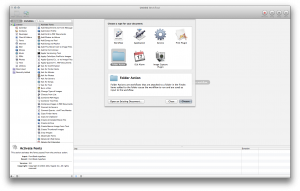
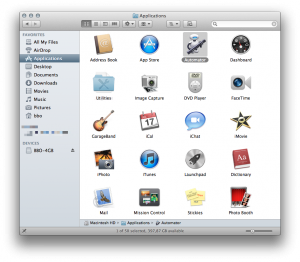
<p>Start the Mac OS Automator to create a new folder action. A folder action we be started if something changes inside a folder. If you plug in a USB flash drive, a folder with the Name of the drive will be created under /Volumes and the drive will be mounted under this directory. This triggers the folder action we will create now</p>
<p><img src="/images/2.-create-folder-action-300x191.png" alt="2.-create-folder-action-300x191"  /></p>
<p>Choose to create a new folder action in the new document dialog.</p>
<p><img src="/images/3.-choose-folder-for-action-300x81.png" alt="3.-choose-folder-for-action-300x81"  /></p>
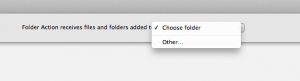
<p>Open the folder dialog to select the /Volumes folder as the trigger for the folder action.</p>
<p><img src="/images/4.-folder-dialog-300x220" alt="4.-folder-dialog-300x220"  />
<img src="/images/5.-goto-folder-dialog-300x220.png" alt="5.-goto-folder-dialog-300x220"  /></p>
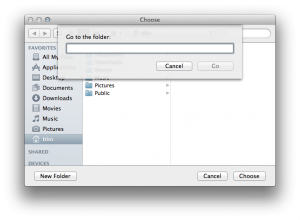
<p>Because /Volumes is not visible in the finder and in the file dialogs you must use
<code>Shift + Command + G</code>
to open the go to folder dialog.</p>
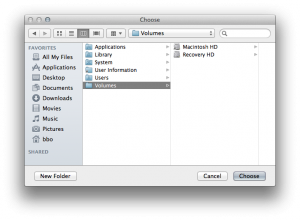
<p><img src="/images/7.-volumes-folder-selected-300x220.png" alt="7.-volumes-folder-selected-300x220"  /></p>
<p>Now the Volumes folder shows up in the file dialog.</p>
<p><img src="/images/8.-select-run-script-action-214x300.png" alt="8.-select-run-script-action-214x300.png"  /></p>
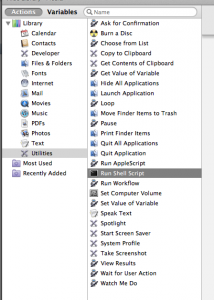
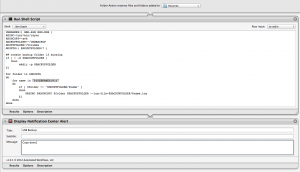
<p>Input the bash script that will run rsync if the name of the USB flash drive matches on of the names in the USBNAMES array.</p>
<p><img src="/images/9-2.-input-rsync-bash-script-plus-notification-300x172.png" alt="9-2.-input-rsync-bash-script-plus-notification-300x172"  /></p>
<p>If you use Mountain Lion you can add a automator action for the Notification Center after the bash script that will run rsync if the name of the USB flash drive matches on of the names in the USBNAMES array. The automator action can be downloaded at [automatedworkflows.com](<a class="gblog-markdown__link" href="http://automatedworkflows.com">http://automatedworkflows.com</a>.</p>
<pre tabindex="0"><code>USBNAMES=( BBO-4GB BBO-8GB )
RSYNC=/usr/bin/rsync
RSYNCOPT=-avh
BACKUPFOLDER=~/USBBACKUP
MOUNTFOLDER=/Volumes 
MOUNTS=( $MOUNTFOLDER/* )

## create backup folder if missing
if [ ! -d $BACKUPFOLDER ]
   then
        mkdir -p $BACKUPFOLDER
fi 

for folder in $MOUNTS
do
	for name in &#34;${USBNAMES[@]}&#34;
	do
		if [ $folder == &#34;$MOUNTFOLDER/$name&#34; ]
		then
			$RSYNC $RSYNCOPT $folder $BACKUPFOLDER --log-file=$BACKUPFOLDER/$name.log
		fi
	done
done
</code></pre><p><img src="/images/10.-save-folder-action-300x153.png" alt="10.-save-folder-action-300x153"  />
<img src="/images/11.-name-the-action-300x69.png" alt="11.-name-the-action-300x69"  /></p>
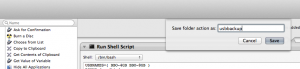
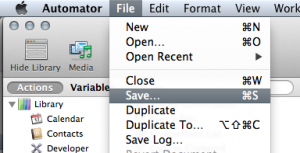
<p>Save the folder action and give it a meaningful name.</p>
<p><img src="/images/12.-workflow-in-status-bar-300x79.png" alt="12.-workflow-in-status-bar-300x79"  /></p>
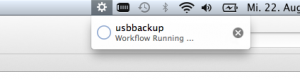
<p>If you connect the USB flash drive the workflow icon will show up in the status bar and it will disappear if the script has been finished.</p>
<p><img src="/images/13.-content-of-backup-folder-274x300.png" alt="13.-content-of-backup-folder-274x300"  /></p>
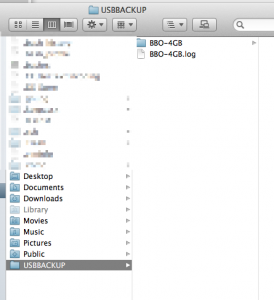
<p>After the workflow has finished you should see the new USBBACKUP folder in your home directory, the backup folder for the flash drive and the rsync logfile for that drive.</p>
<p>It is also possible to use <a class="gblog-markdown__link" href="http://growl.info/">Growl</a> notifications to report the status of the workflow, but i used the Mountain Lion notifications after i have upgraded my macbook.</p>
]]></content><category scheme="https://www.batchworks.de/authors/birk-bohne" term="birk-bohne" label="birk-bohne"/><category scheme="https://www.batchworks.de/tags/automator" term="automator" label="automator"/><category scheme="https://www.batchworks.de/tags/macos-x" term="macos-x" label="macos x"/><category scheme="https://www.batchworks.de/tags/rsync" term="rsync" label="rsync"/></entry></feed>